Getting Started
New to BG HR AI? Follow this step-by-step guide to set up your account, build your first organigram, and explore every service on the platform.
Recent updates
- New: a picture for every step — the whole guide was redone on the real platform, with a screenshot under each step.
- New: Recruitment automation — in each project, choose Manual, Assisted or Full, with an optional pause before any stage (section 3).
- New: Keep your account safe — two-step login (2FA), active sessions and login activity (section 16).
- Job Postings — publish roles on the public job board, with resume-only or full-test applications and custom questions.
- Public Talent Pool — candidates can self-screen at bghrai.com/talent-pool and show up in your Candidates page.
Quick Navigation
Create Your Account
First, you need your own BG HR AI account. It takes about one minute.
Open the login page
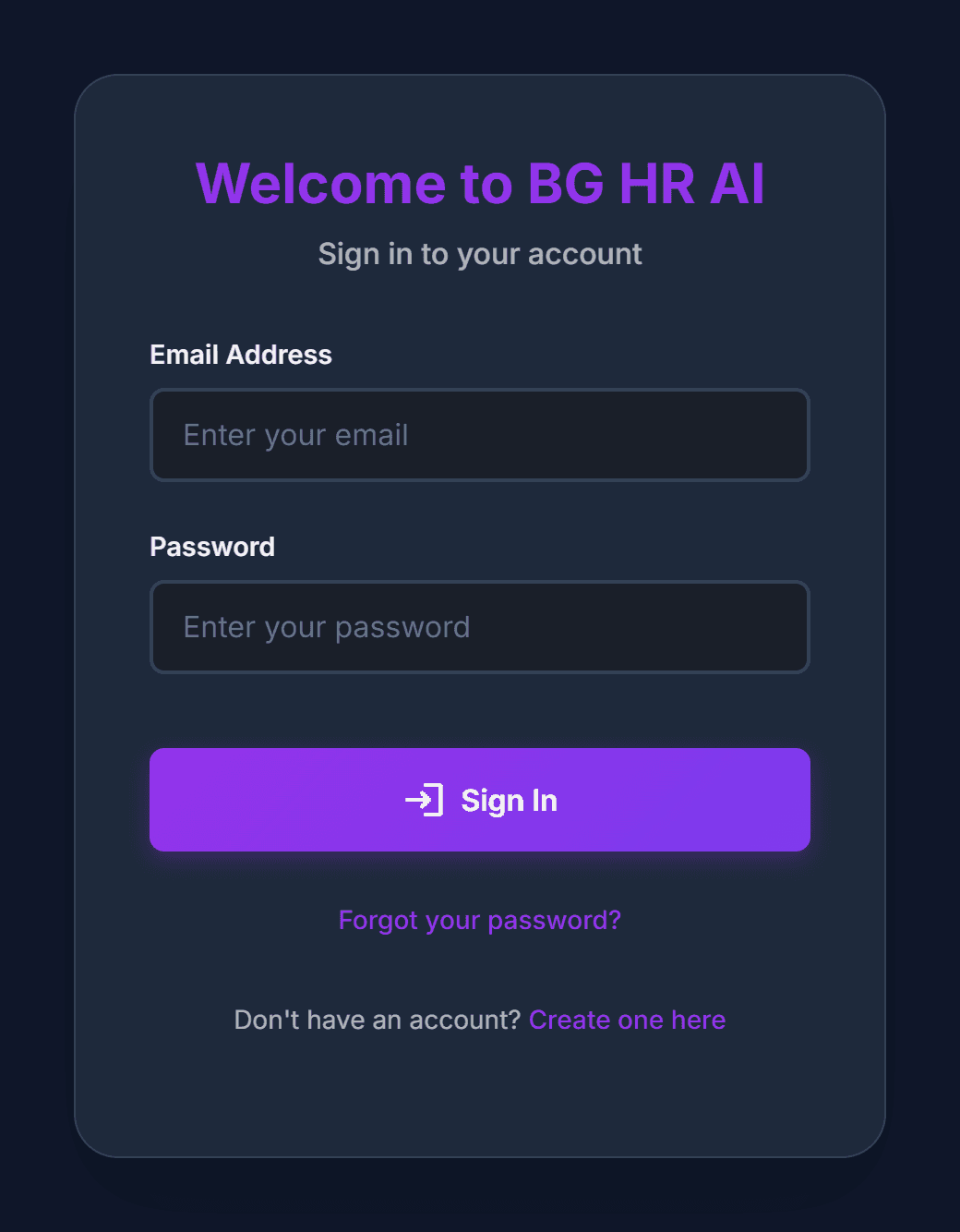
On the website, click “Login” at the top right. You will see the “Welcome to BG HR AI” page.
Open the sign-up form
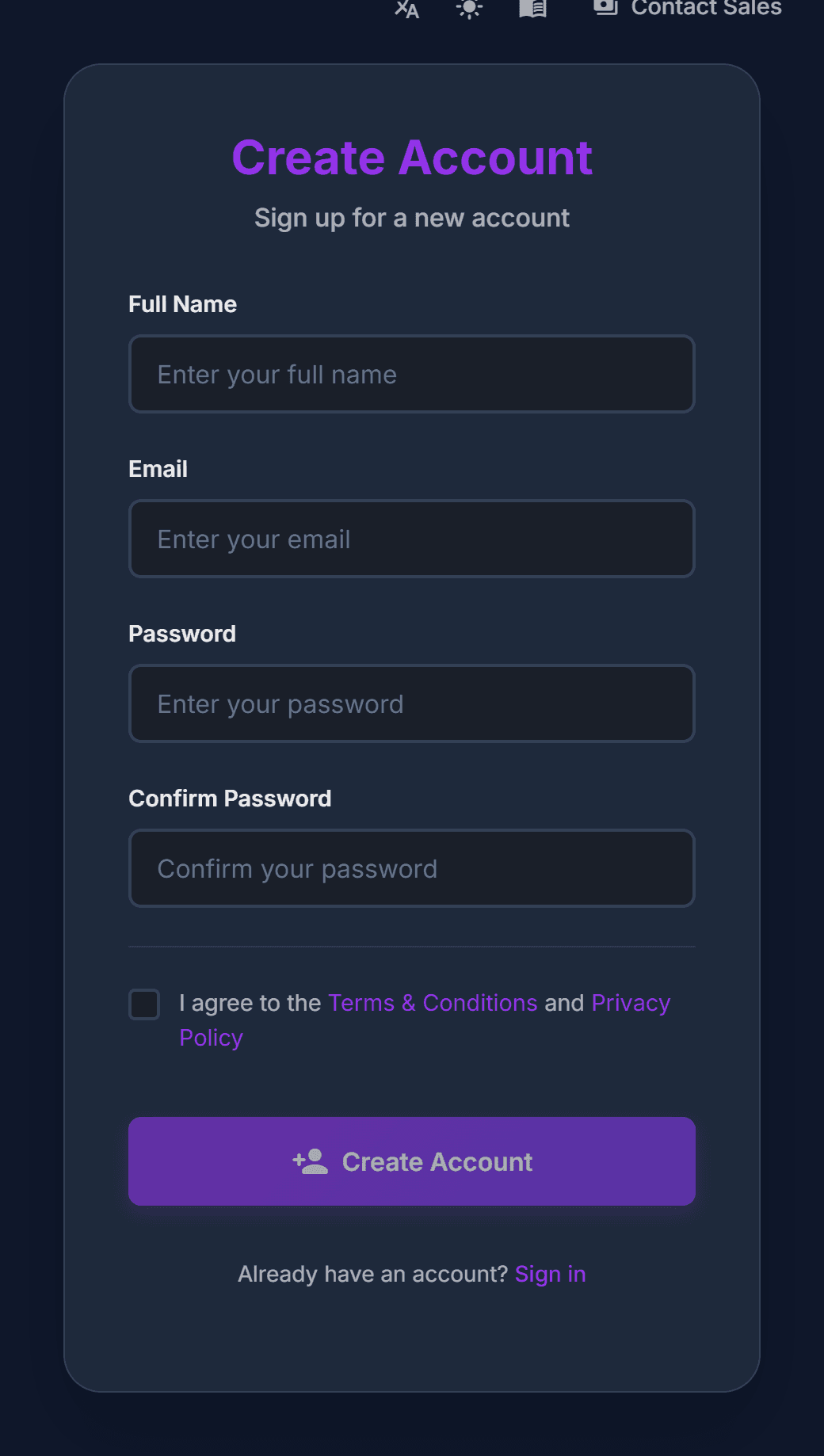
Under the “Sign In” button, click “Create one here”. The “Create Account” form opens.
Fill in the form and confirm your email
Type your full name, your work email and a password (twice). Tick the box to accept the terms, then click “Create Account”. Open the email we send you and click the link inside to confirm your address.
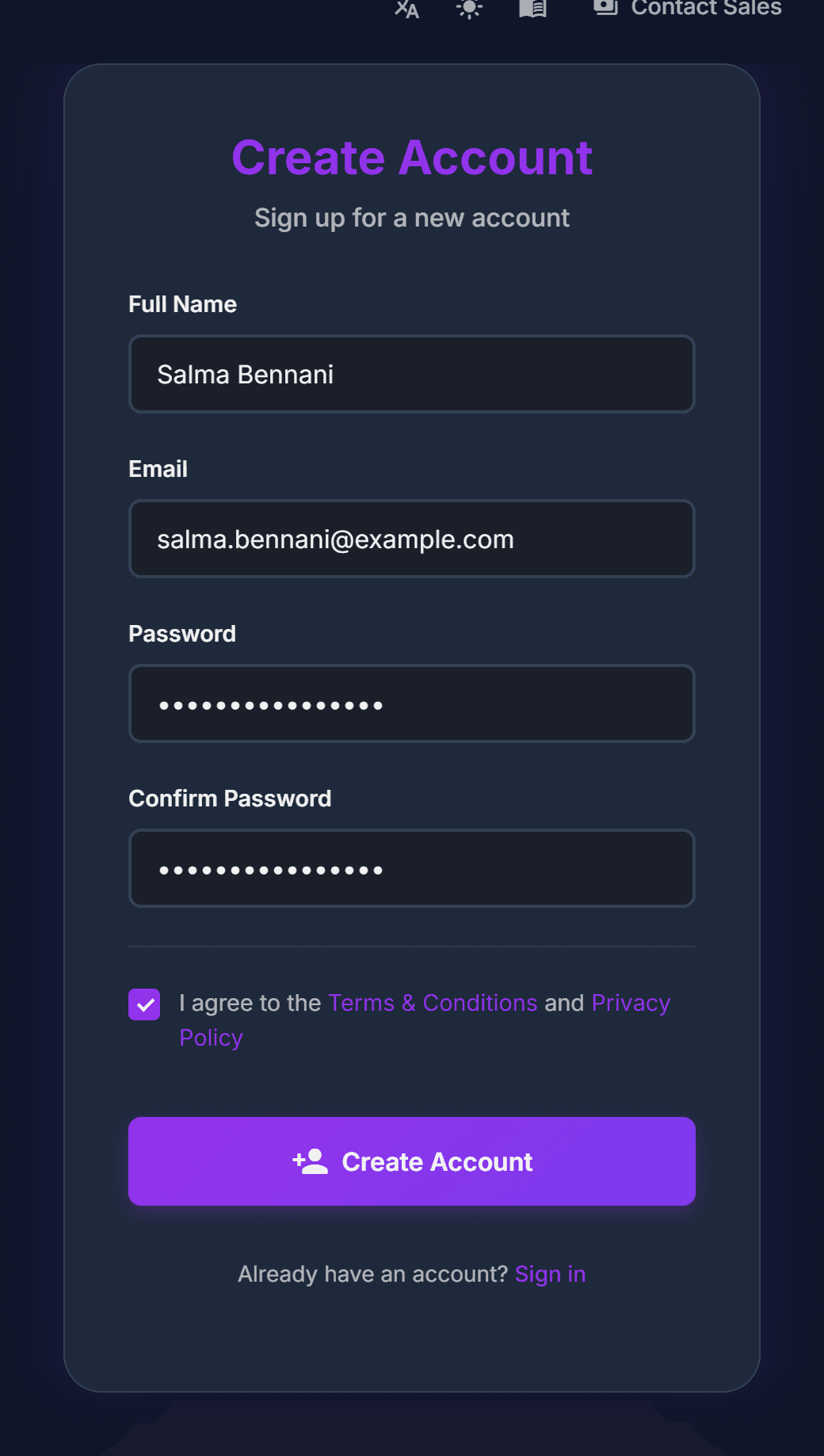
Use your work email: your colleagues will join the same company space later.
Get Your Company Set Up
To use the services, your company (we call it your “firm”) needs a plan. Our team sets it up with you.
Open “Contact Sales”
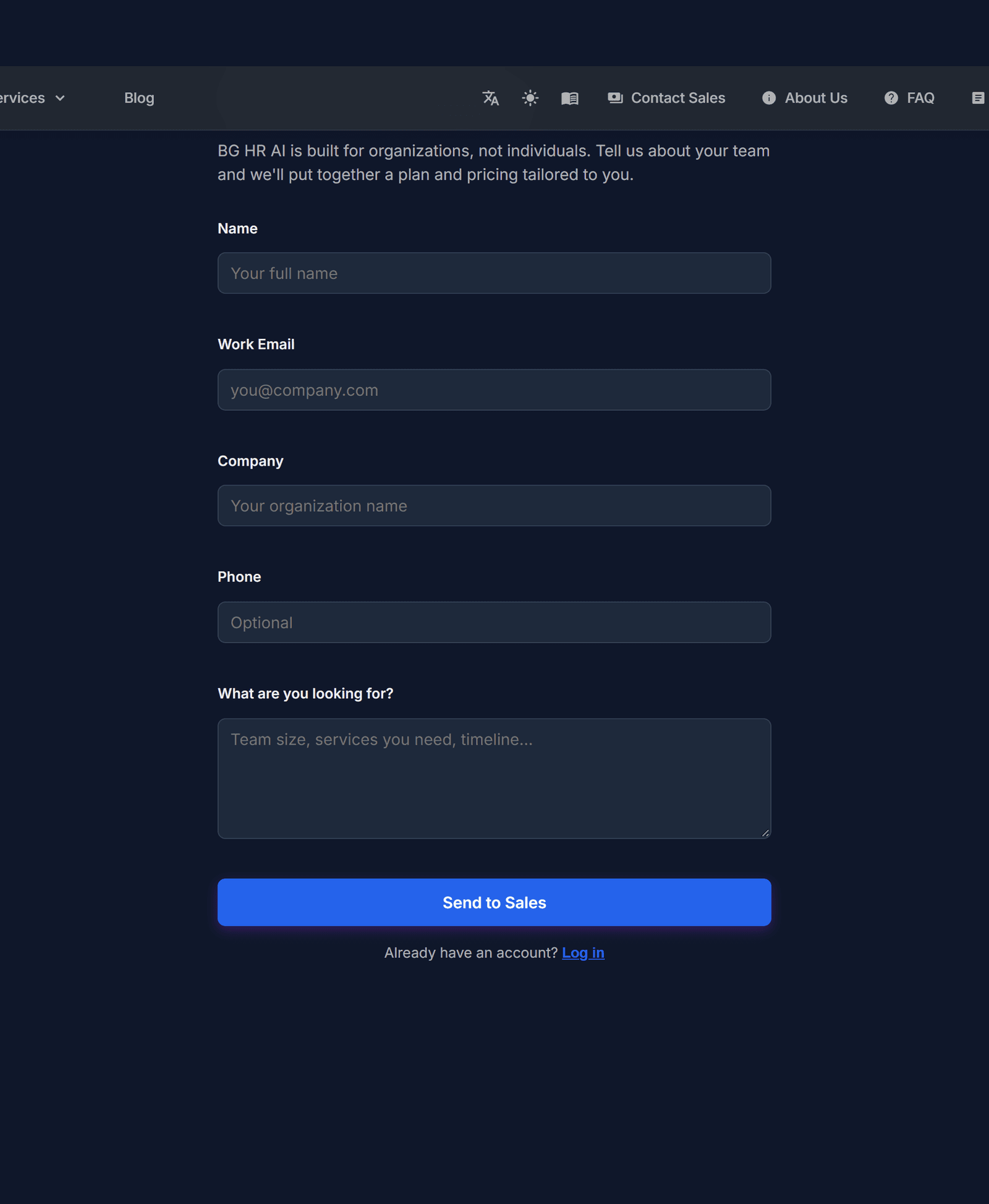
Click “Contact Sales” in the top menu.
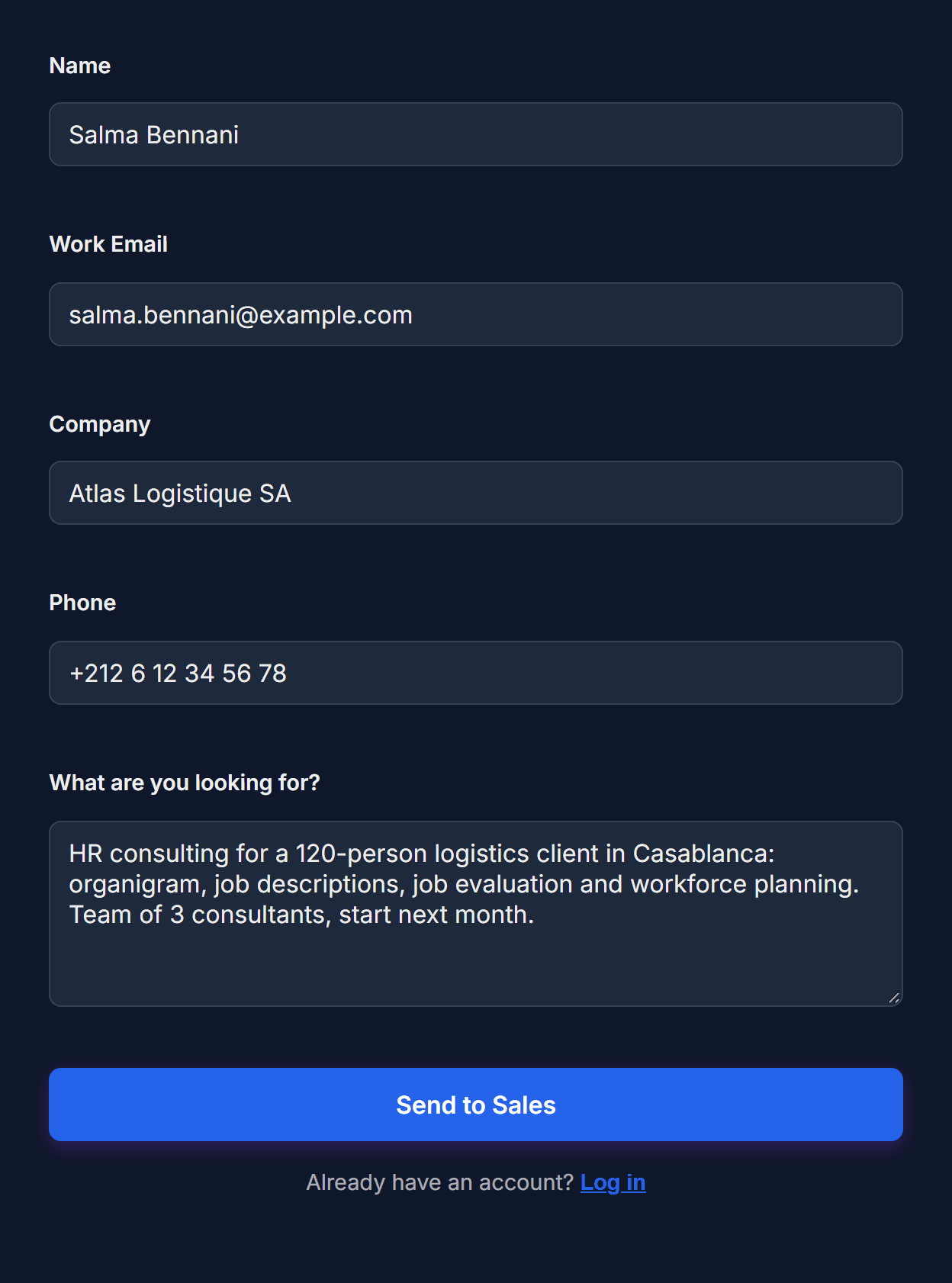
Tell us what you need
Fill in your name, work email, company and phone. In “What are you looking for?”, write which services you want. Click “Send to Sales”. We contact you and switch on your plan.
Once your plan is active, every service included in it appears in the “Services” menu.
Your Team and Your Projects
A project groups all the work for one client (or one department): job descriptions, evaluations, candidates and more.
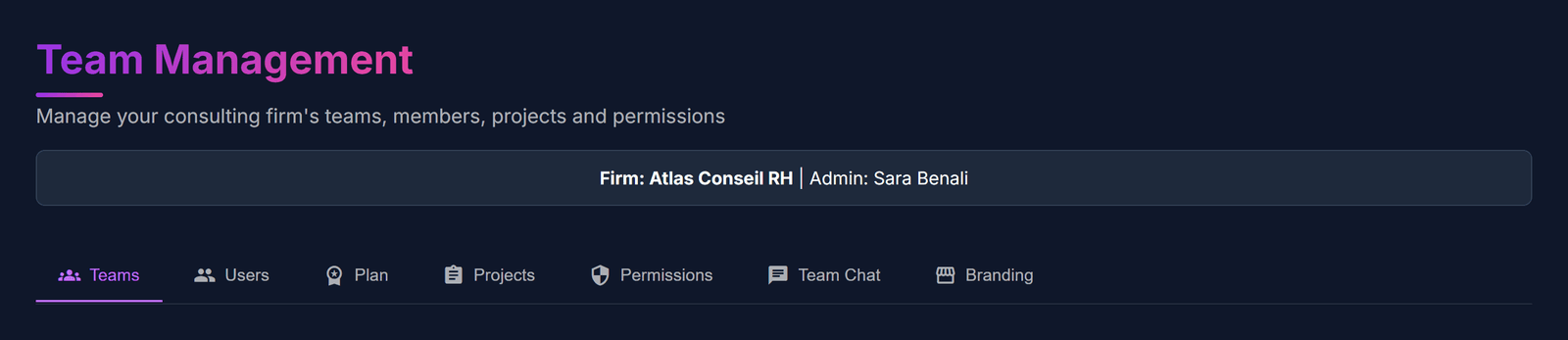
Open Team Management
Click the shield icon in the top bar. You will see tabs: Teams, Users, Plan, Projects, Permissions, Team Chat and Branding.
Create a team
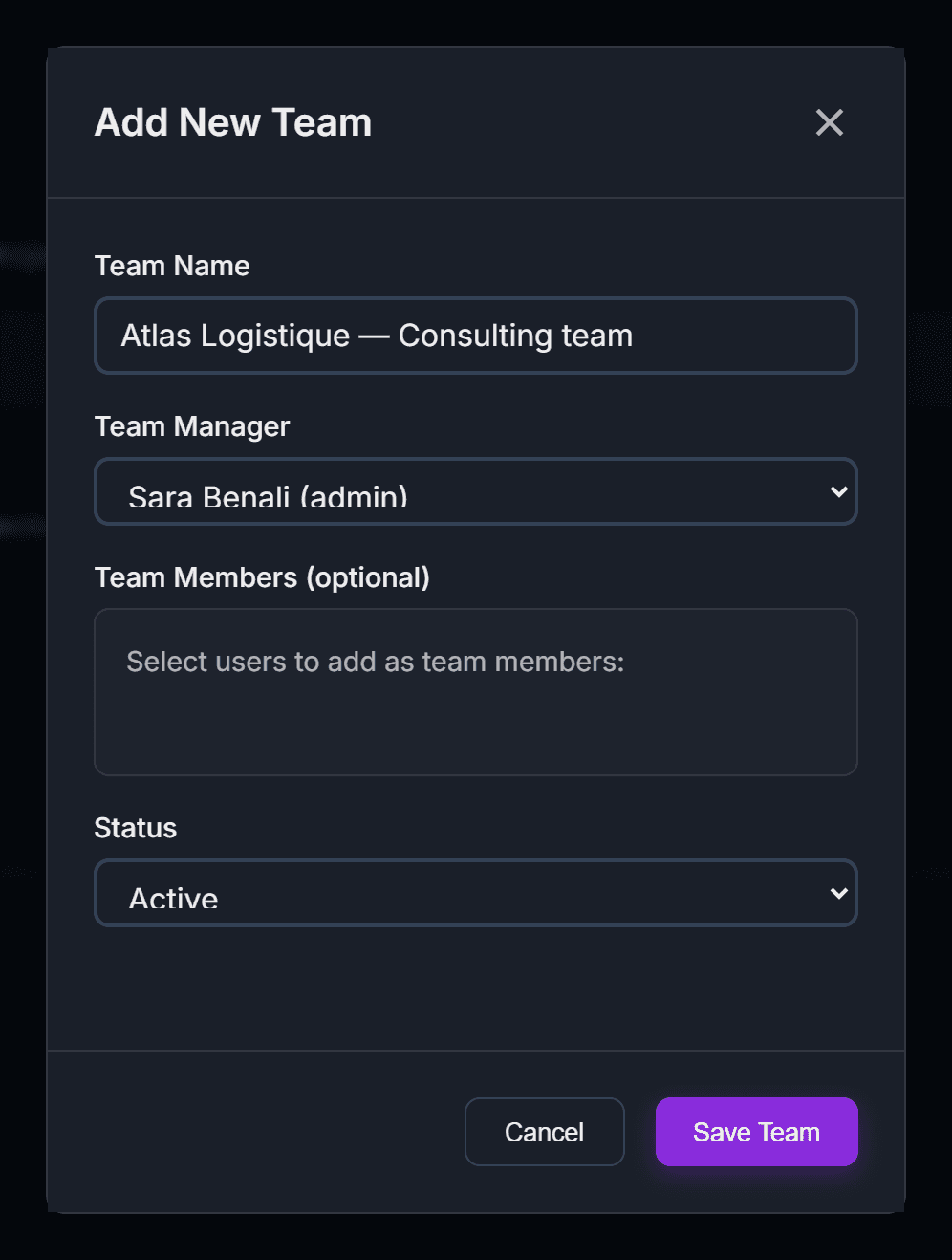
In the “Teams” tab, click “Add Team”. Give it a name, choose its manager, tick the members if you want, then click “Save Team”.
Check your team
Your new team now appears in the “Team Overview” table.

Create a project
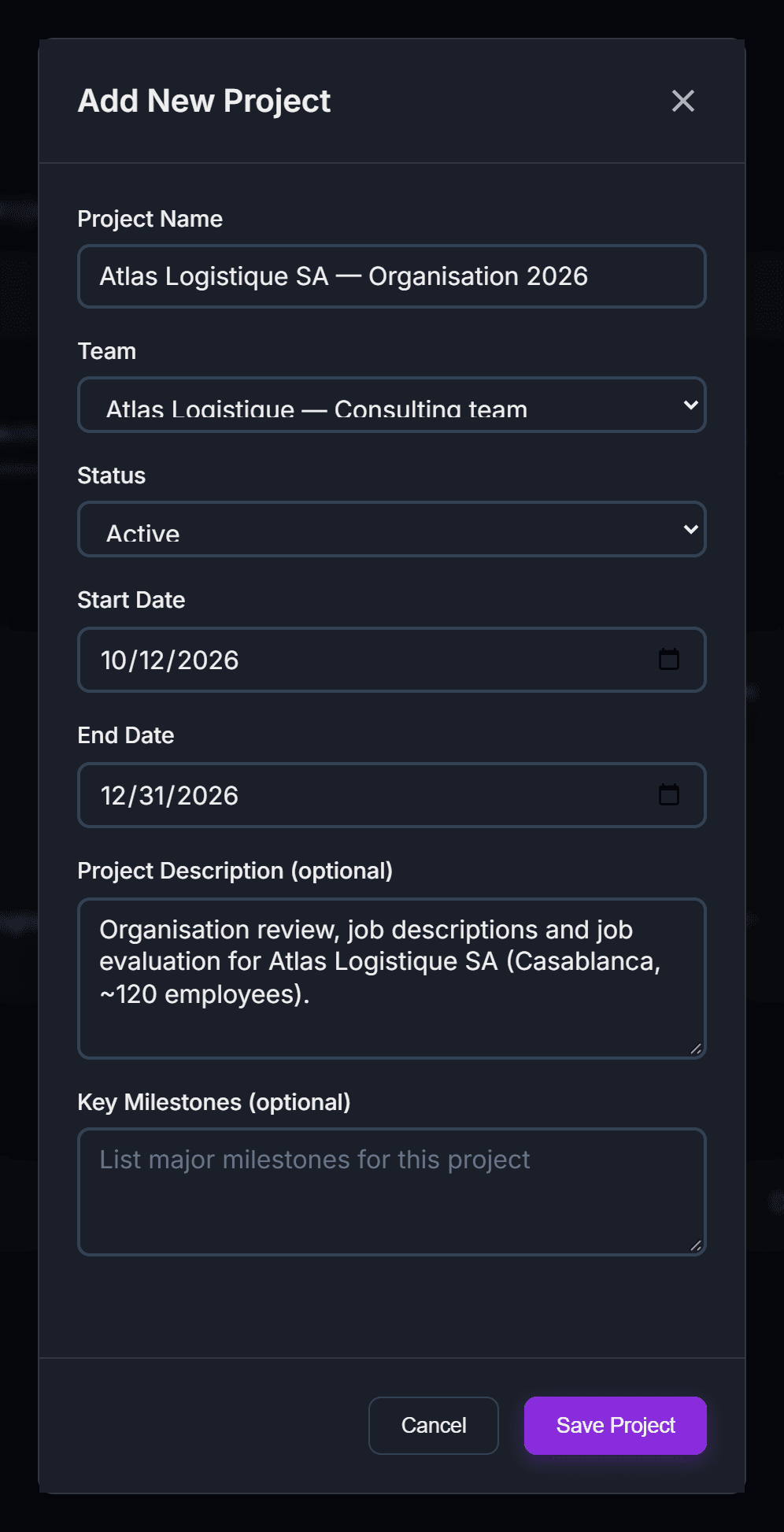
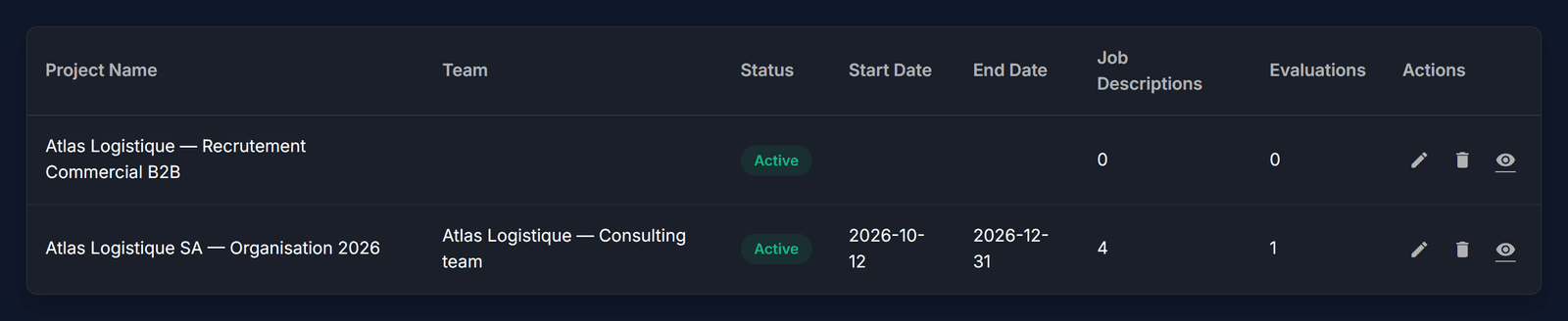
In the “Projects” tab, click “Add Project”. Type the project name (often the client’s name), pick the team, the status and the dates, then click “Save Project”.
Open the project
Your project is now in the list. Click the eye icon to open it.
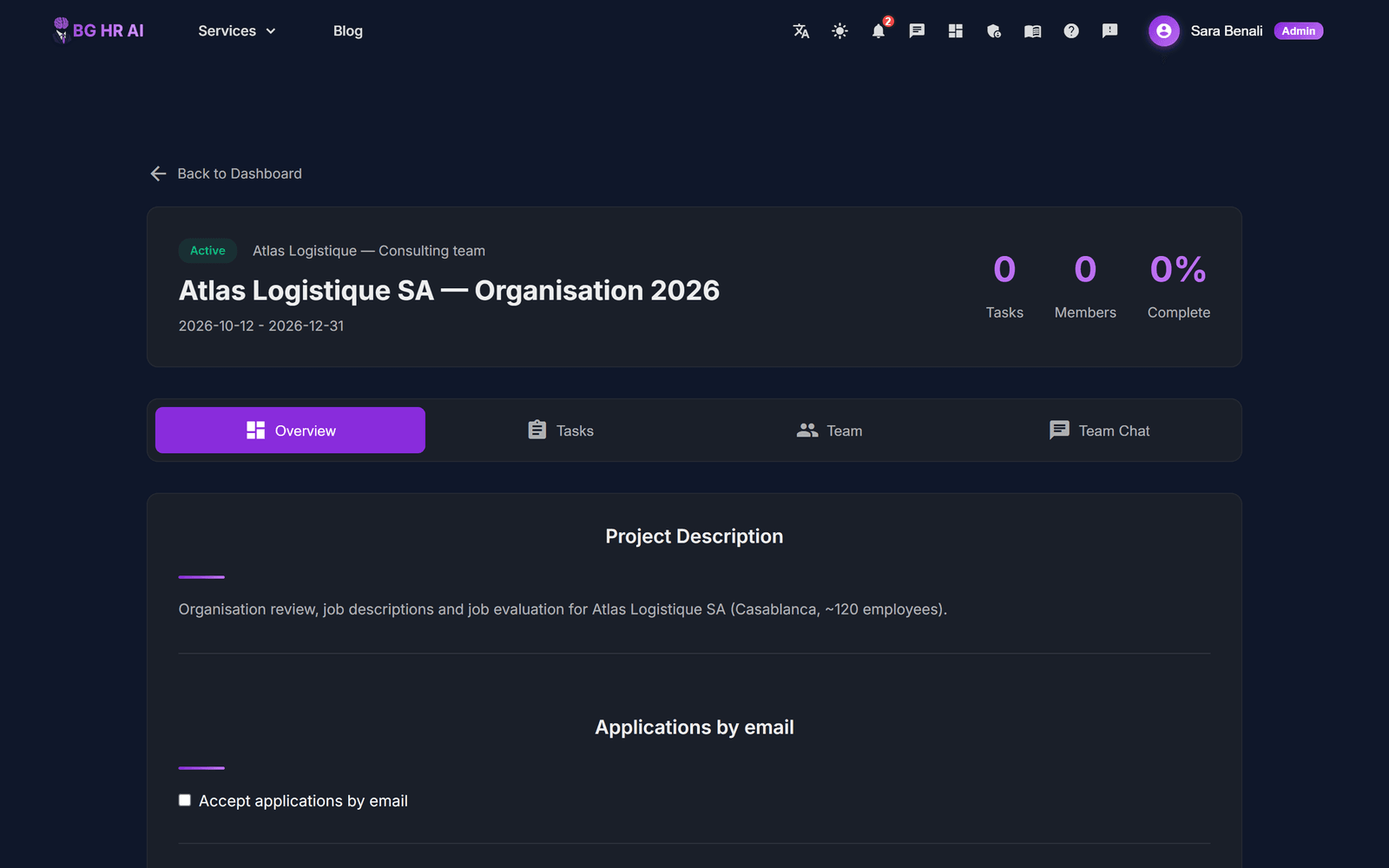
Everything for this client in one place
The project page shows all the work done for this client: job descriptions, evaluations, candidates and progress.
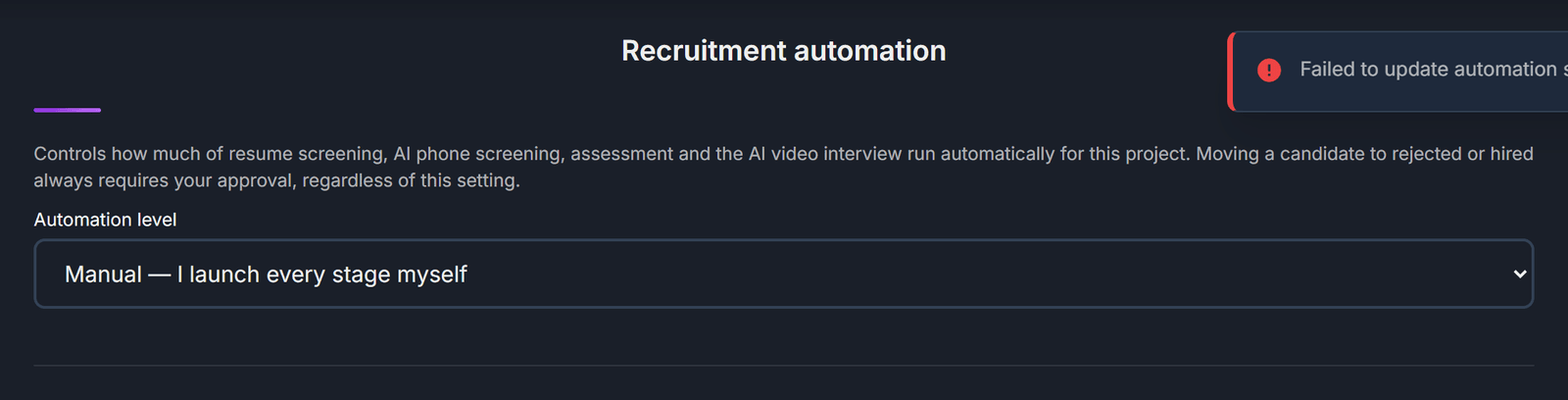
Choose how much runs on its own
In “Recruitment automation”, choose “Manual” (you launch every step), “Assisted” (the next step starts by itself, then waits for you) or “Full” (every step runs in a row). With “Always pause before” you can still stop before a chosen step.
Invite colleagues from the “Users” tab. Team Members can work in projects; only Team Admins manage the team and the plan.
Organigram
Draw your organisation chart in minutes: list the roles, and the AI builds the chart for you.
Open the Organigram service
Click “Services”, then “Organigram”. Choose a project, then click “Add organigram”.
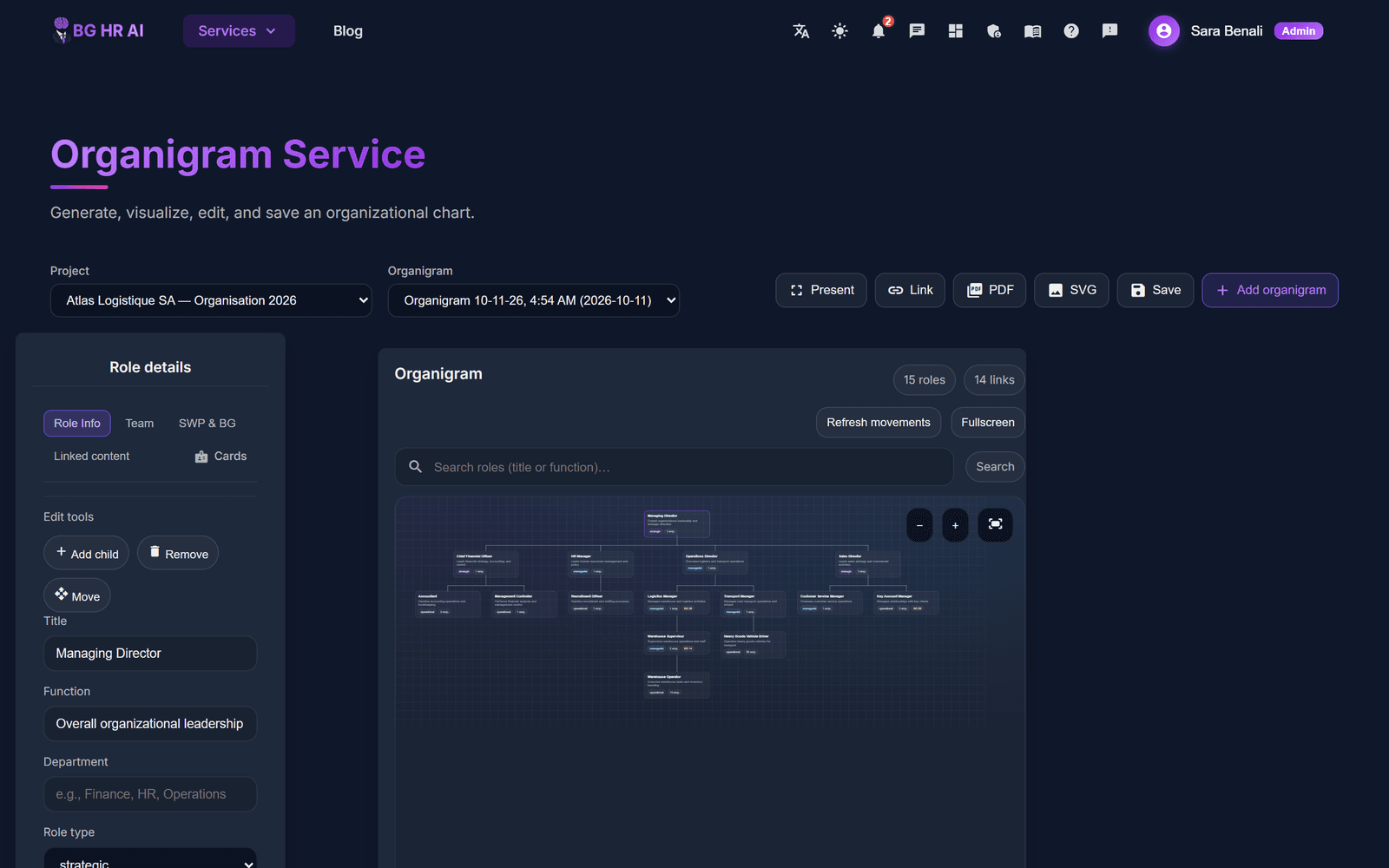
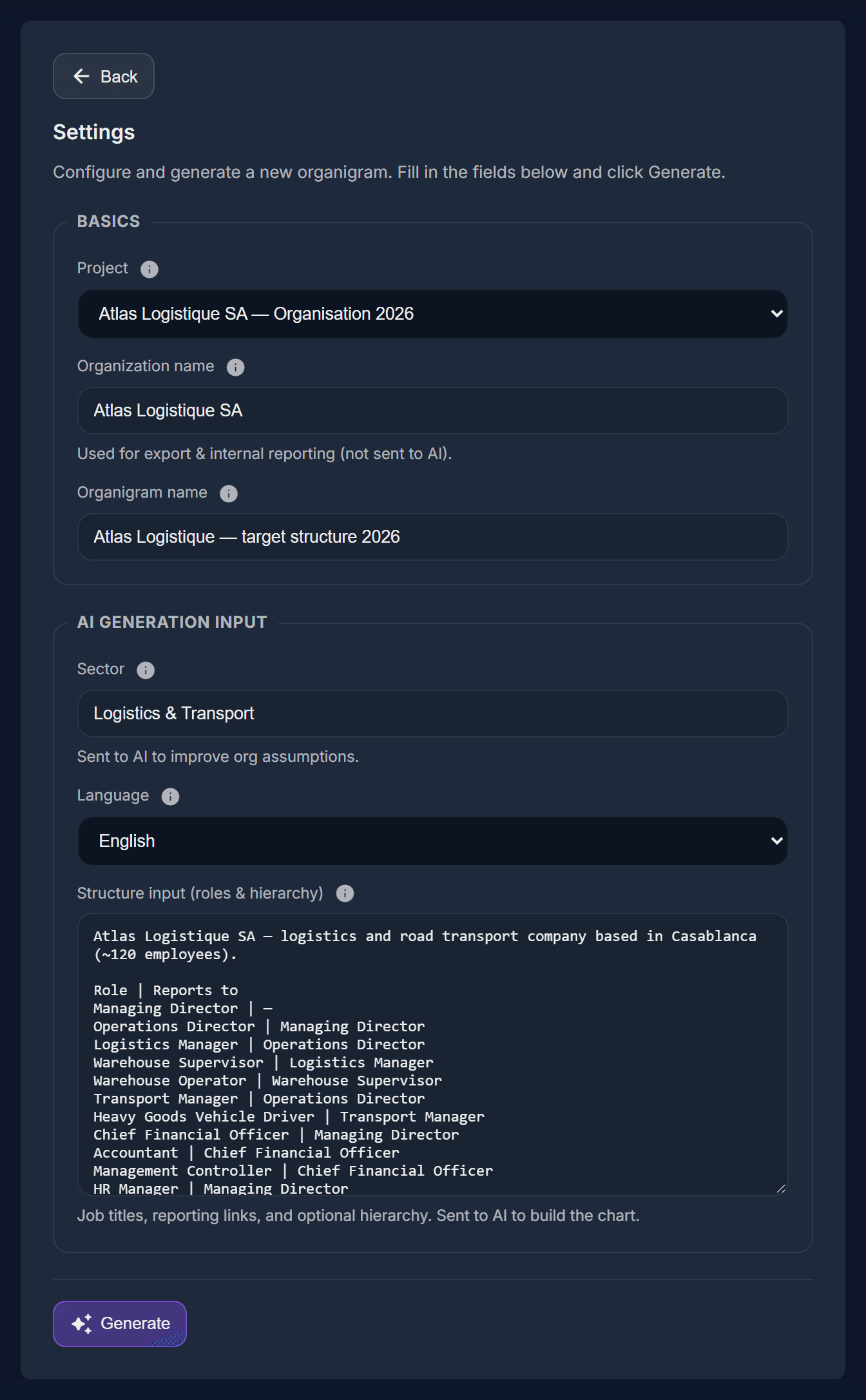
Describe your organisation
Fill in the organisation name, the organigram name, the sector and the language. In the roles box, write one role per line, like this: “Role | Manager”. Then click “Generate”.
Wait for the chart
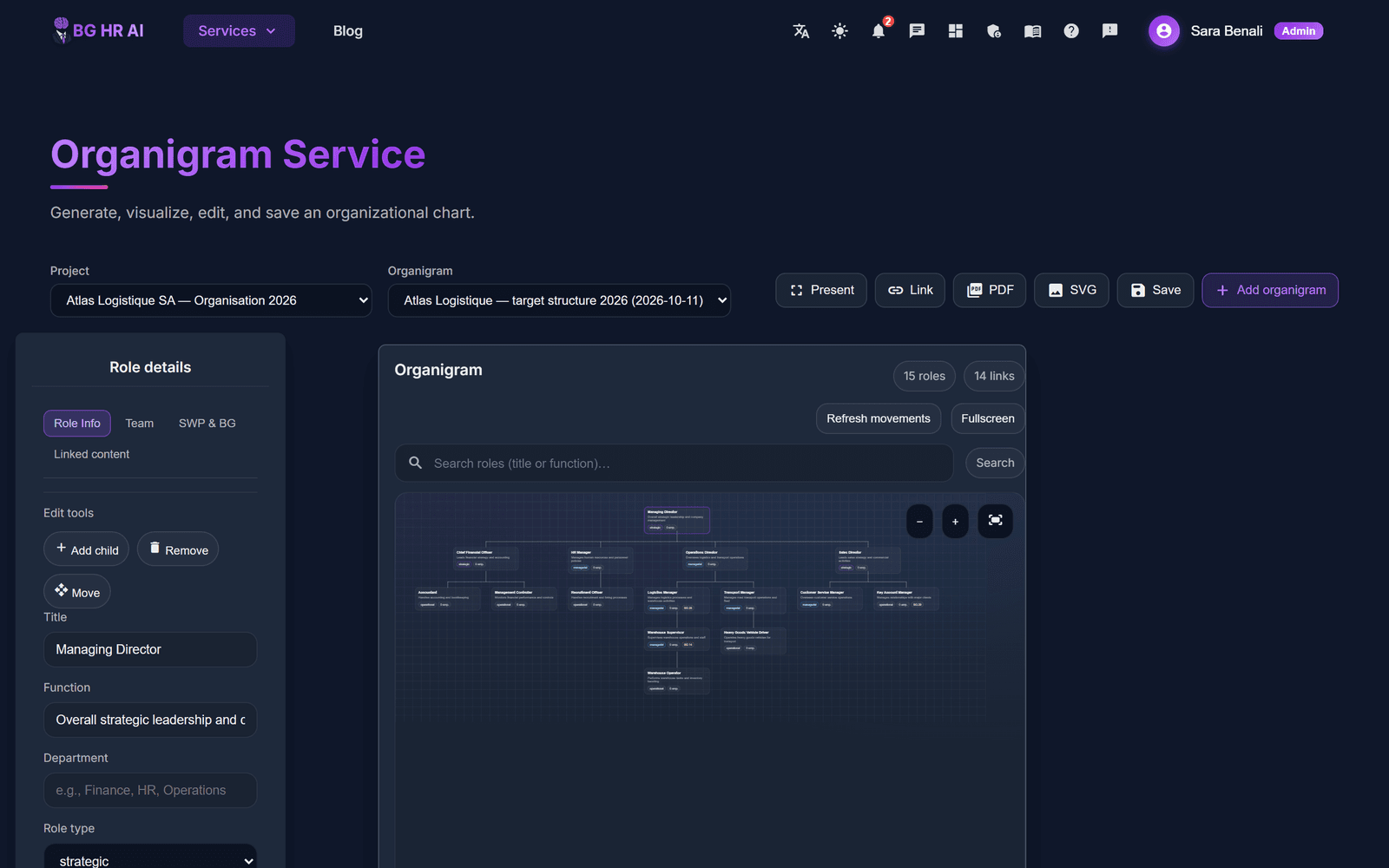
After 30 to 60 seconds the chart appears. It is saved automatically. Use the zoom buttons to look around.
See the whole chart
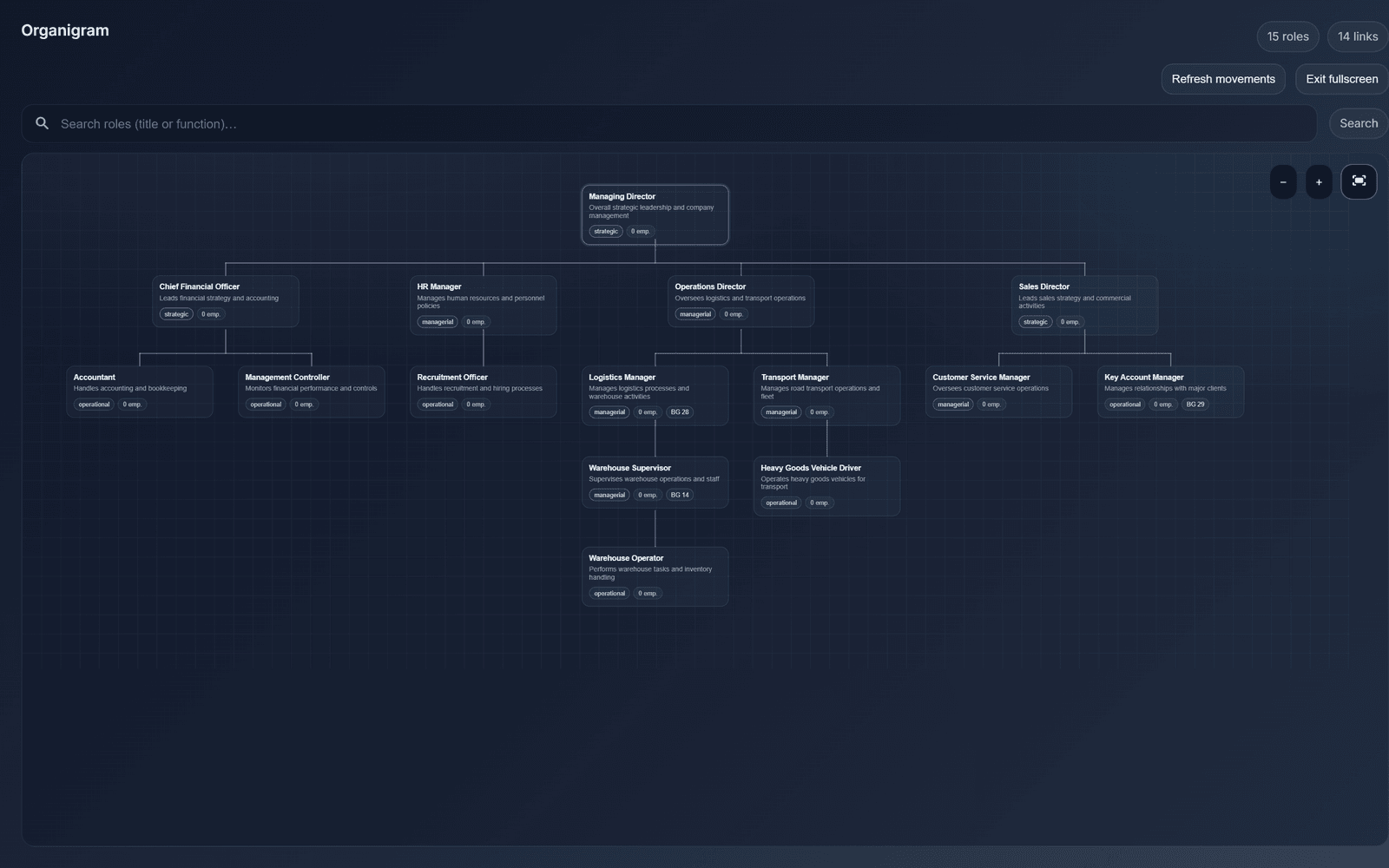
Click “Fullscreen”, then “Fit to view”. Each box is a role, with its level and how many people hold it.
Change a role
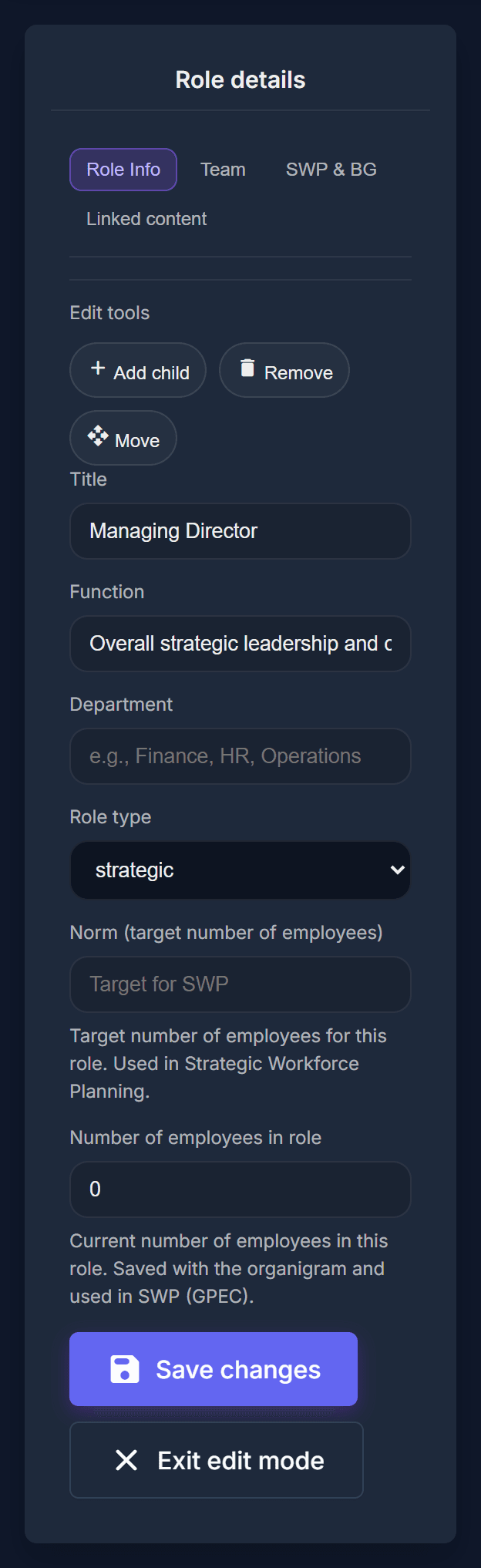
Click any box to open its details. Change the title, level, function, headcount or manager, then click “Save”.
Share the chart with “Link”, or download it as a PDF or an SVG image with the buttons above it.
Job Description
Get a complete, professional job description from a job title and a few lines.
Open the Job Description service
Click “Services”, then “Job Description”.
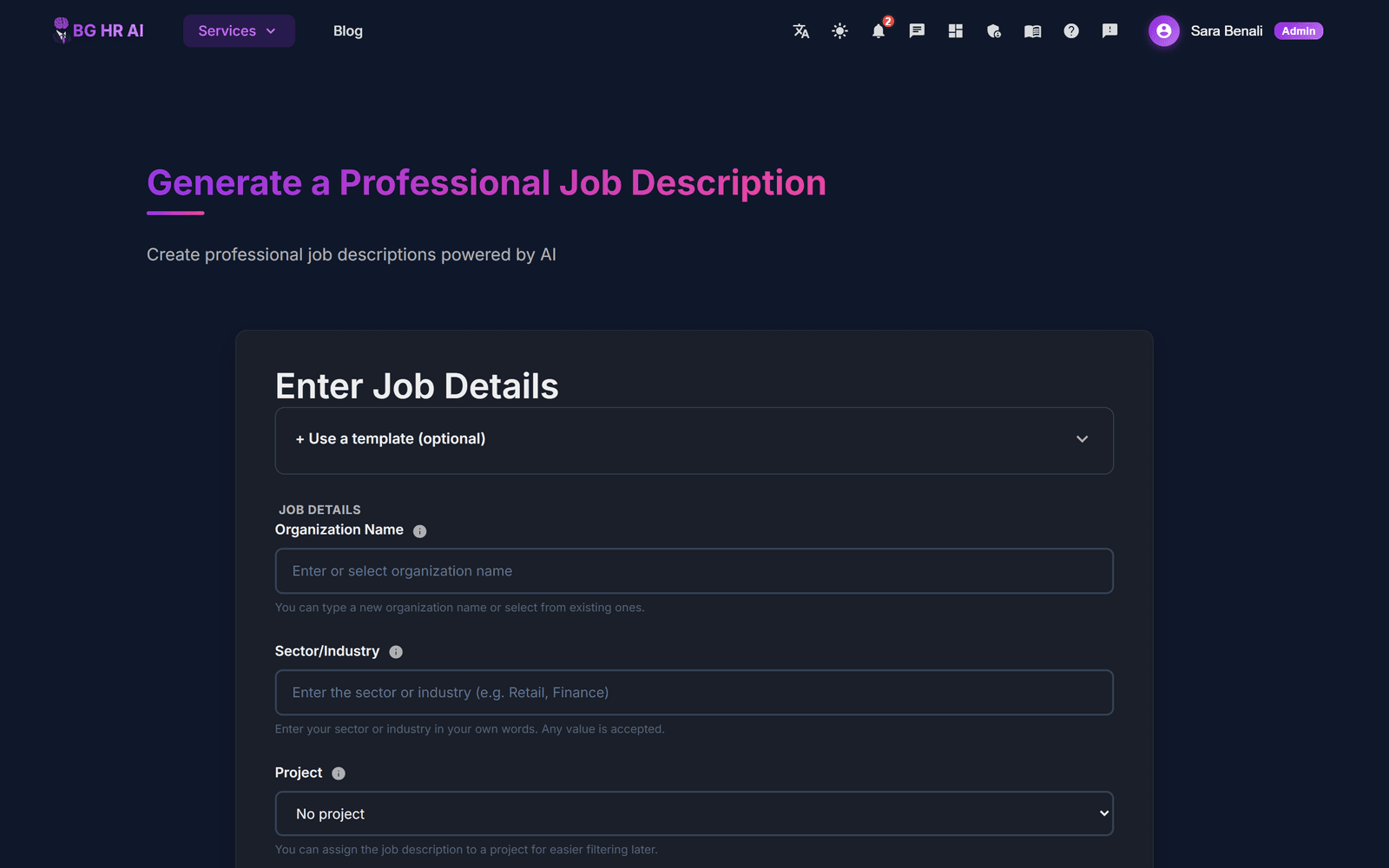
Fill in the short form
Type the organisation name, the sector, choose the project, the job title, a short summary and the language. You can also pick your own Word template.
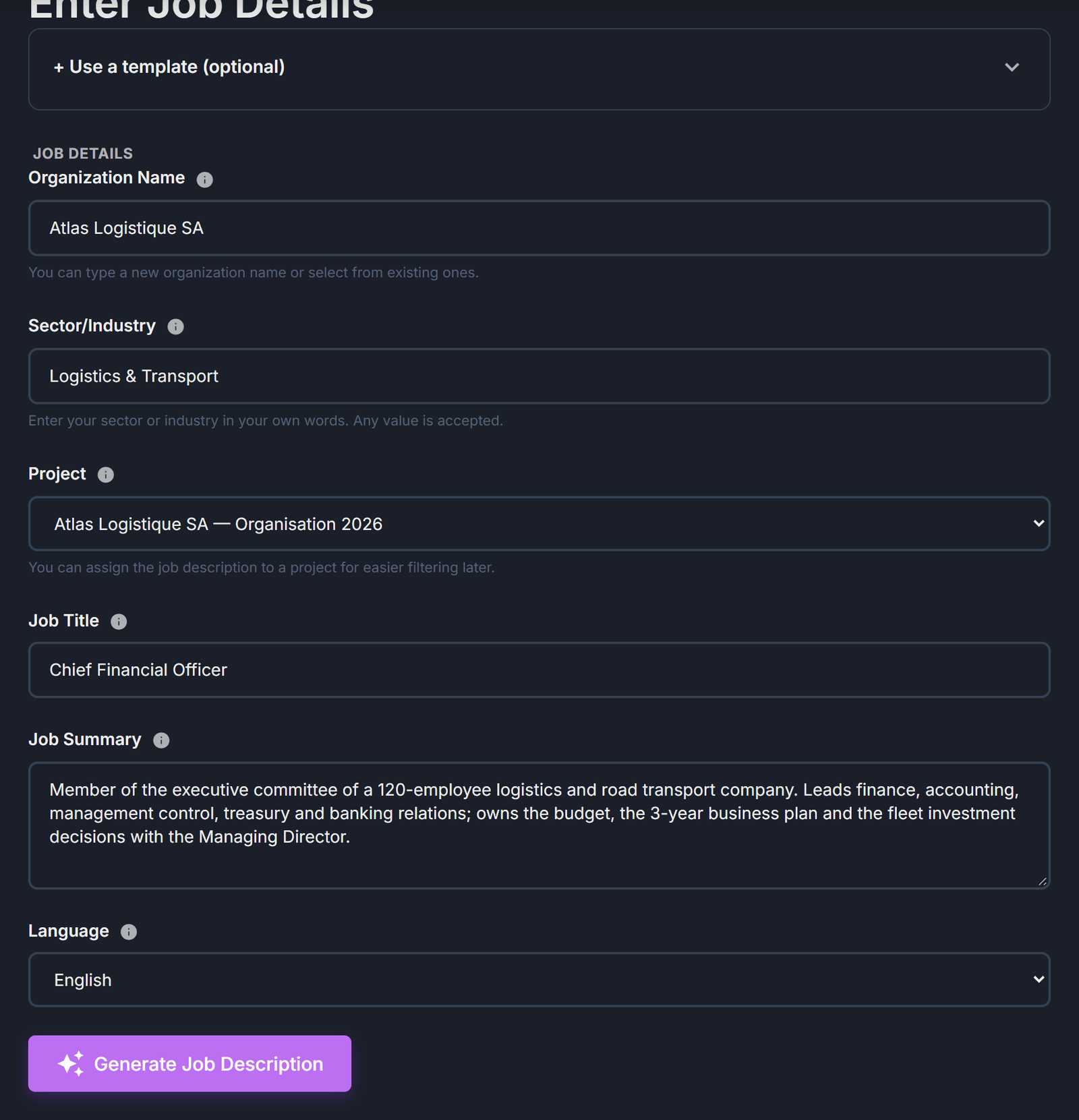
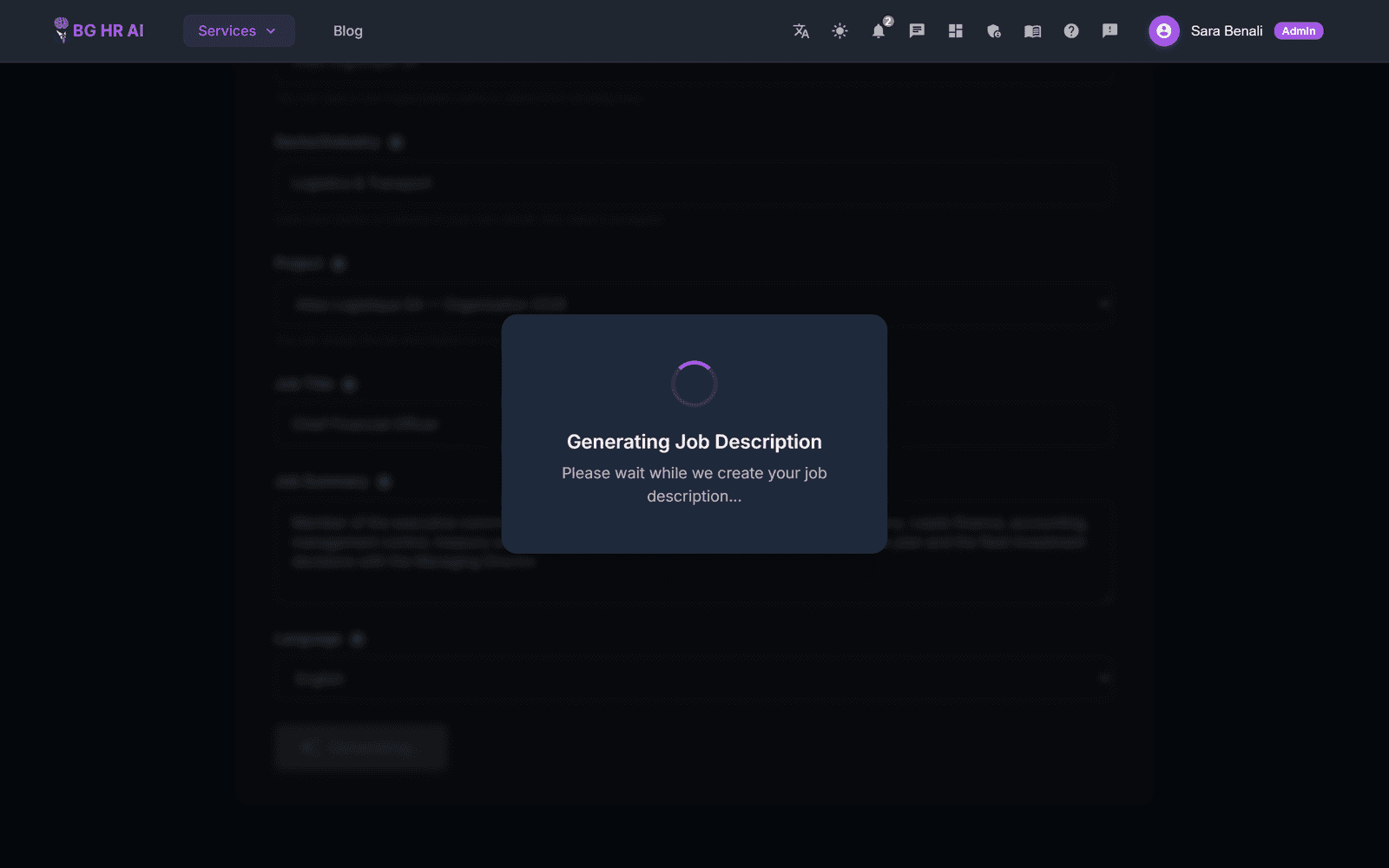
Click “Generate”
The AI writes the job description. It takes about 30 to 60 seconds.
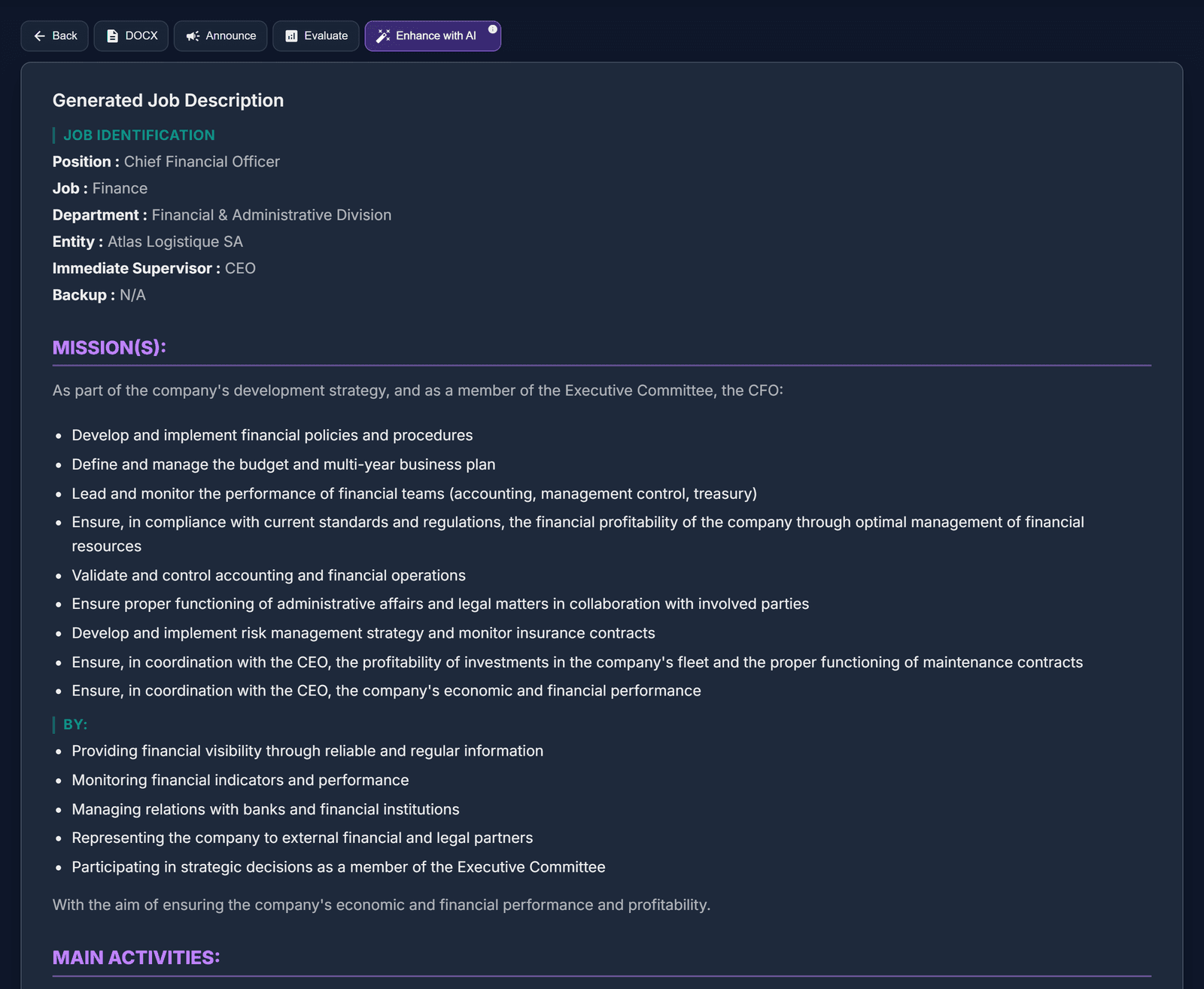
Read the result
The buttons at the top let you go “Back”, download a “DOCX”, “Announce” the job on the Job Board, “Evaluate” it, or improve it with “Enhance with AI”.
Download it
Click “DOCX” to get the job description as a Word document.

Not happy with one part? Click “Enhance with AI” and say what to change. Every version is kept in the history.
Job Evaluation (BG)
Measure how big and how demanding a job is, with a clear score you can compare across jobs.
Open the Job Evaluation service
Click “Services”, then “Job Evaluation”.
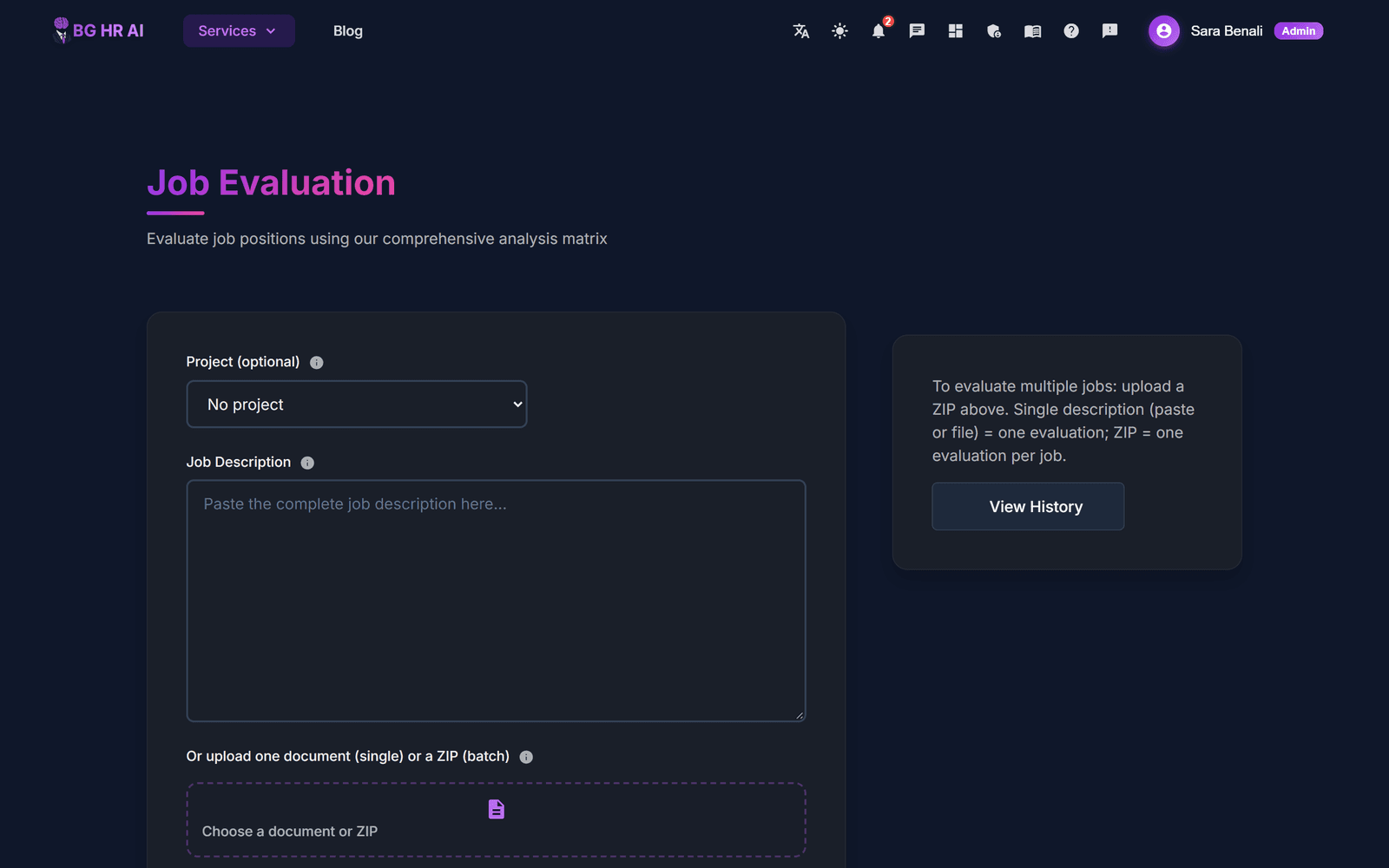
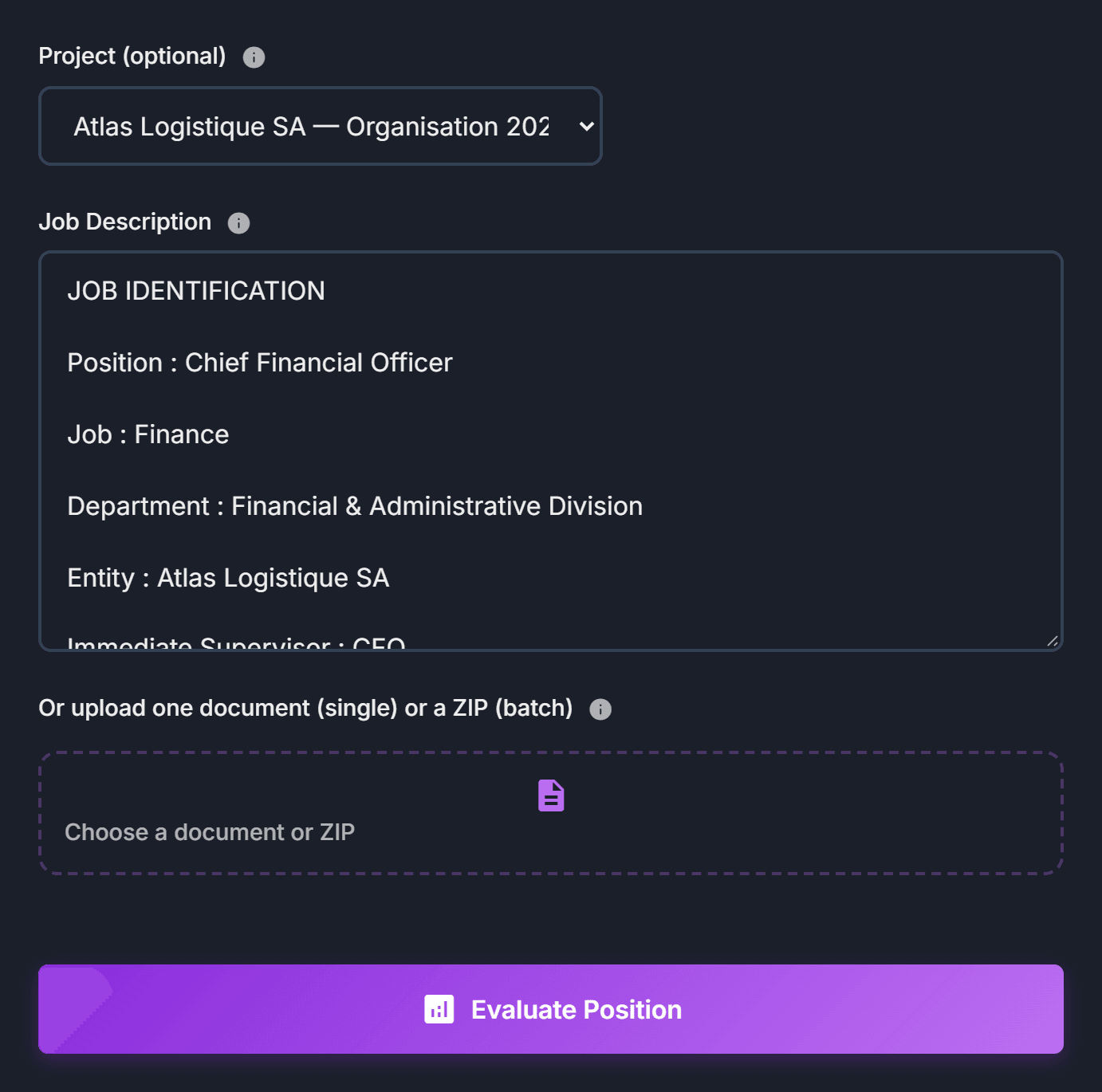
Give it the job description
Pick the project, then paste the job description — or upload it as a PDF or Word file.
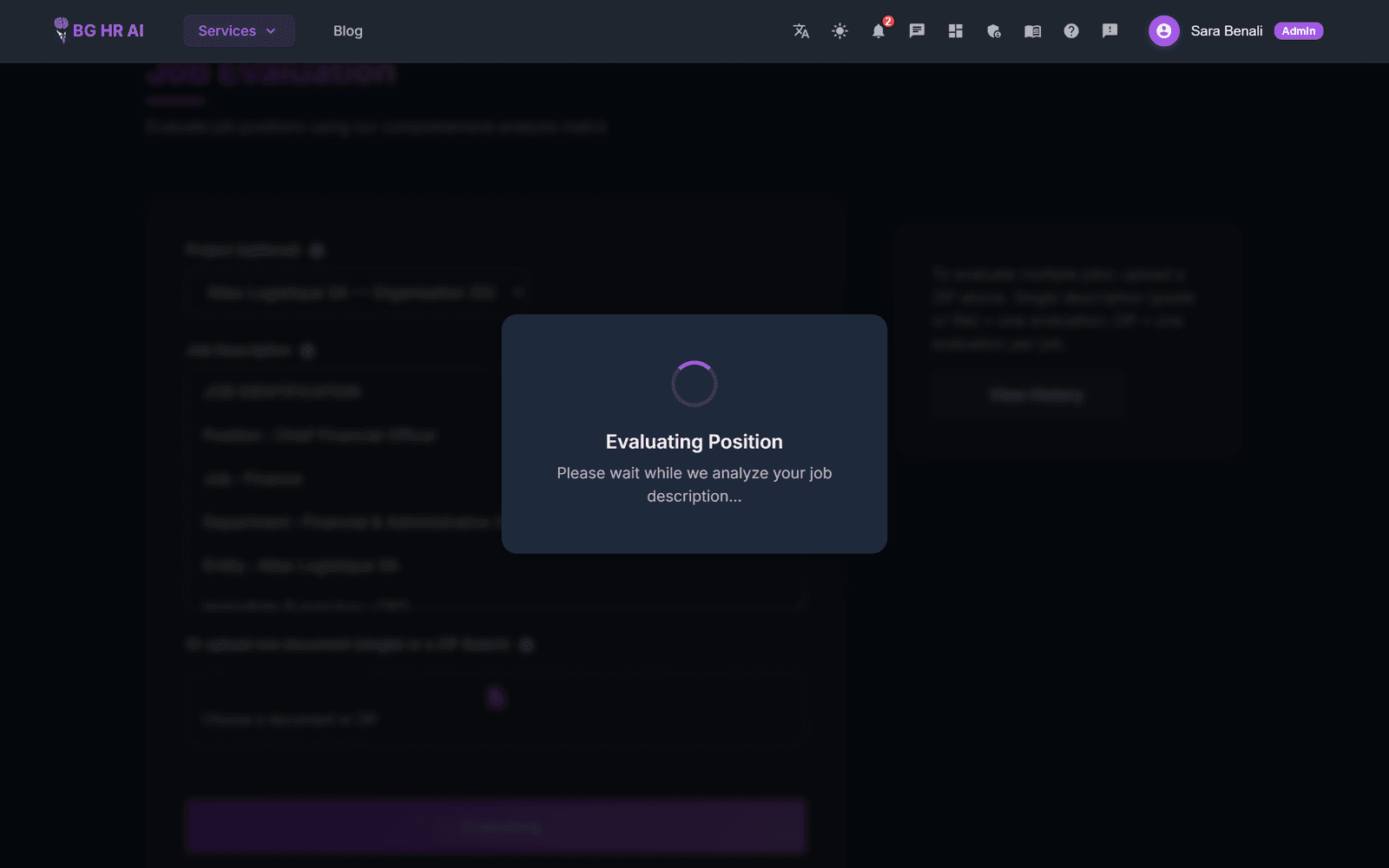
Click “Evaluate Position”
The AI evaluates the job. It takes about 30 to 60 seconds.
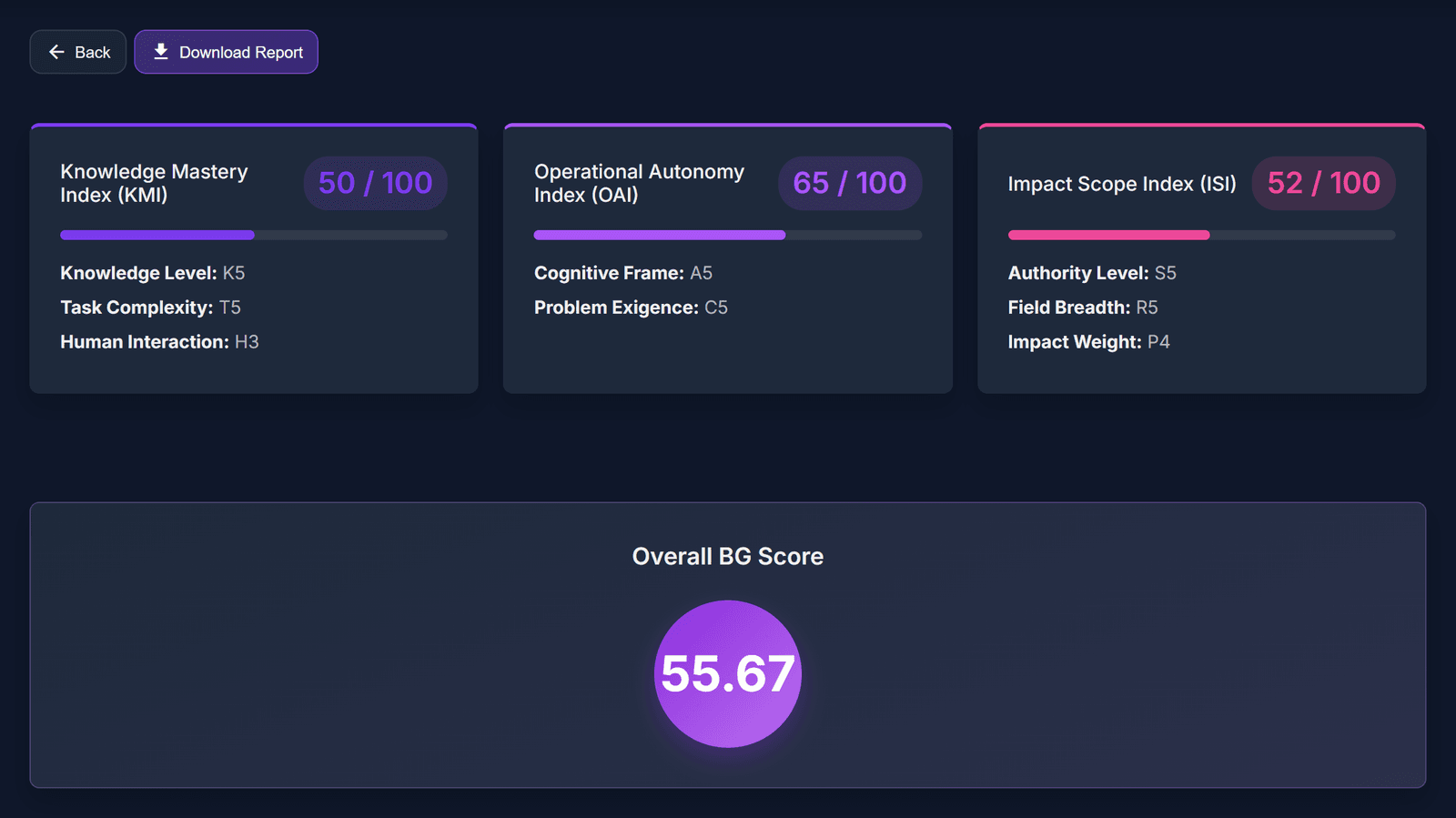
Read the scores
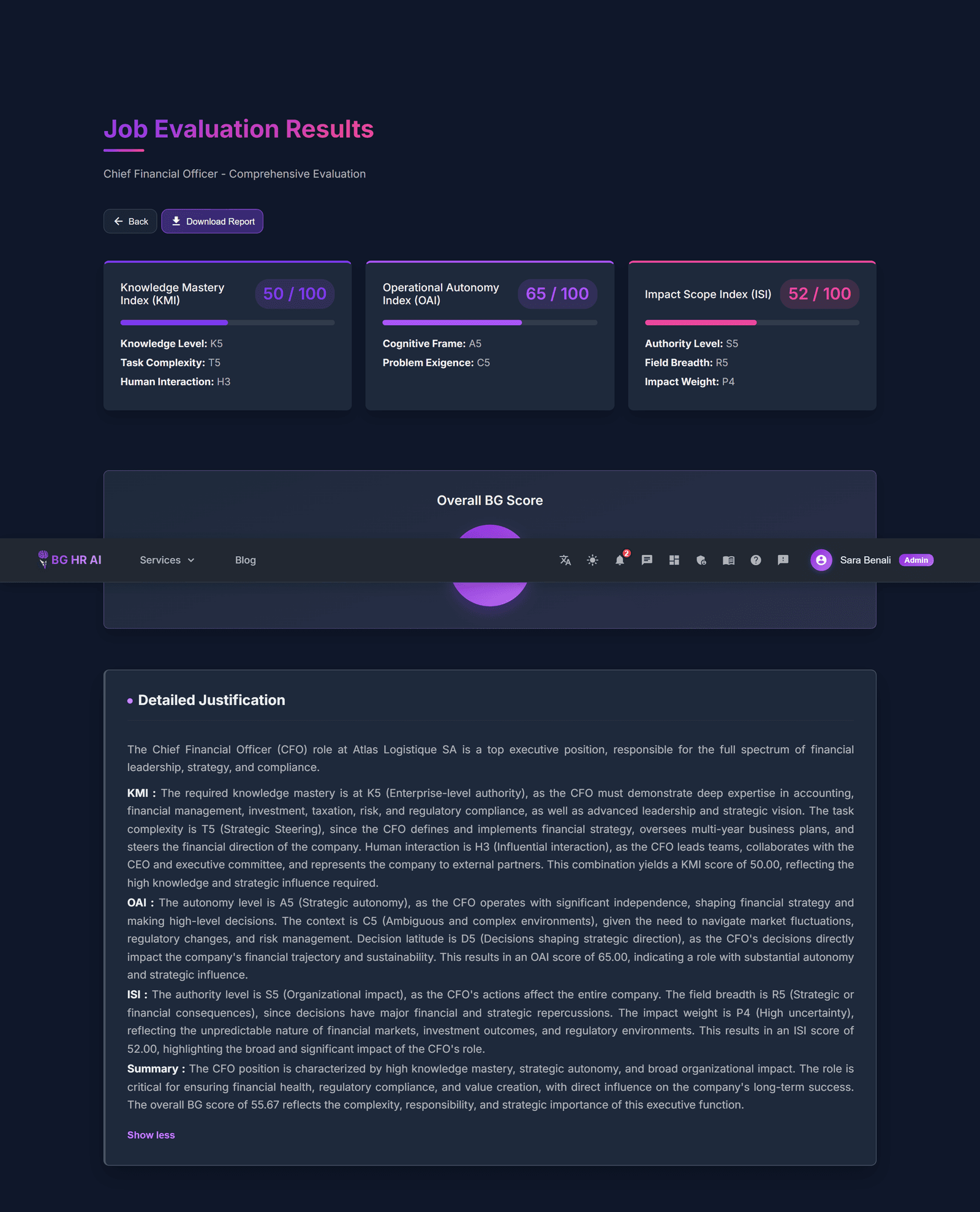
You get the overall BG score, then one card per index (KMI, OAI, ISI) with its score. “Download Report” saves it.
See why
Open “Detailed Justification” to read why the job got this score.
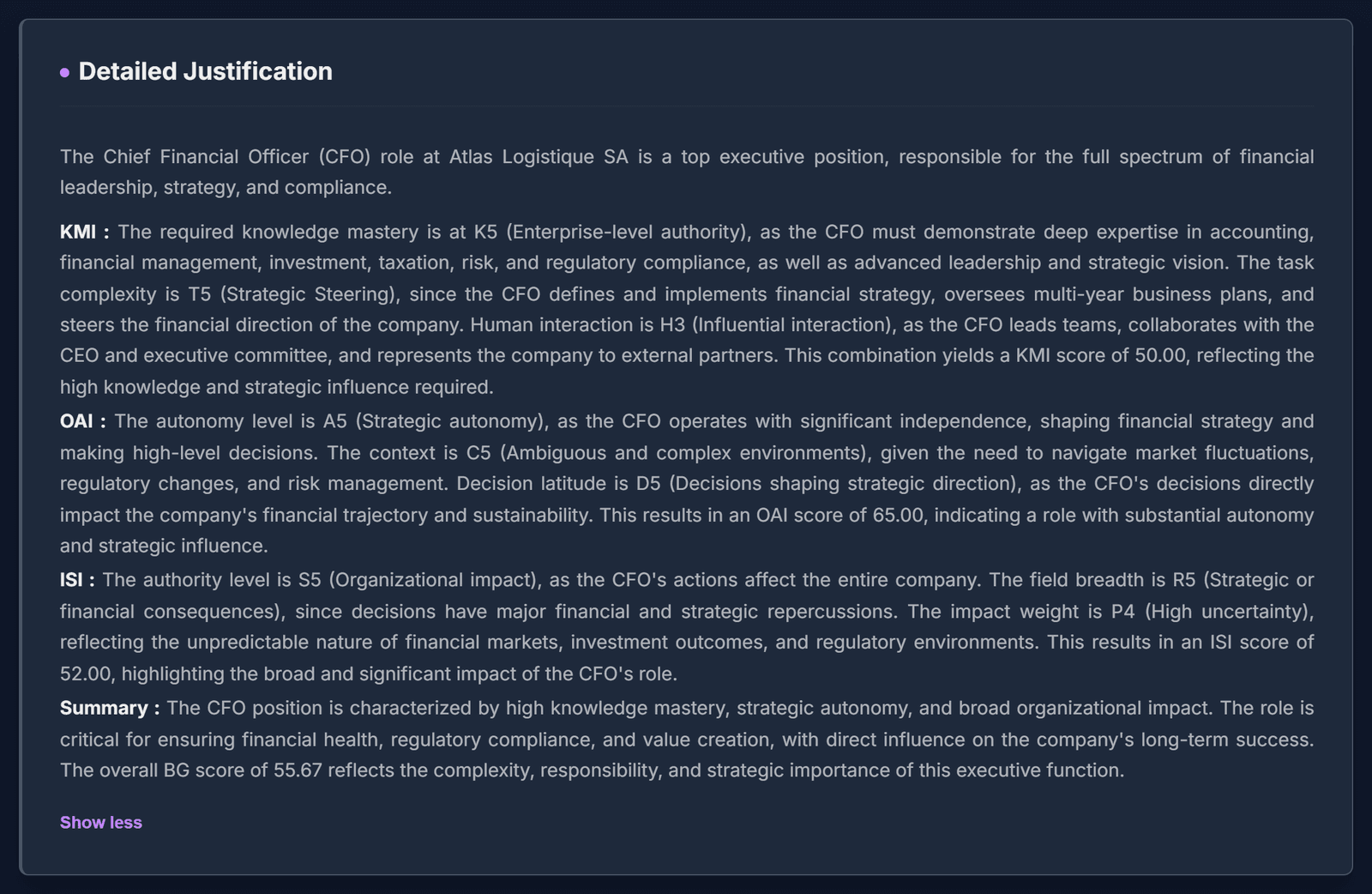
The whole page
Scroll to see the full evaluation from top to bottom.
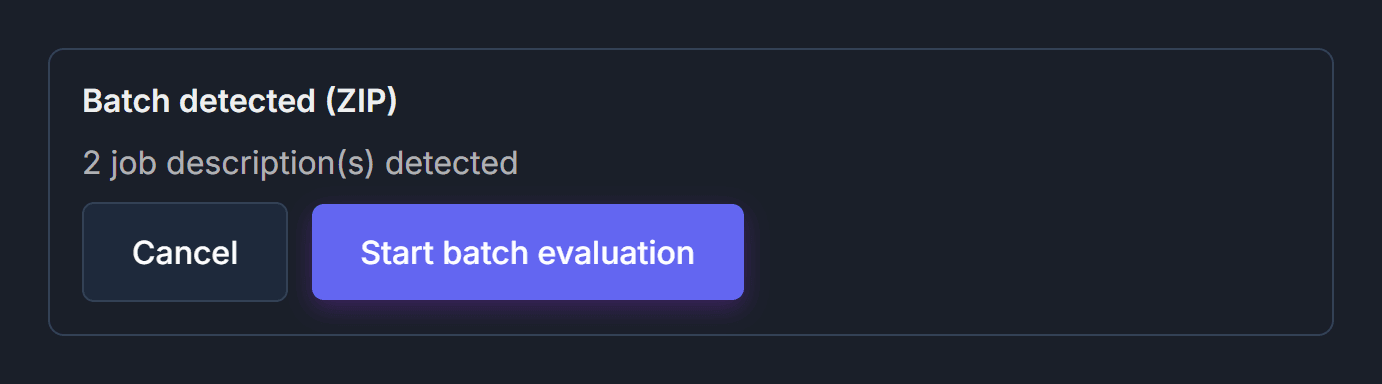
Many jobs at once
Upload a ZIP file with several job descriptions. The page shows “Batch detected (ZIP)”: click “Start batch evaluation”.
Evaluate all the jobs of one organisation to compare them fairly and build a clear grading structure.
Resume Screening
Let the AI read resumes for you and tell you who fits the job best.
Open Resume Screening
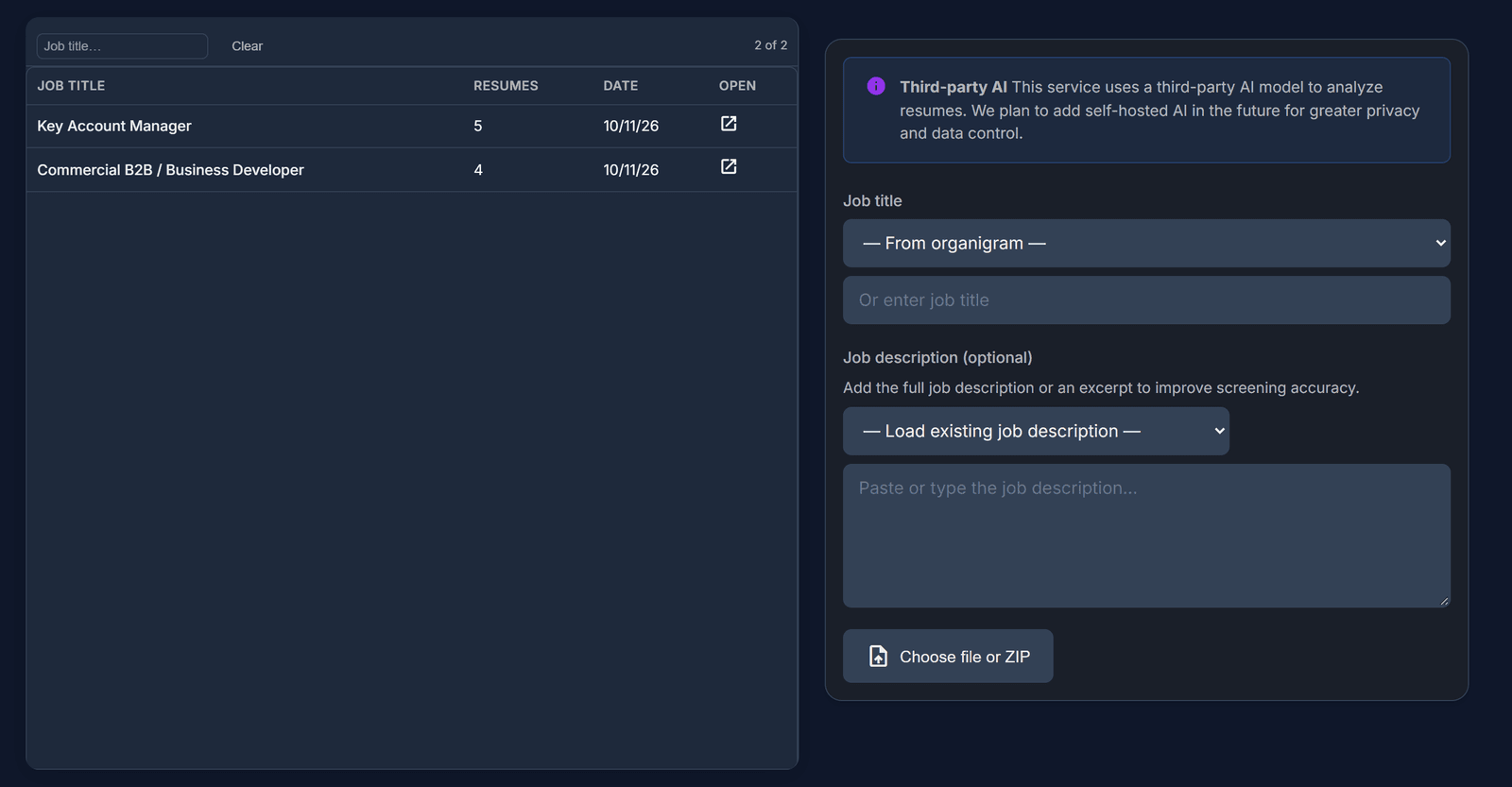
Click “Services”, then “Resume Screening”. On the left you see your past screenings.
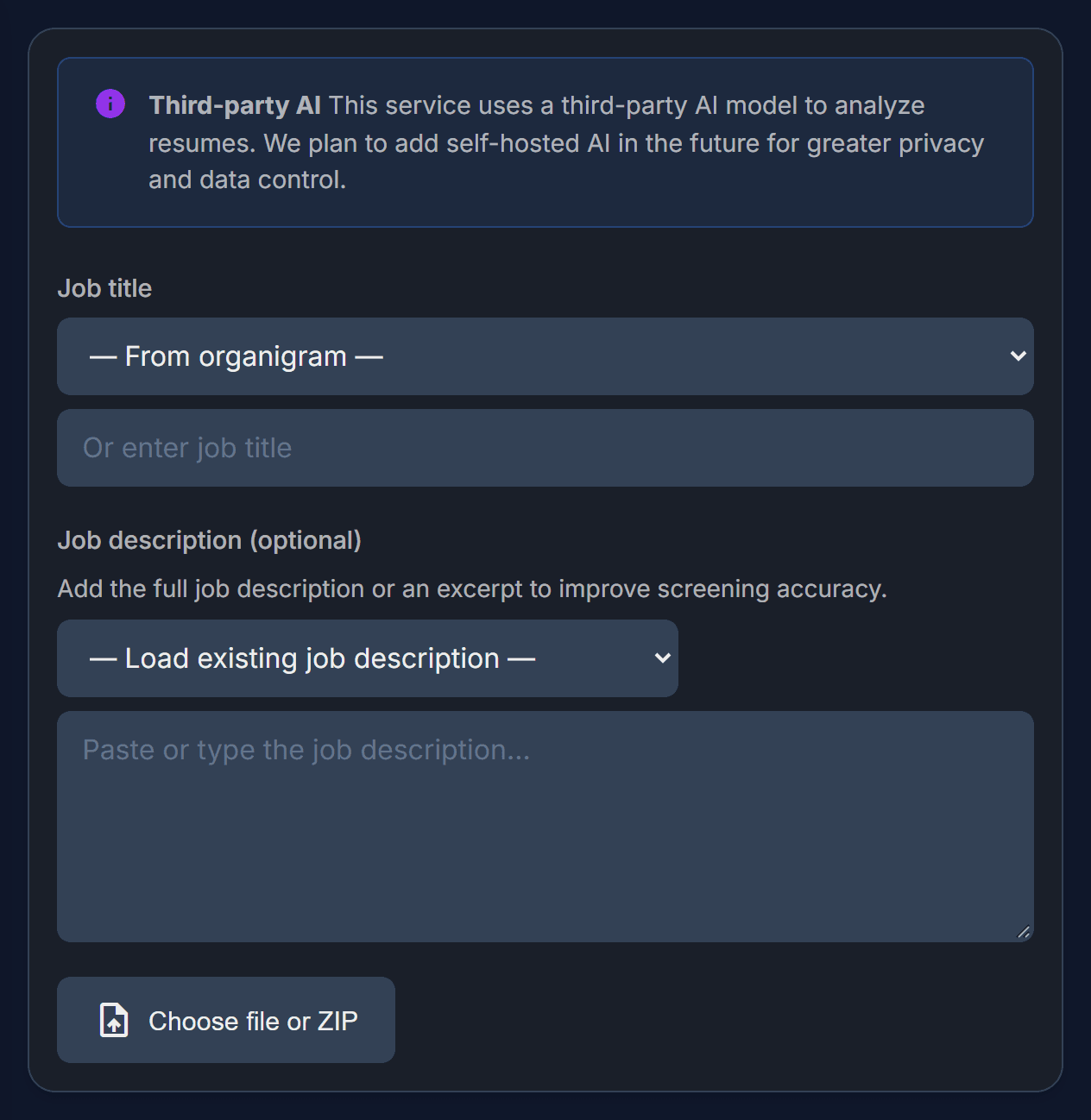
Say which job it is for
Type the job title (or pick a role from an organigram). Paste the job description if you have it: it makes the scores more accurate.
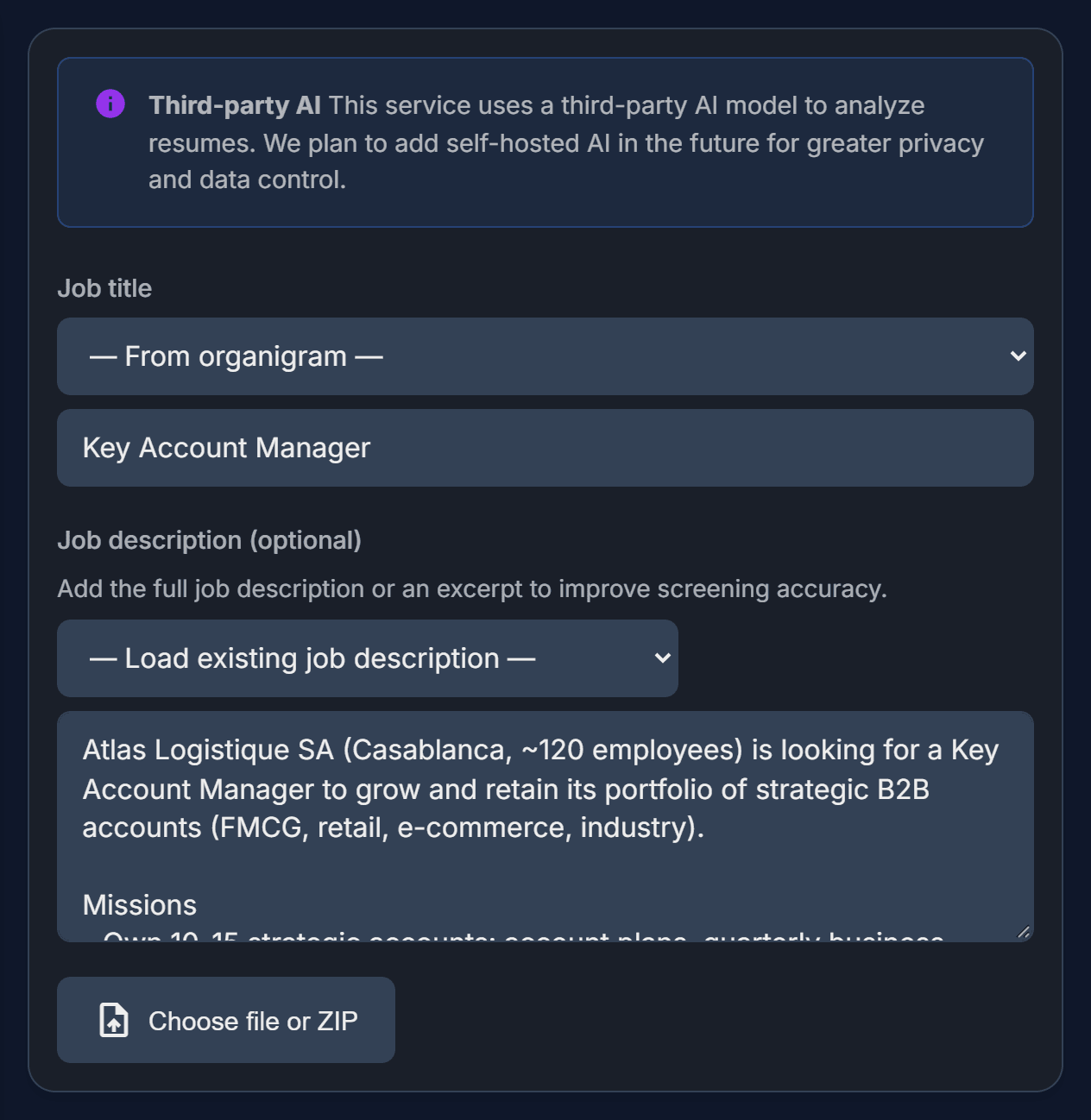
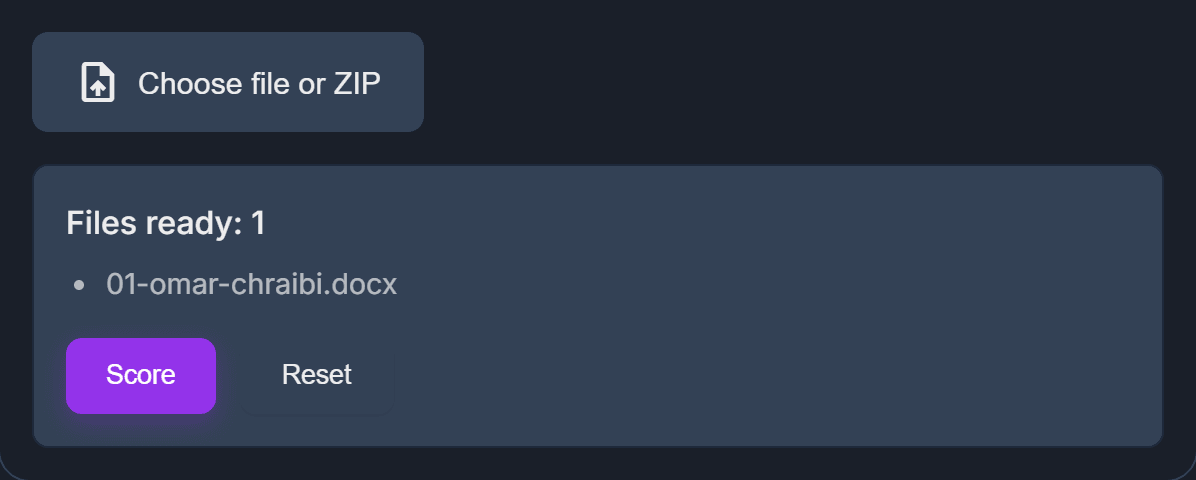
Add one resume
Click “Choose file or ZIP” and pick a resume (.pdf, .docx or .txt). It appears under “Files ready”.
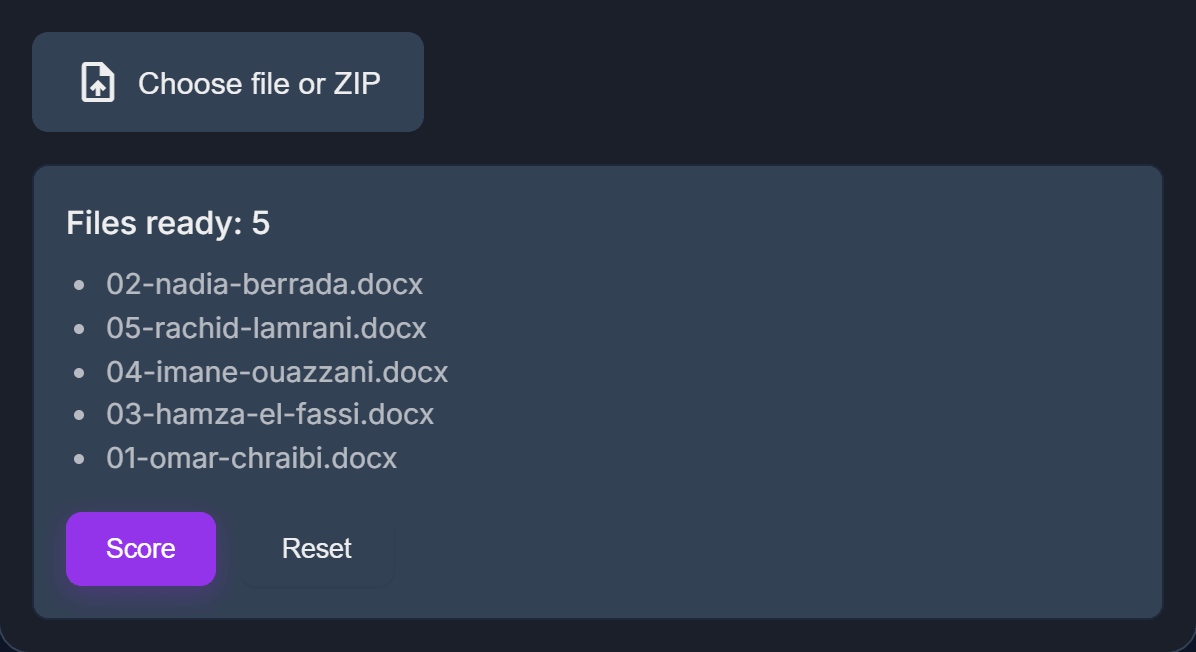
Or add many at once
To check many candidates, pick a ZIP file that contains all the resumes. Every resume inside is listed.
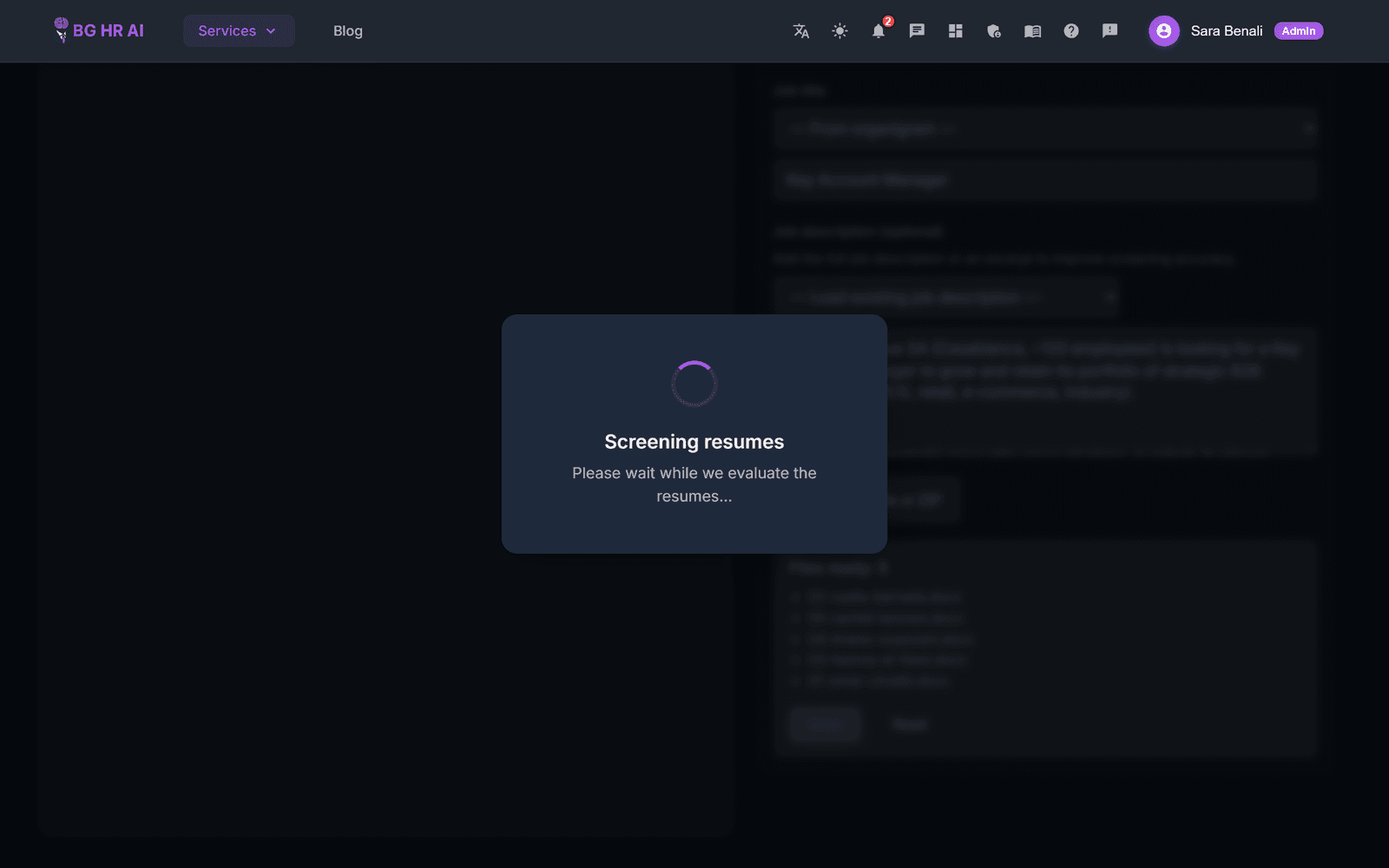
Click “Score”
The AI reads and scores each resume. Count about 15 to 40 seconds per resume.
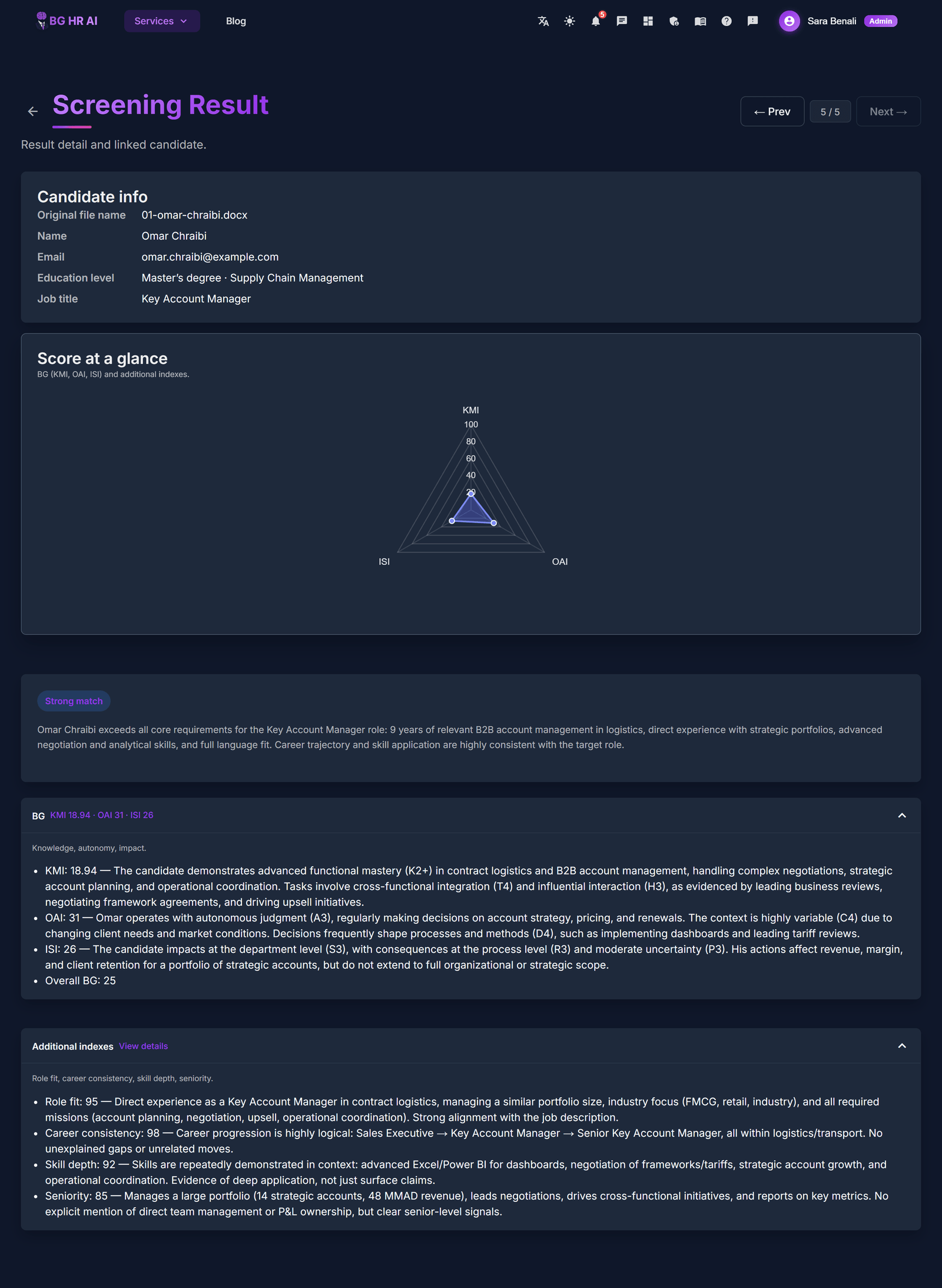
Read the first result
You see the candidate, the AI recommendation, a short summary and a radar chart. Use “← Prev” and “Next →” to move from one candidate to the next.
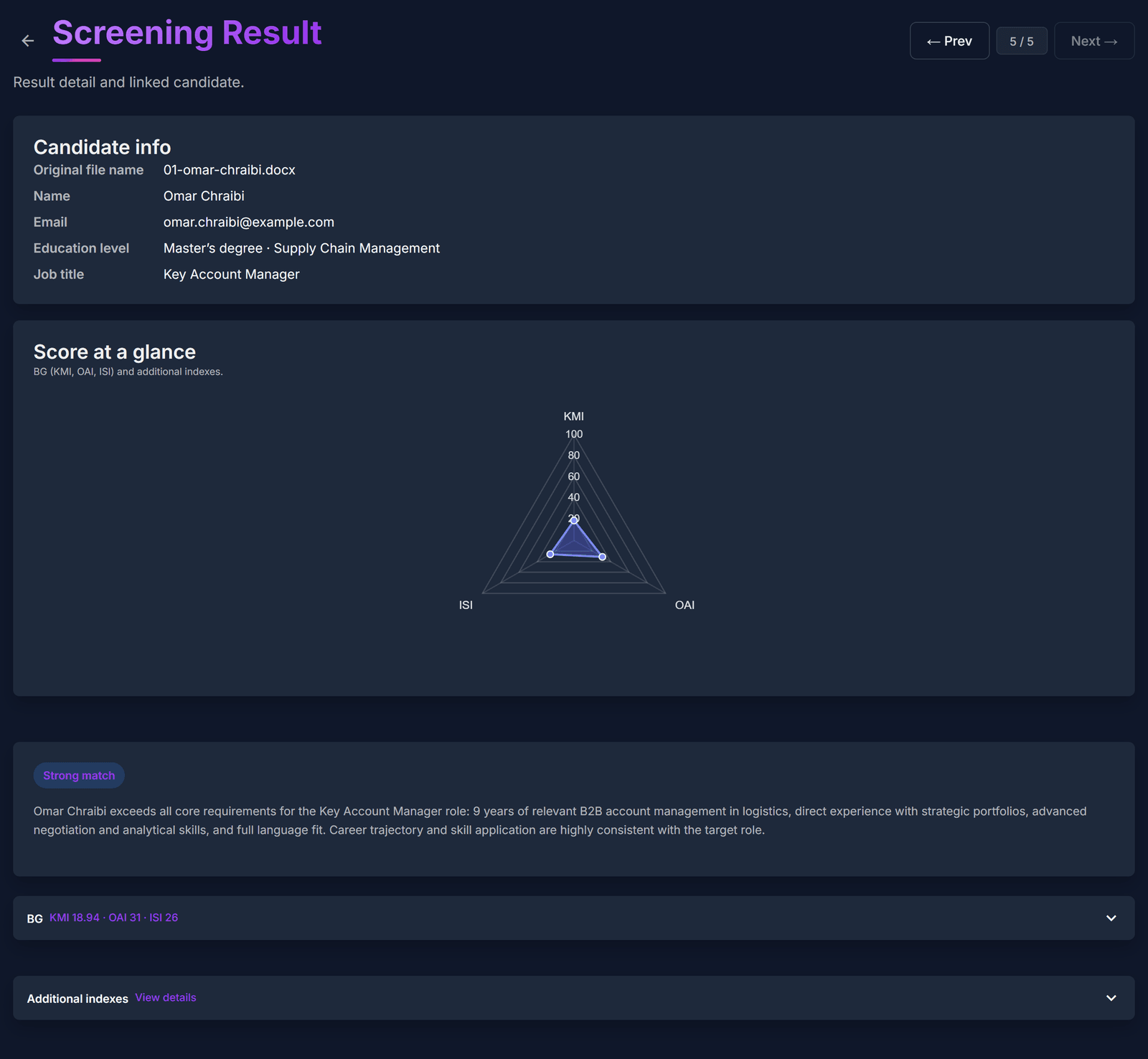
See why
Open “BG” and “Additional indexes” to read why the AI gave each score (role fit, career consistency, skill depth, seniority).
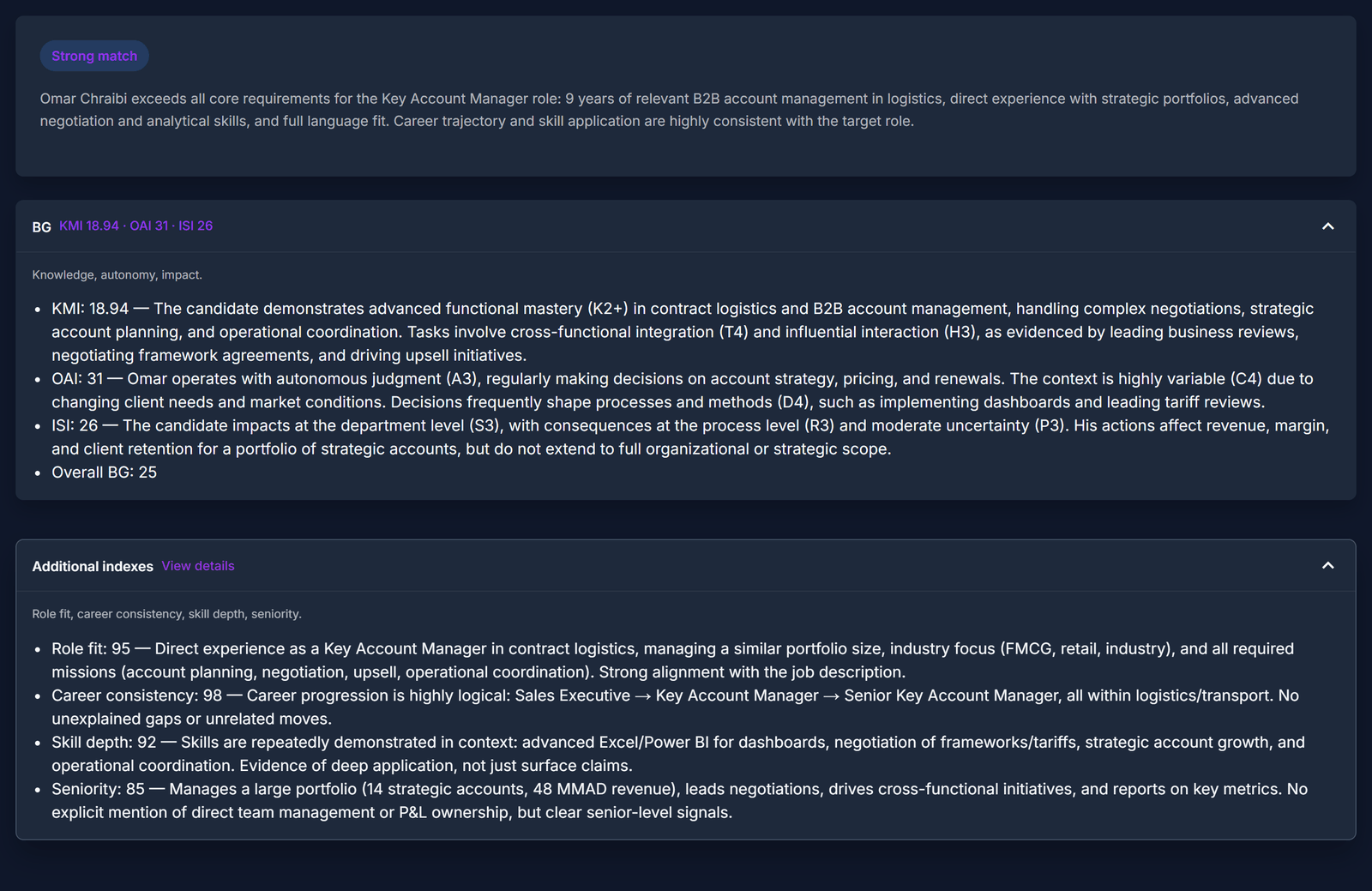
The whole result
Scroll to see the full result page.
Find it again later
Back on Resume Screening, the list on the left keeps every screening. Click one to open its results again.
The AI helps you choose — it does not decide. Always read the result before you reject or invite a candidate.
Job Postings & Public Job Board
Publish a job offer on the public BG HR AI job board and receive applications in one place.
Open Job Postings
Open “Job Postings”. You see every offer you published or saved as a draft.
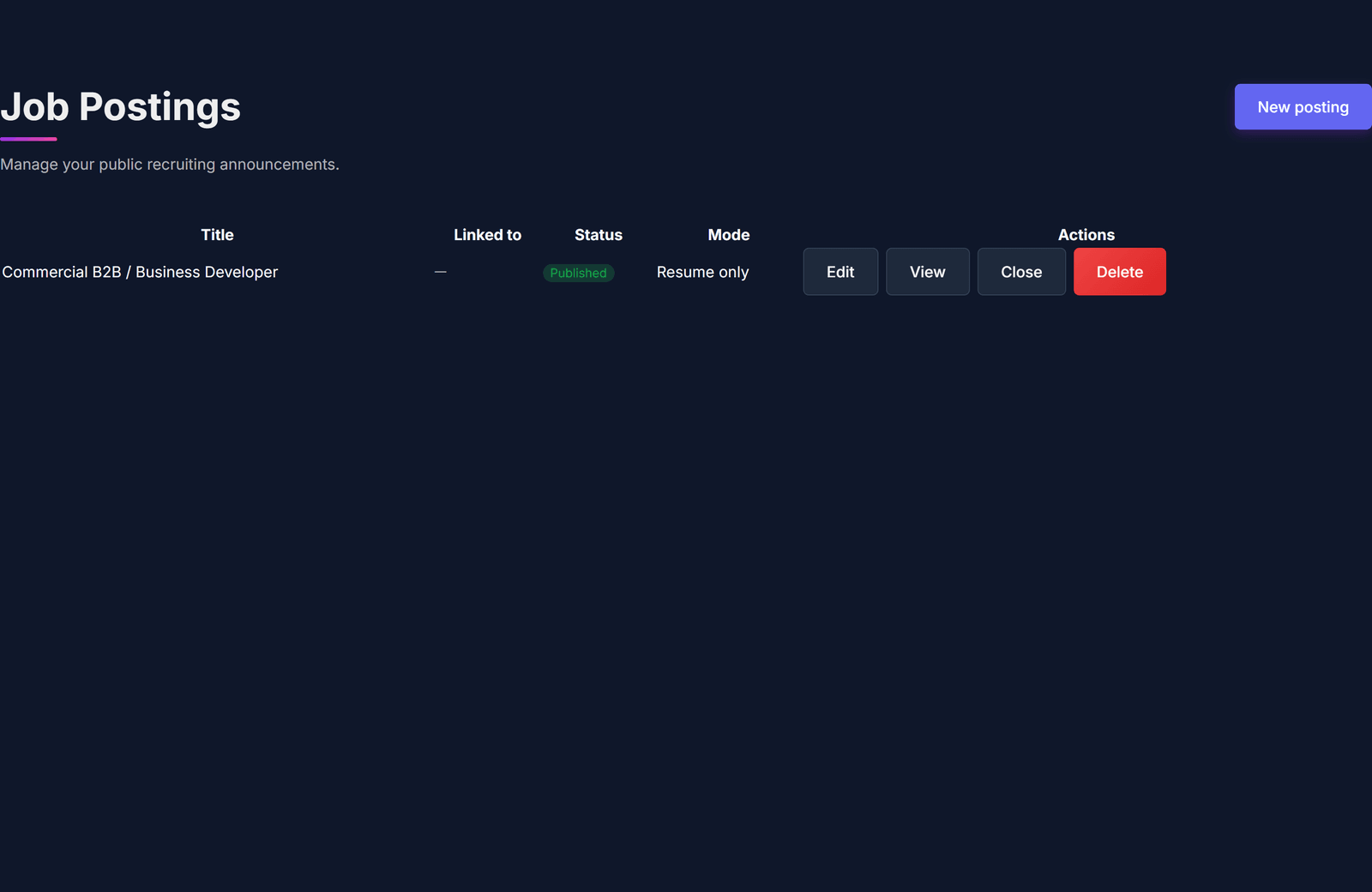
Start a new posting
Click “New posting”. Choose “Auto-fill from existing work” (reuse a job description you already made) or “Write manually”.

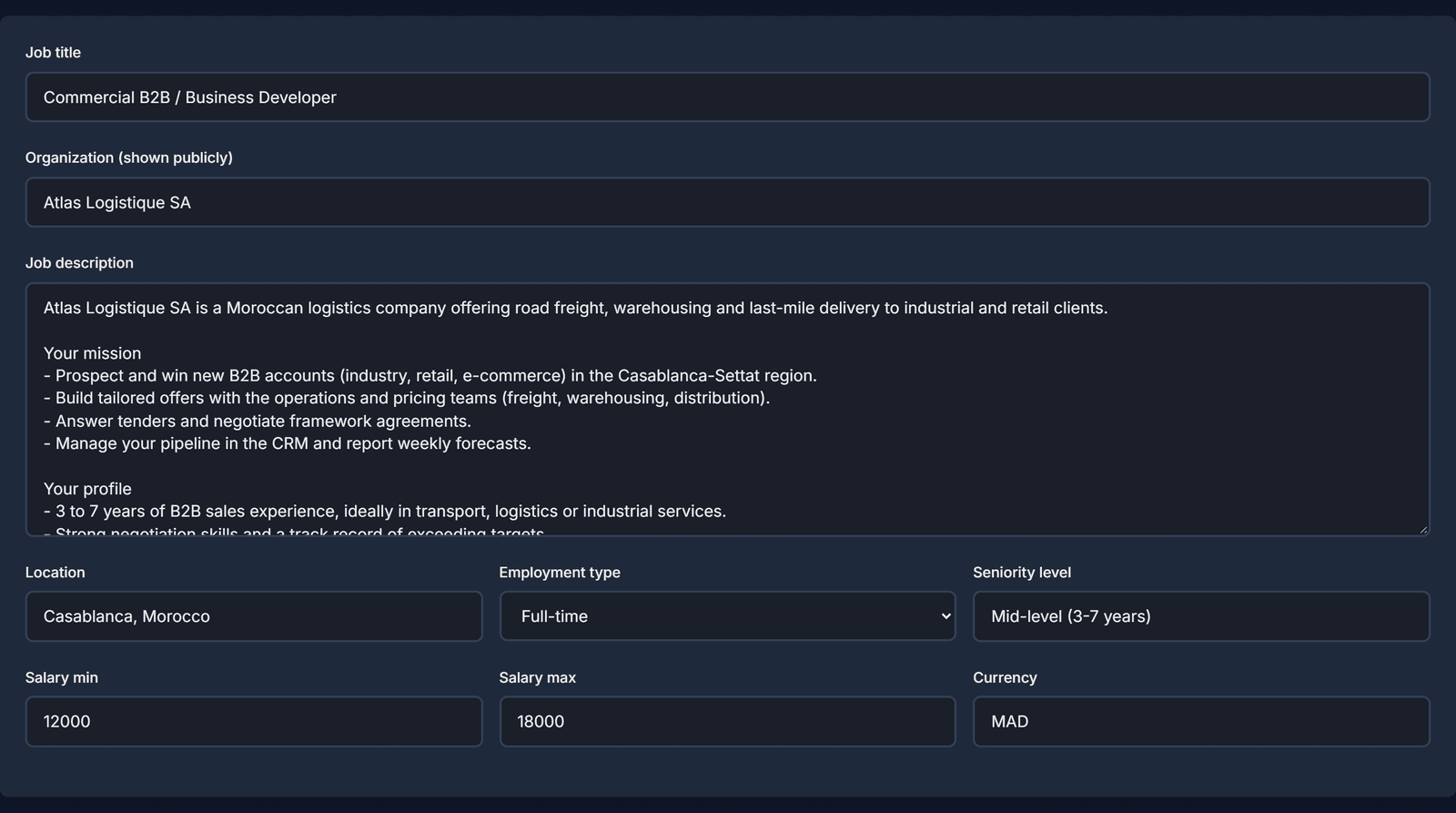
Describe the job
Fill in the job title, the company name shown to the public, the description, the place, the contract type, the level and the salary range.
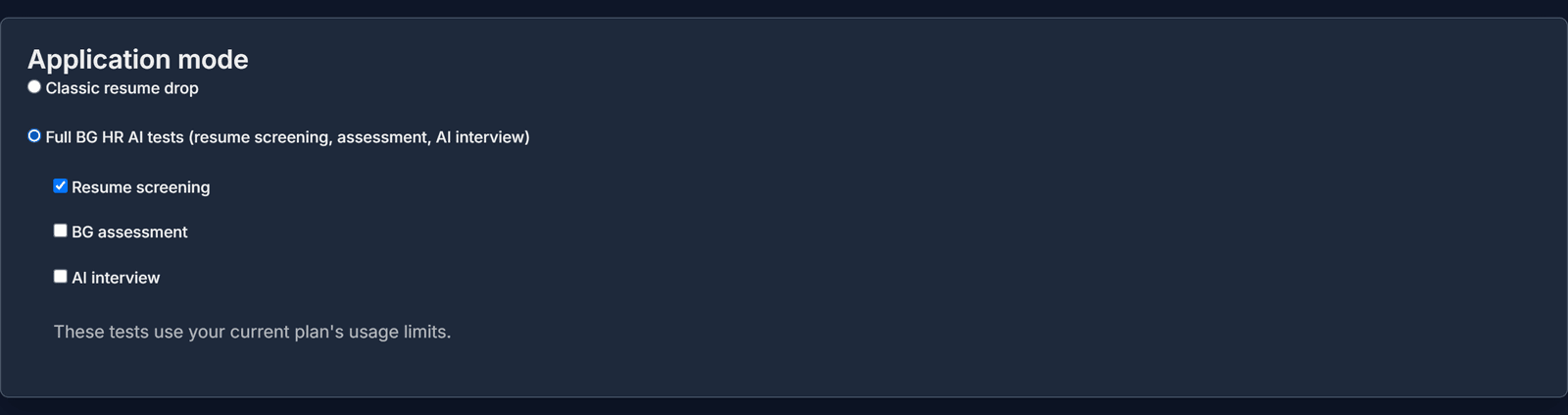
Choose how people apply
Pick “Classic resume drop” (they just send a resume) or “Full BG HR AI tests” and tick the steps they must do: resume screening, BG assessment, AI interview.
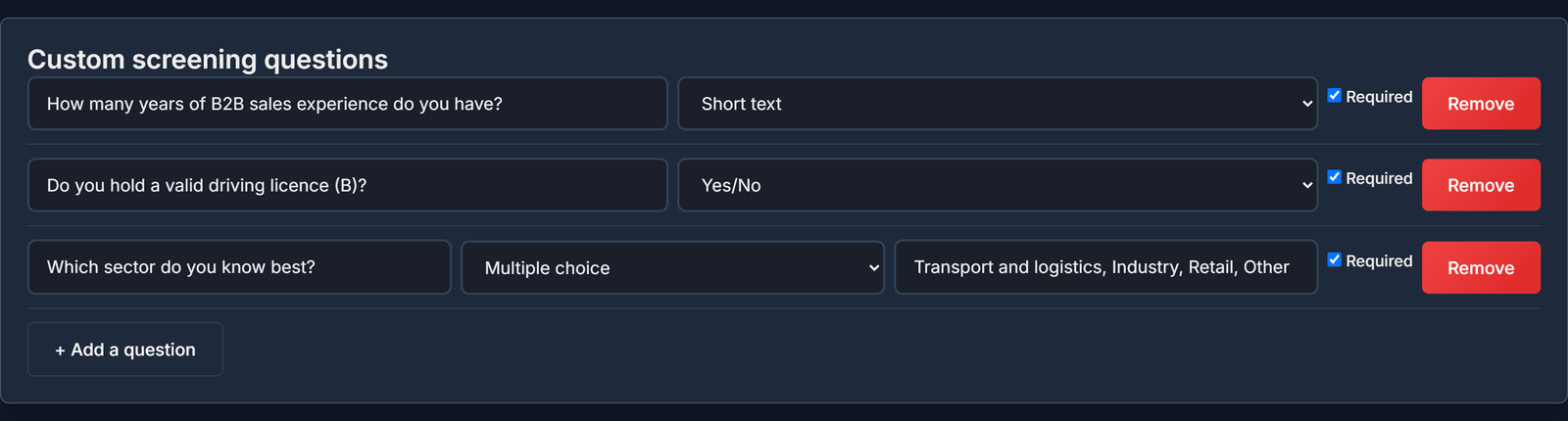
Add your own questions (optional)
Click “+ Add a question” to ask something (short text, long text, yes/no or a choice). You can make it required.
Click “Publish”
The status becomes “published” and a “view public listing” link appears. “Save draft” keeps it private for now.

It is online
Your offer now appears on the public job board at bghrai.com/jobs. Anyone can see it, no login needed.
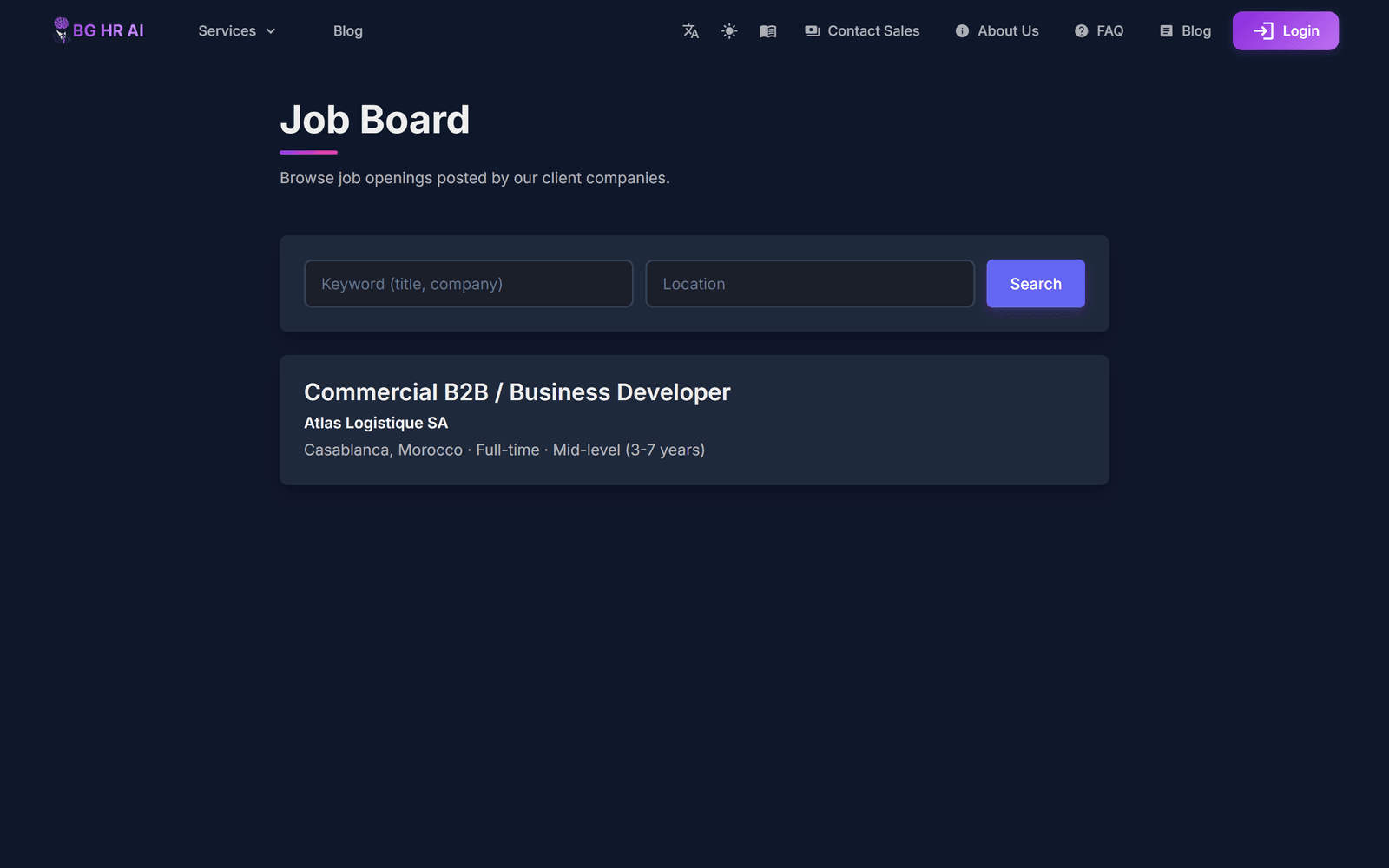
Candidates read it
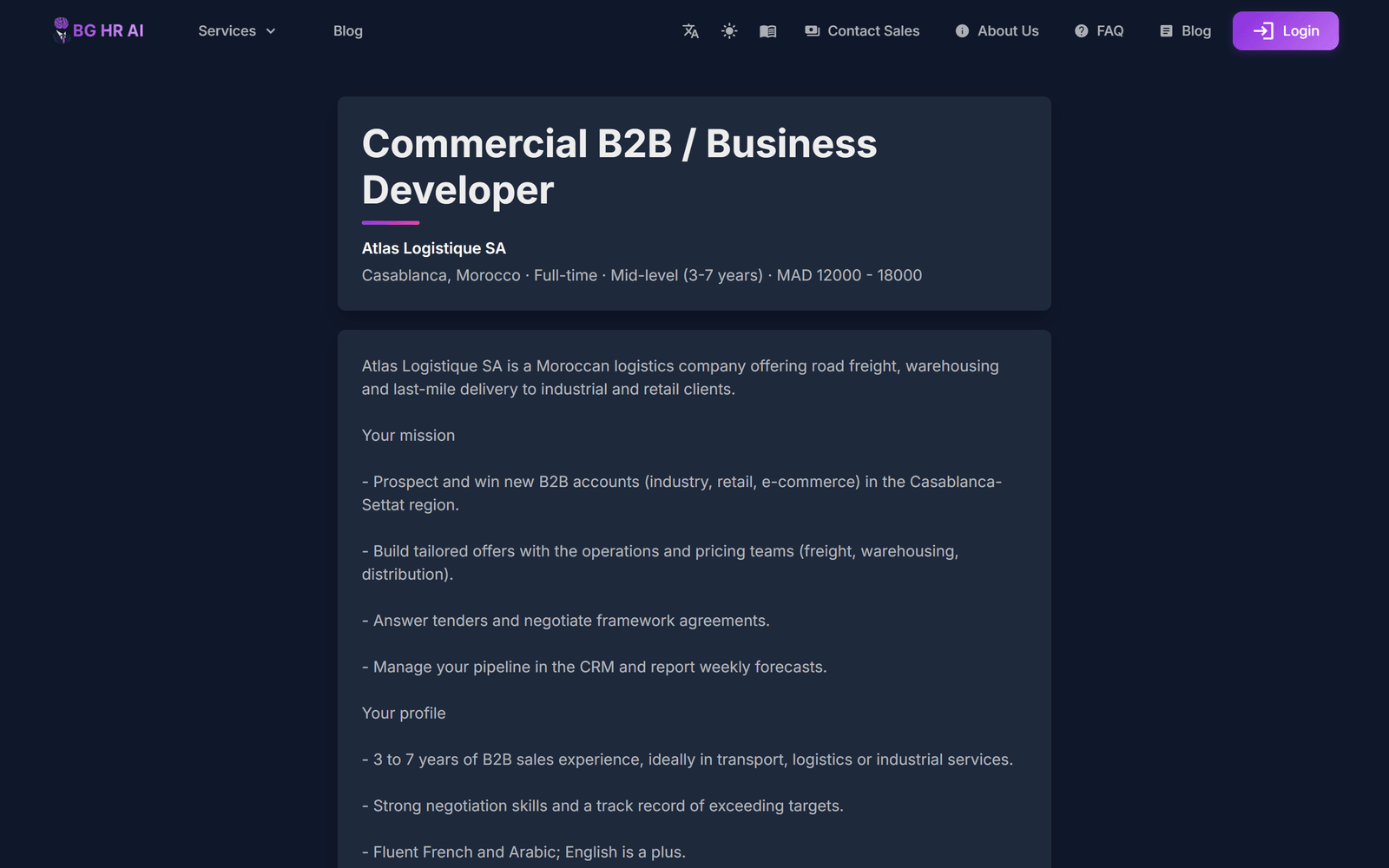
Candidates open your offer, read it and click “Apply”.
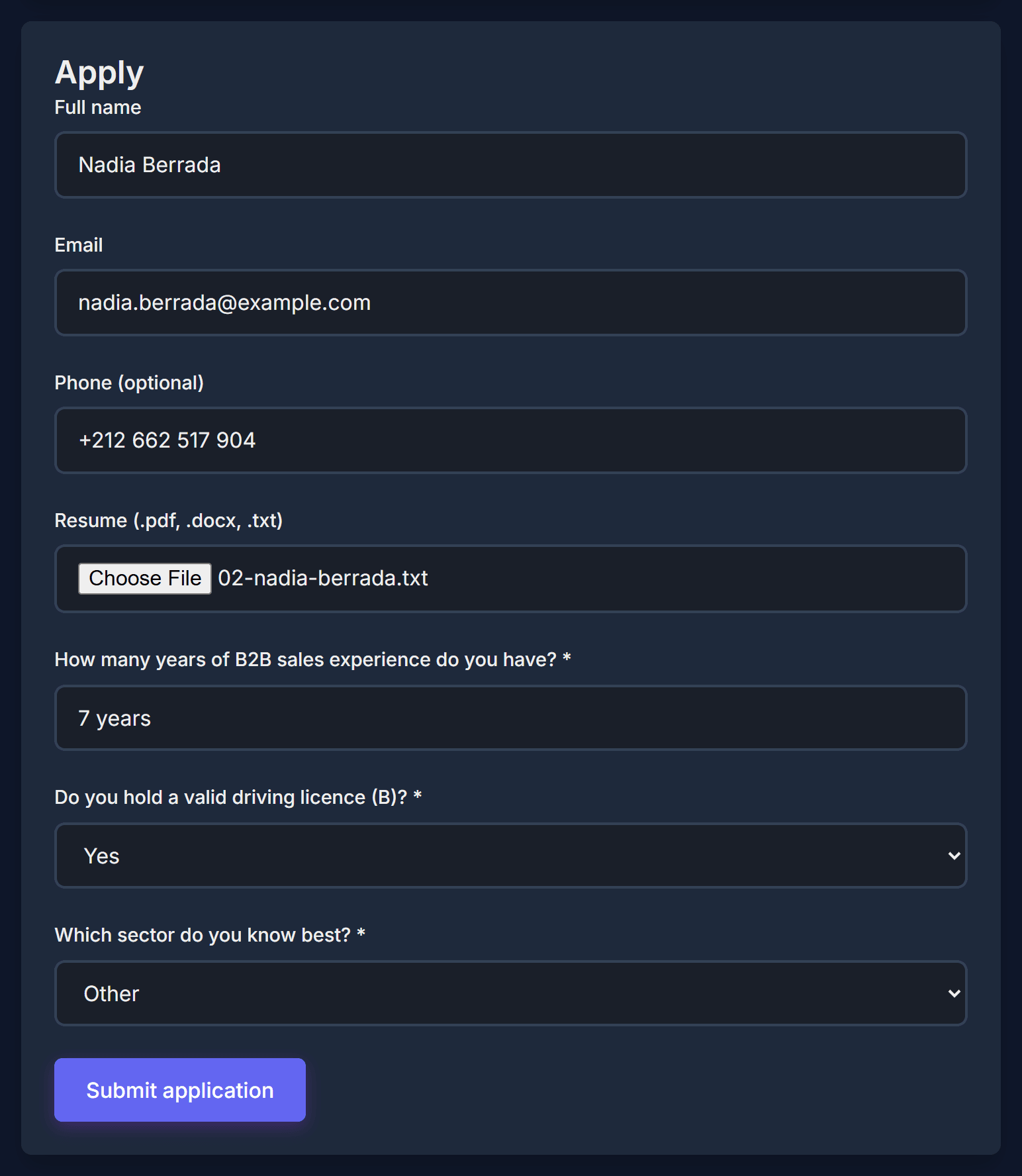
Candidates apply
They type their name, email and phone, attach their resume, answer your questions and click “Submit application”.
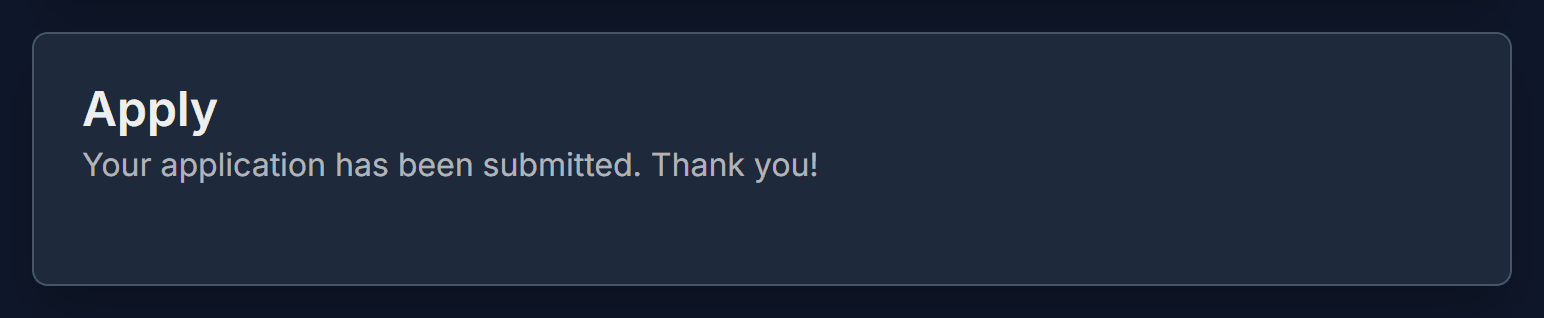
They get a confirmation
The candidate sees “Your application has been submitted. Thank you!”.
See who applied
Open your posting and click “Load applicants”: names, emails, answers, and each resume to download.
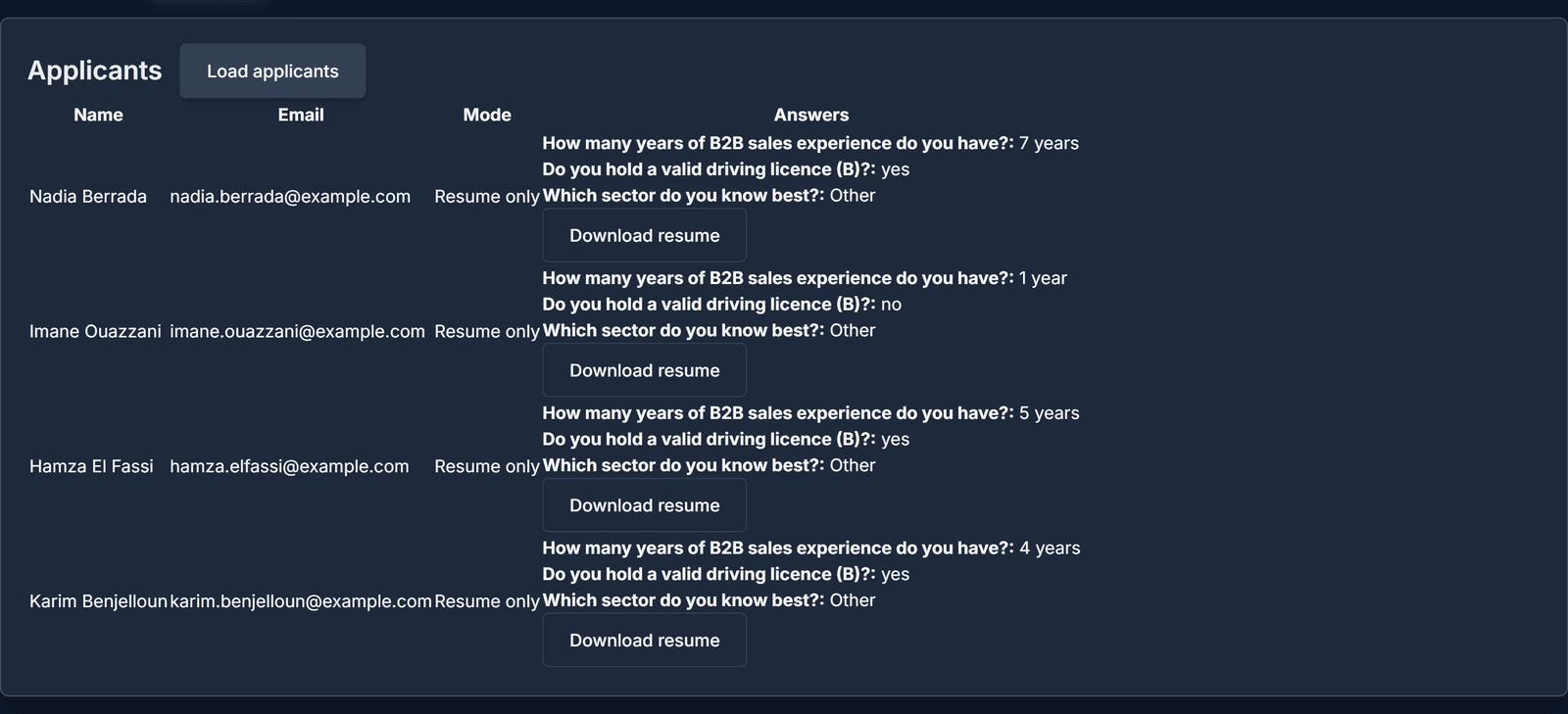
Manage your offers
Back on “Job Postings”, click an offer to change it, take it offline, or see its applicants.
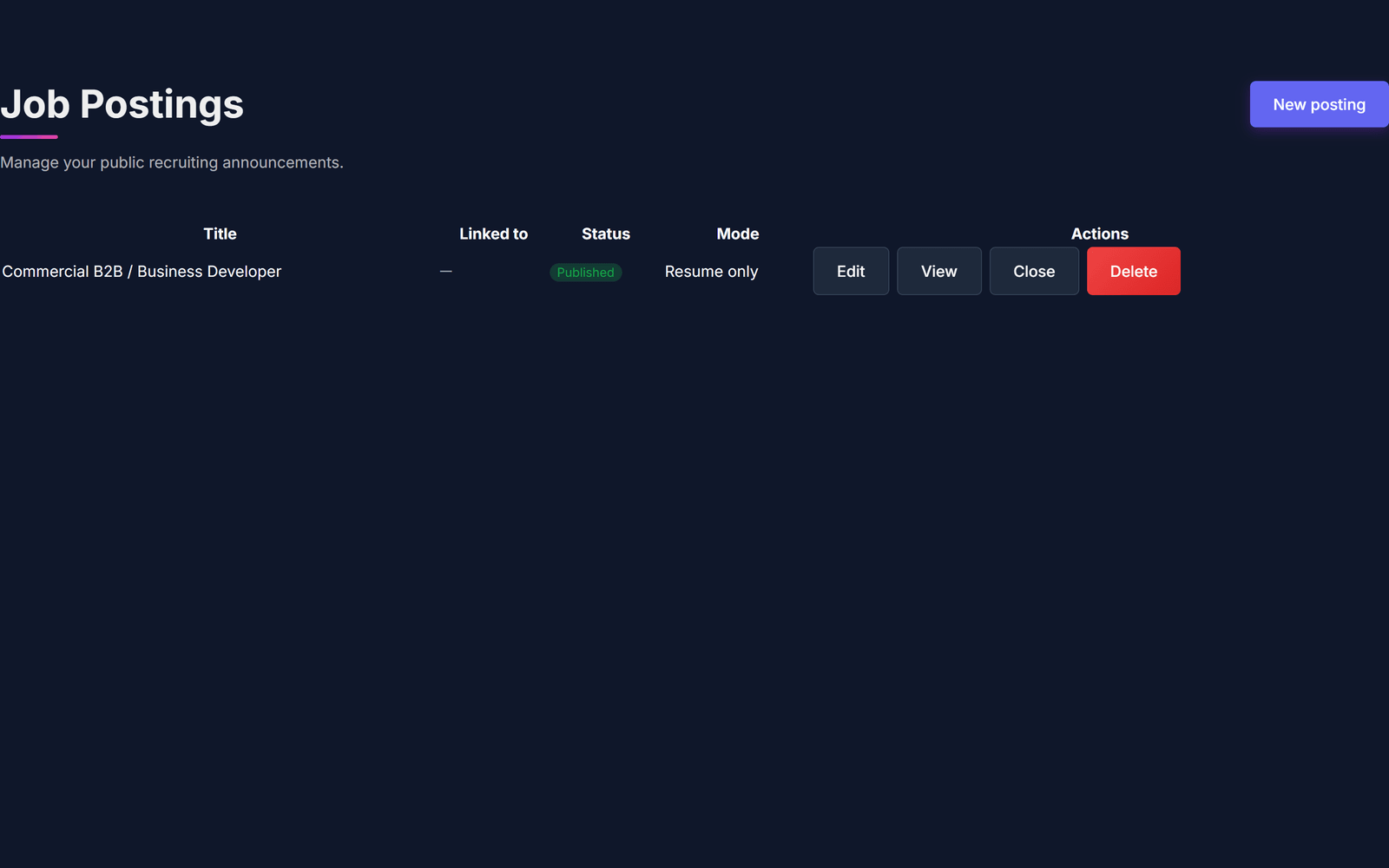
With “Full BG HR AI tests”, candidates do the tests while they apply — you get comparable scores for everyone.
Assessment
Send candidates a written test with real work situations, and get an AI analysis of their answers.
Open Assessment
Open “Assessment”. Your assessment projects are on the left; the form to create one is on the right.
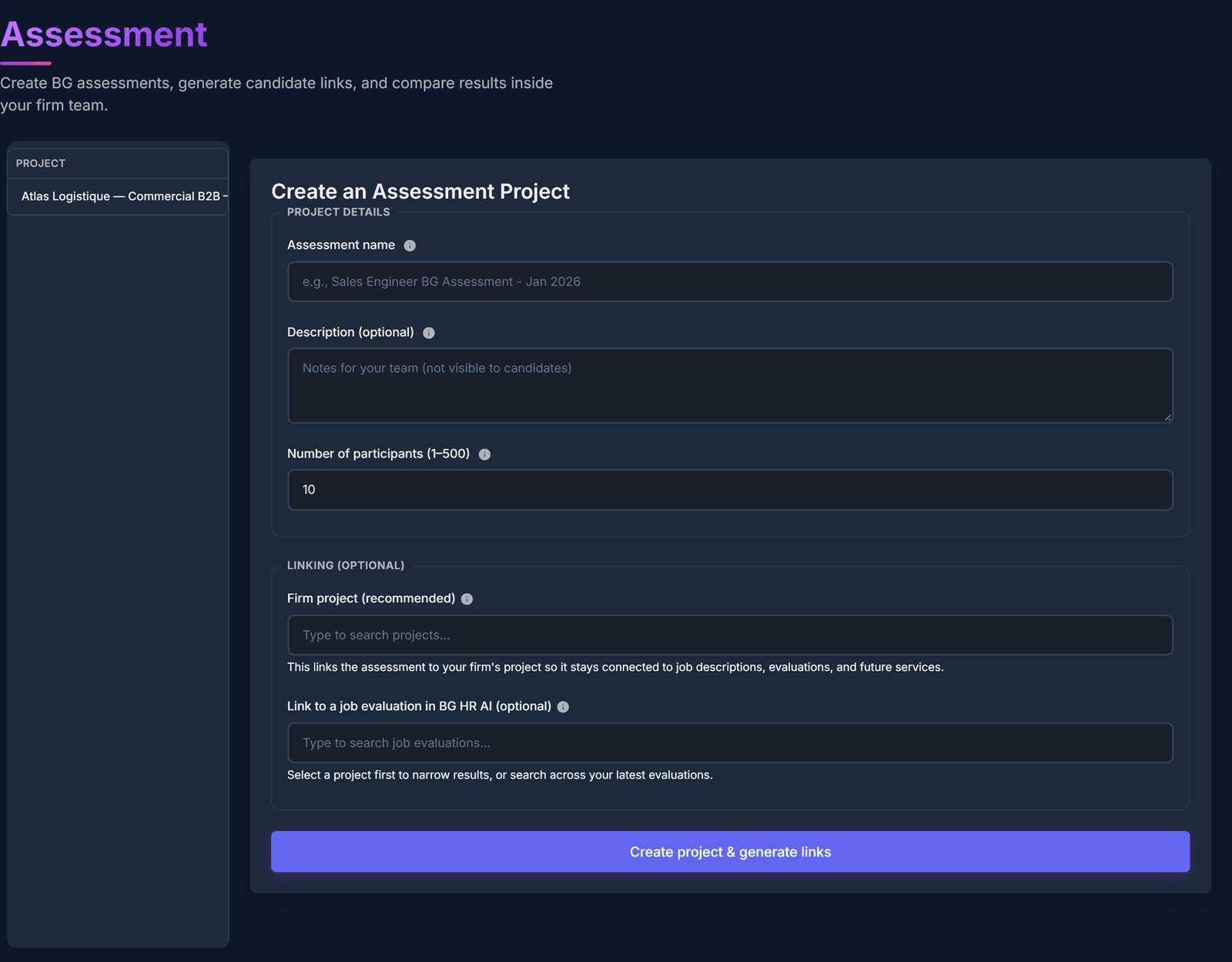
Create the assessment
Give it a name, add notes for your team if you want, choose how many candidates will take it (each gets their own link), and link it to a project or a job evaluation if you like. Then create it to get the links.
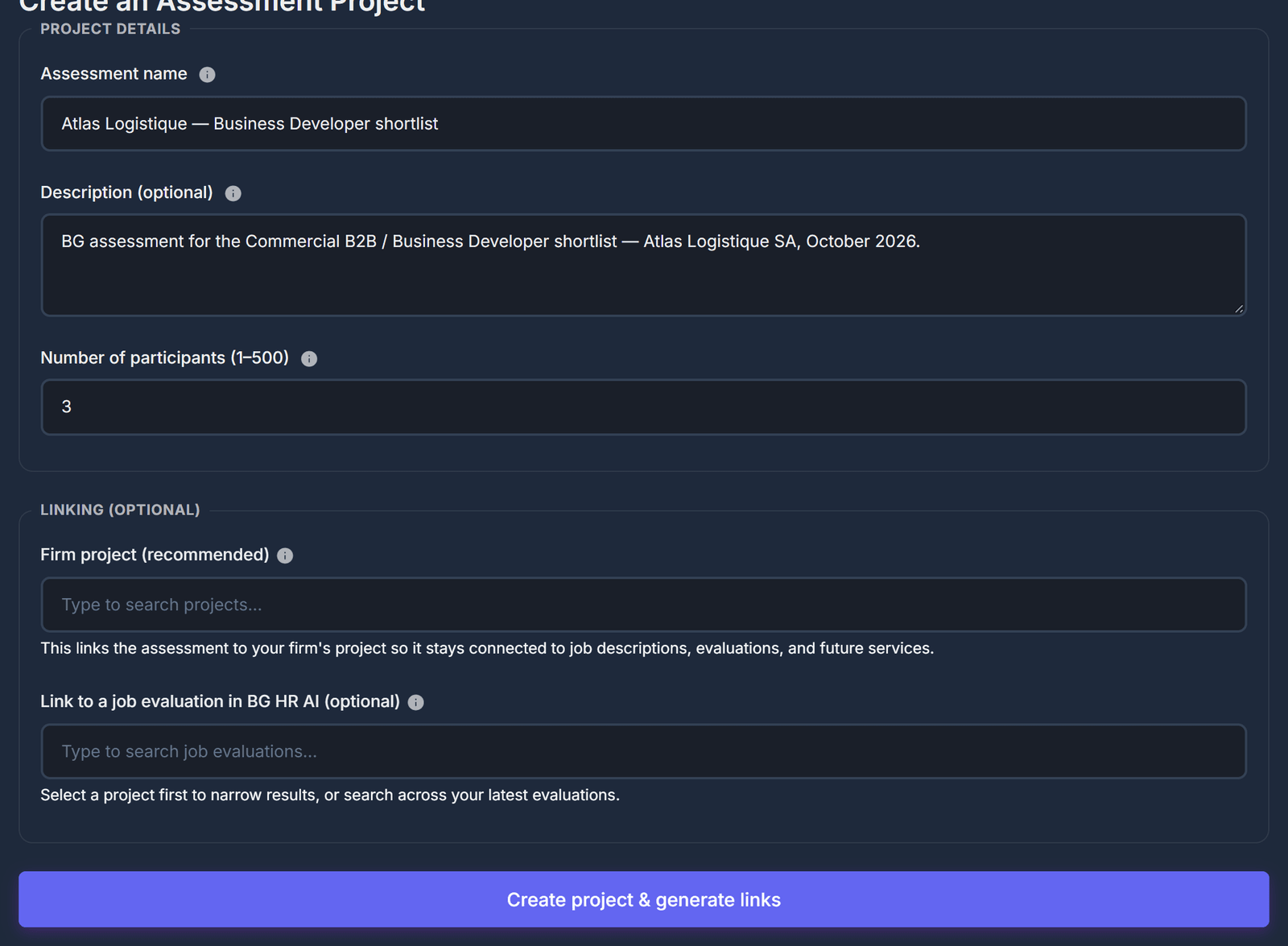
The candidate opens the link
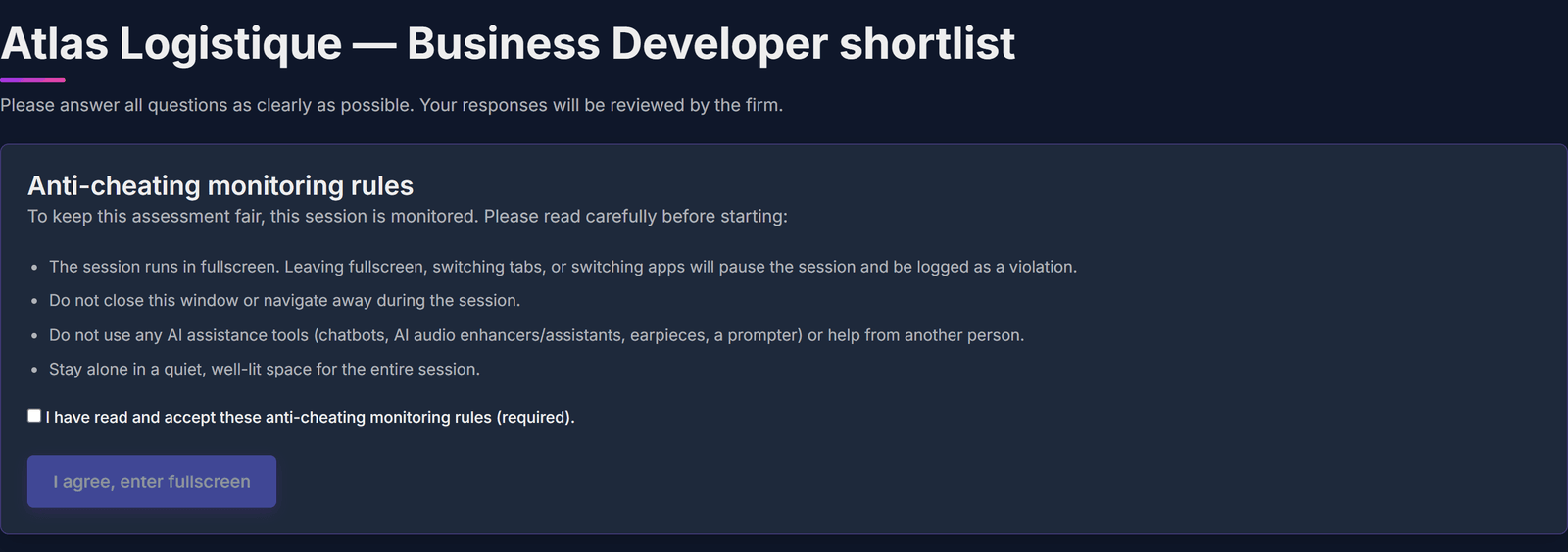
The candidate does not need an account. They read the rules (stay in full screen, do not switch tabs), tick the box and start.
The candidate answers
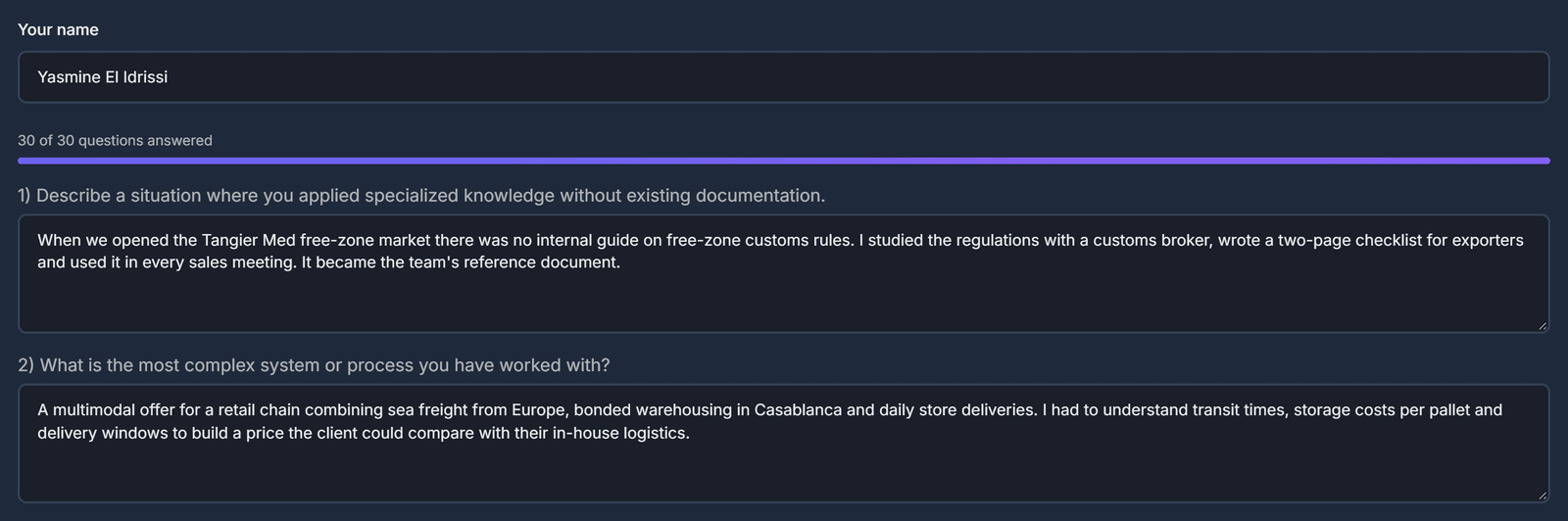
They type their name and answer 30 questions about real work situations. A bar shows their progress, and “Save answers” keeps a draft.
The candidate sends
When all answers are filled in, they click “Submit responses”.

Done
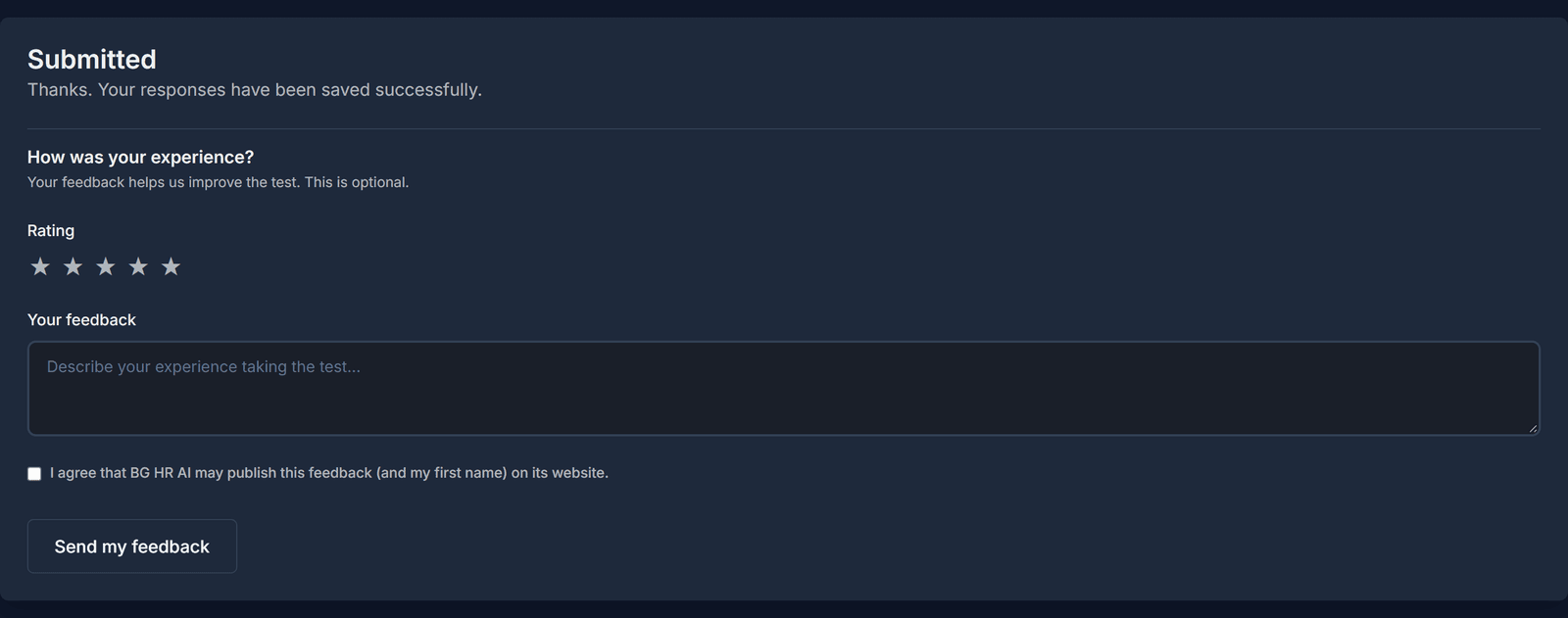
The candidate sees a thank-you message and can rate the experience. Their answers appear in your assessment project, ready for the AI analysis.
Each link works once. Create as many links as you have candidates.
AI Interview
Let an AI run a first video interview with your candidate, then read the analysis.
Open AI Interview
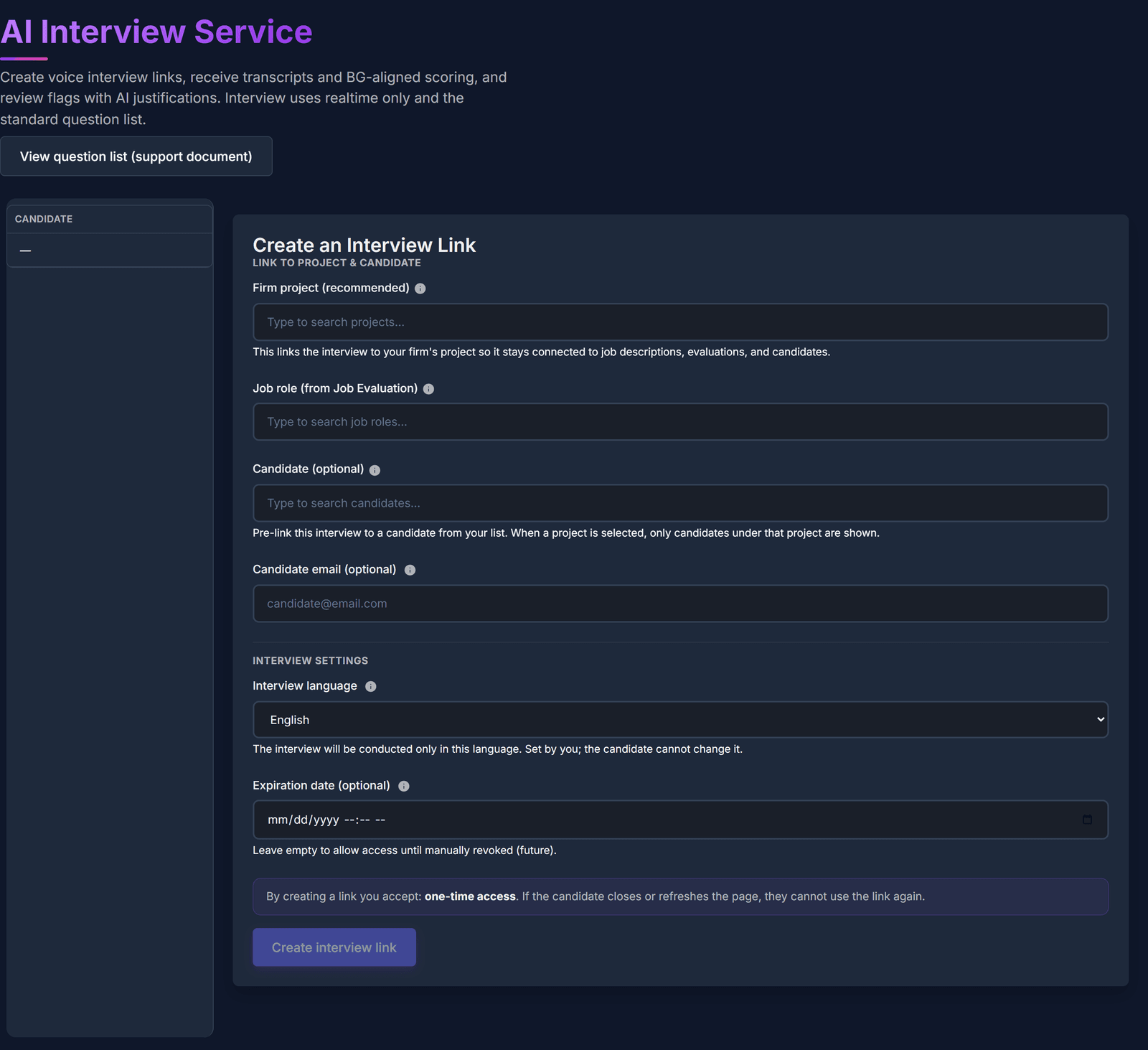
Open “AI Interview”. Past interviews are on the left; the form to create a new link is on the right.
Prepare the interview
Choose the job role (it comes from a Job Evaluation), and if you want a project and a candidate. Pick the language and the end date, then click “Create interview link”. If you type the candidate’s email, we send them the link.
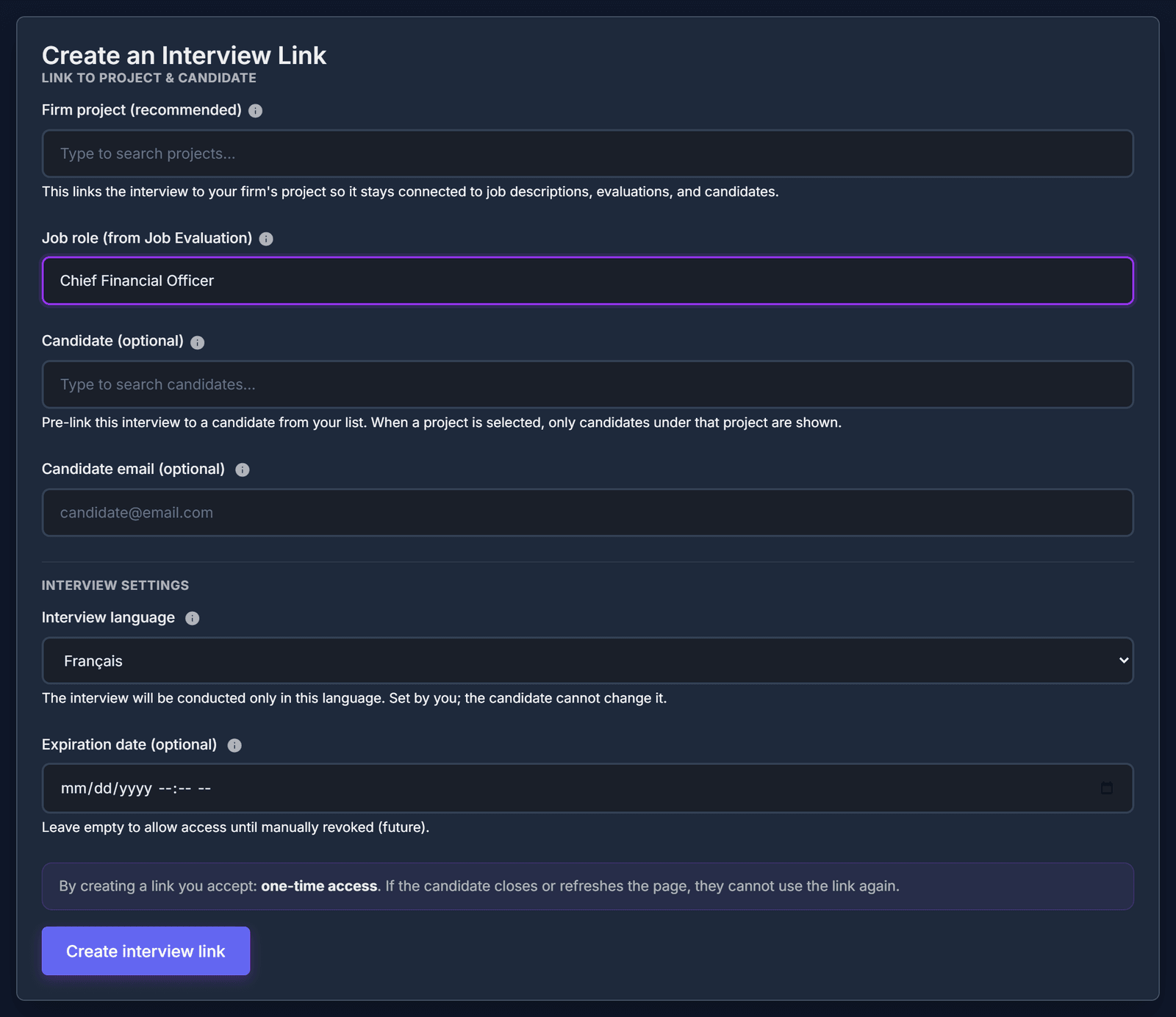
Send the link
The invitation link appears. Click “Copy” and send it to the candidate. No login is needed, and the link works only once.

The candidate joins
The candidate opens the link and reads the instructions. They need a camera and a microphone for the interview.
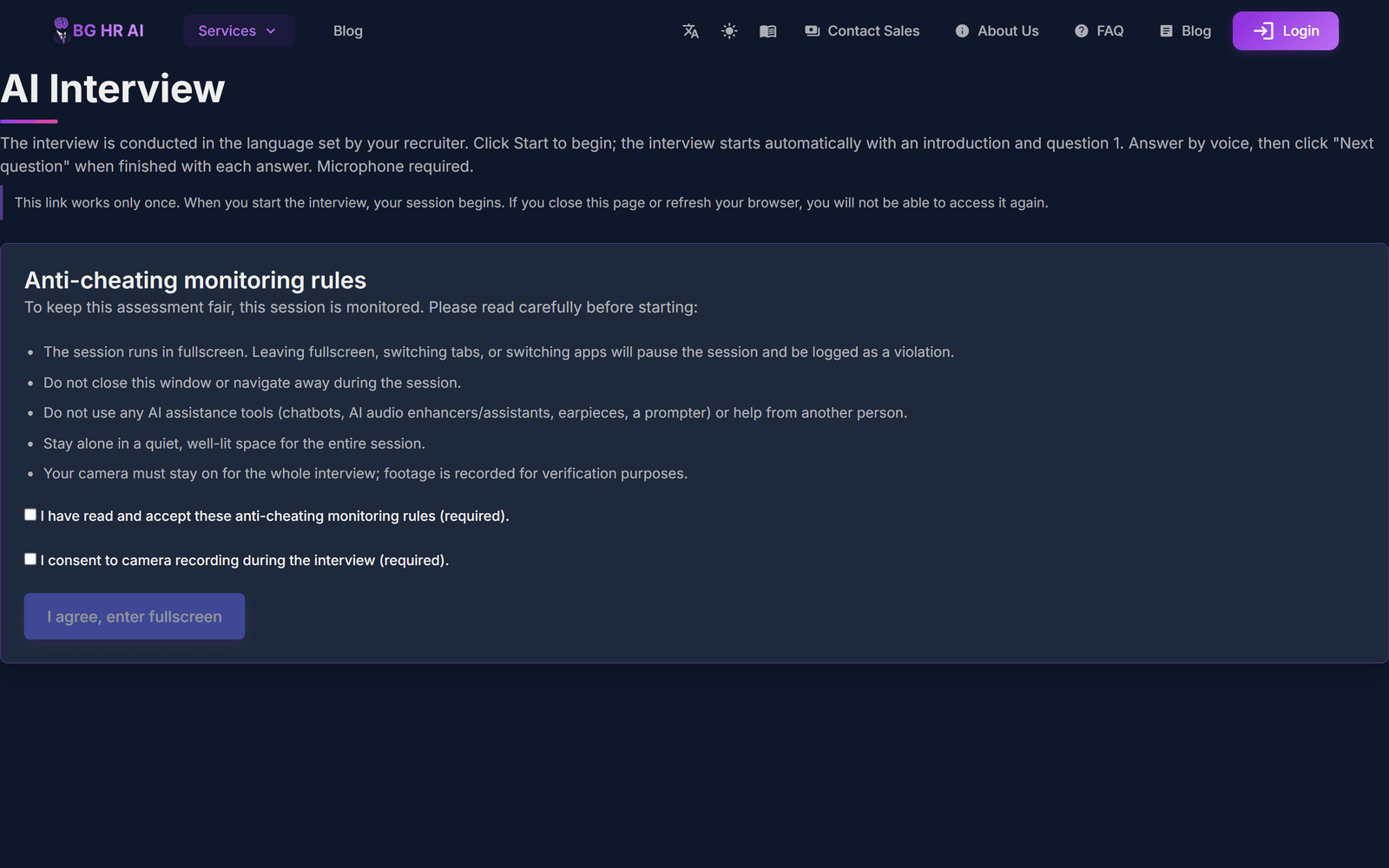
Candidates are always told they are talking to an AI. A person on your team reviews the results before any decision.
Candidates
Find every candidate and all their results in one place.
Open Candidates
Open “Candidates”. Everyone you screened, tested or interviewed is listed with their scores.
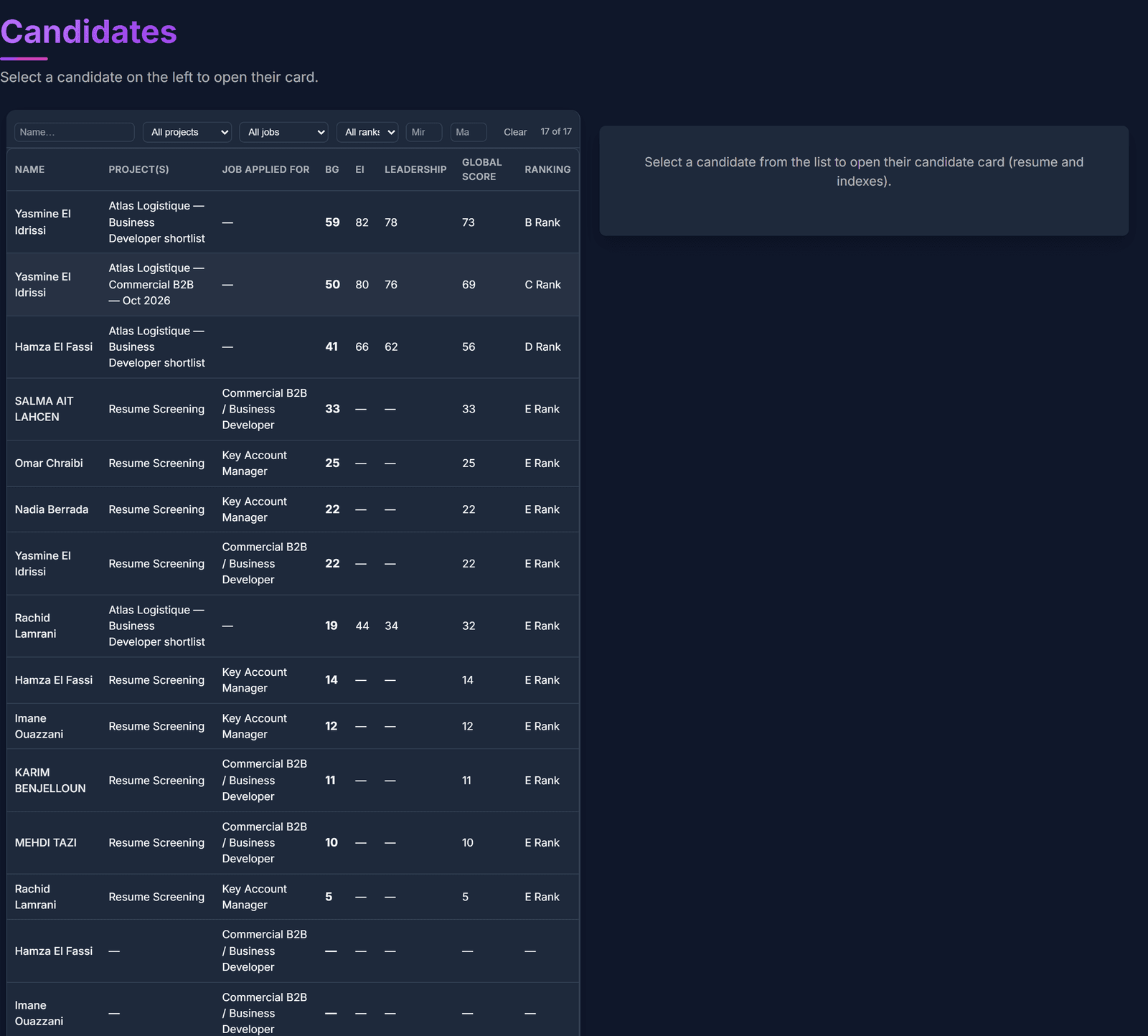
Open a candidate
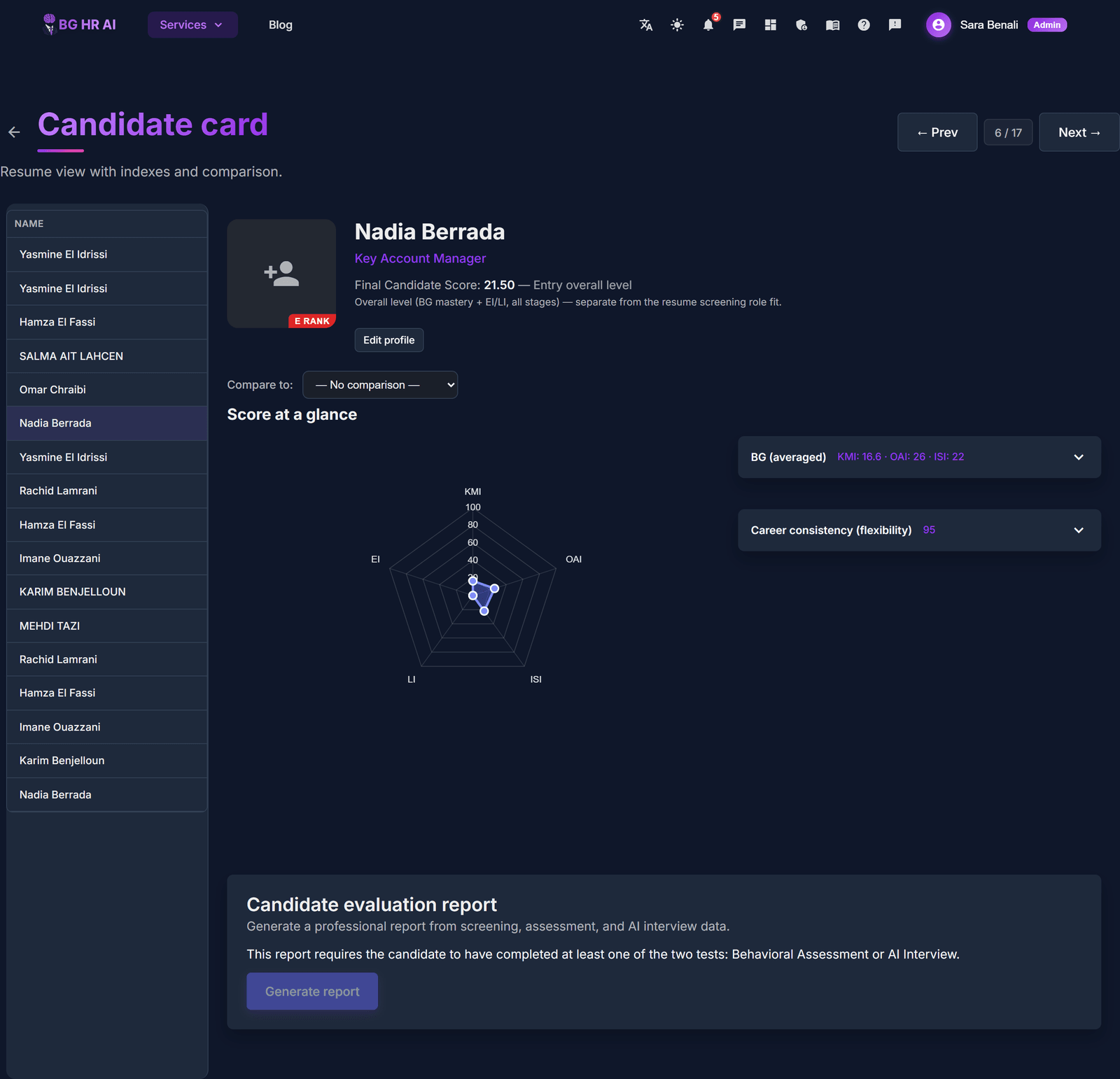
Click a name to open their card: contact details, a radar chart of every test they took, AI summaries and their applications.
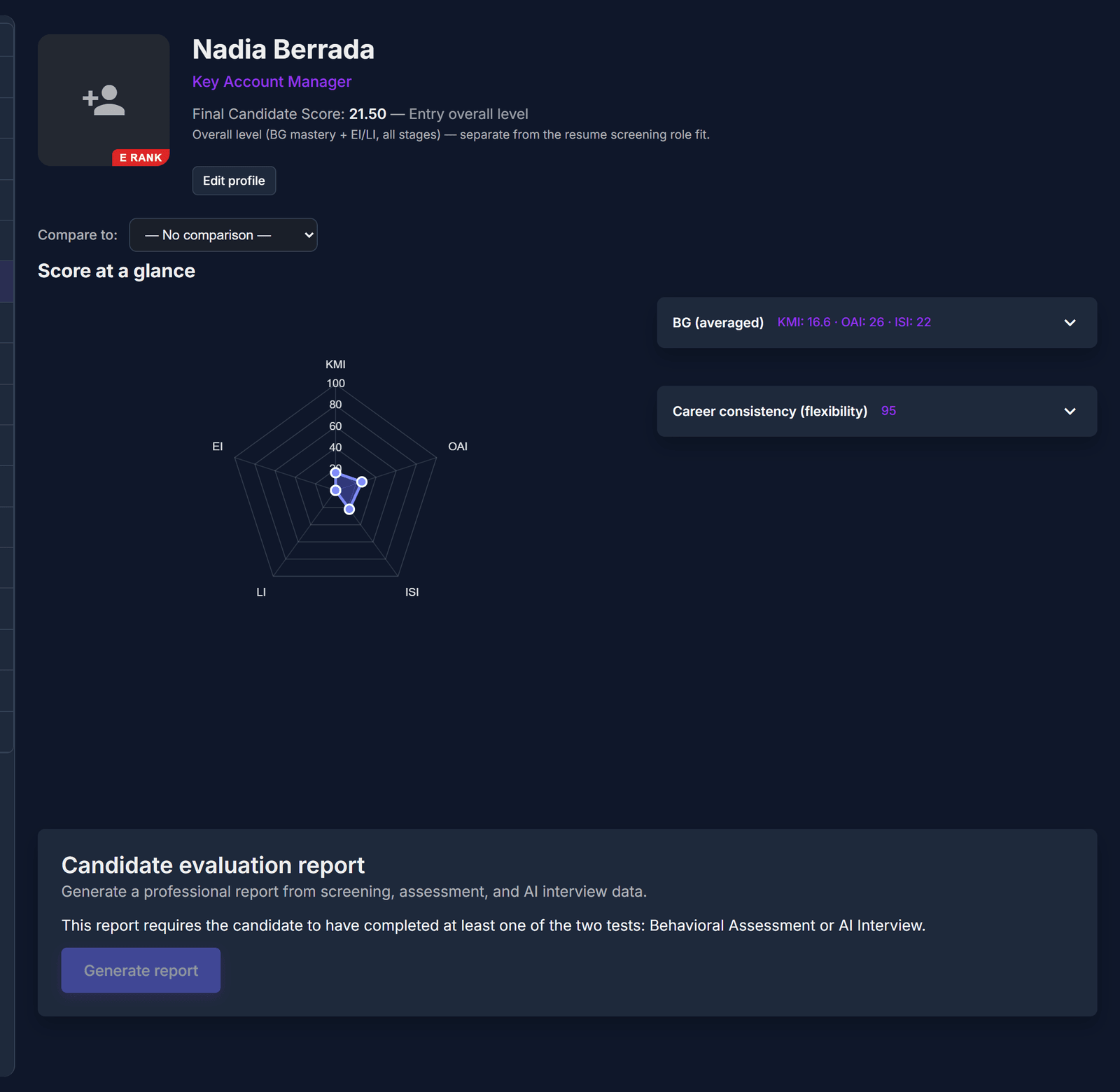
The whole card
Scroll to see everything about this candidate. When you hire them, click “Recruited” to add them to your organigram.
A recruited candidate becomes an employee you can use in Career Management and Training Plan.
Strategic Workforce Planning
See where you will have too many or too few people, and get AI advice on what to do.
Open Workforce Planning
Click “Services”, then “Strategic Workforce Planning”, and choose your organigram.
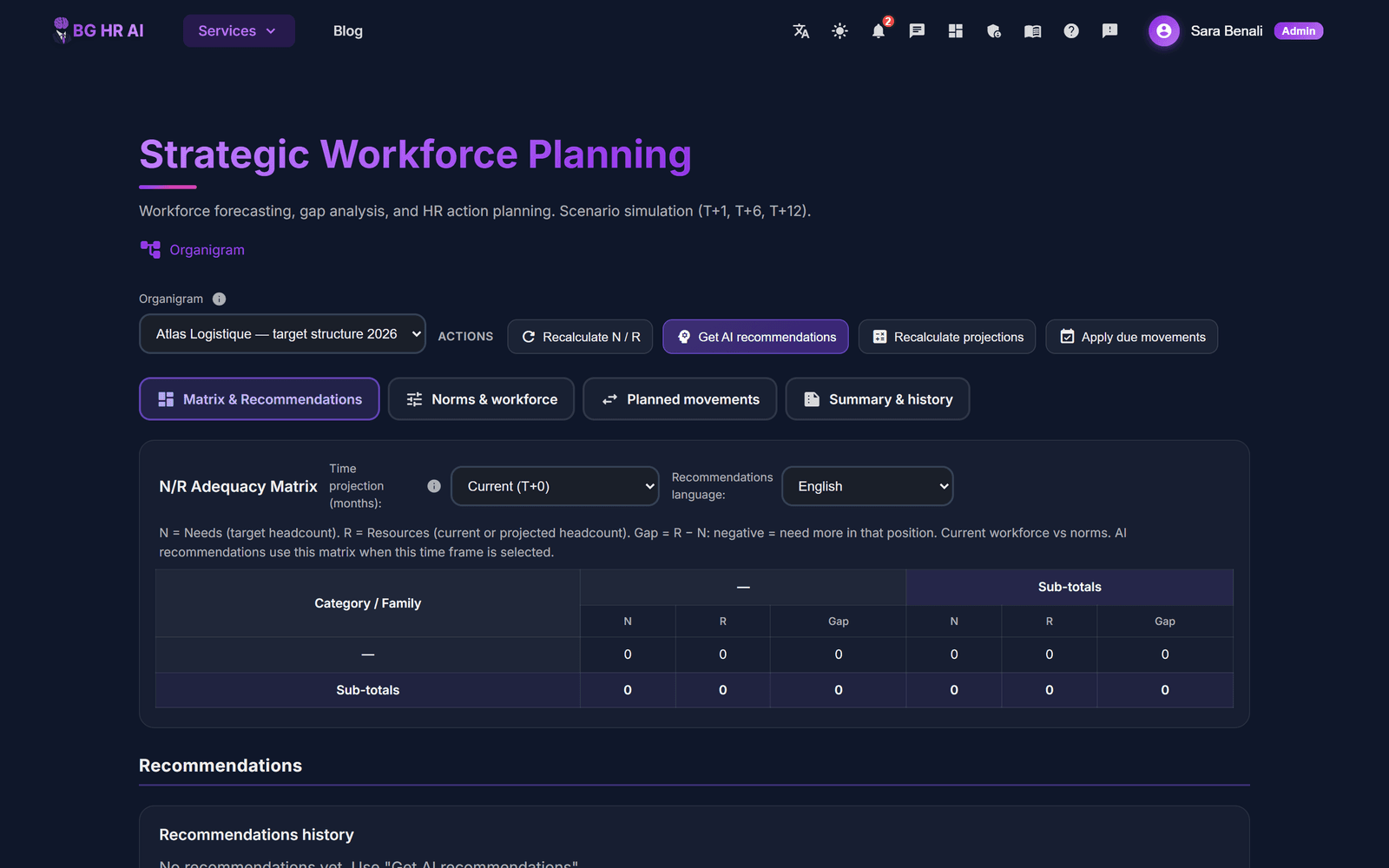
Set needs and people
In “Norms & workforce”, set the retirement age. For each role, type how many people you need (N) and how many you have now (R). Click “Save norms & settings”.
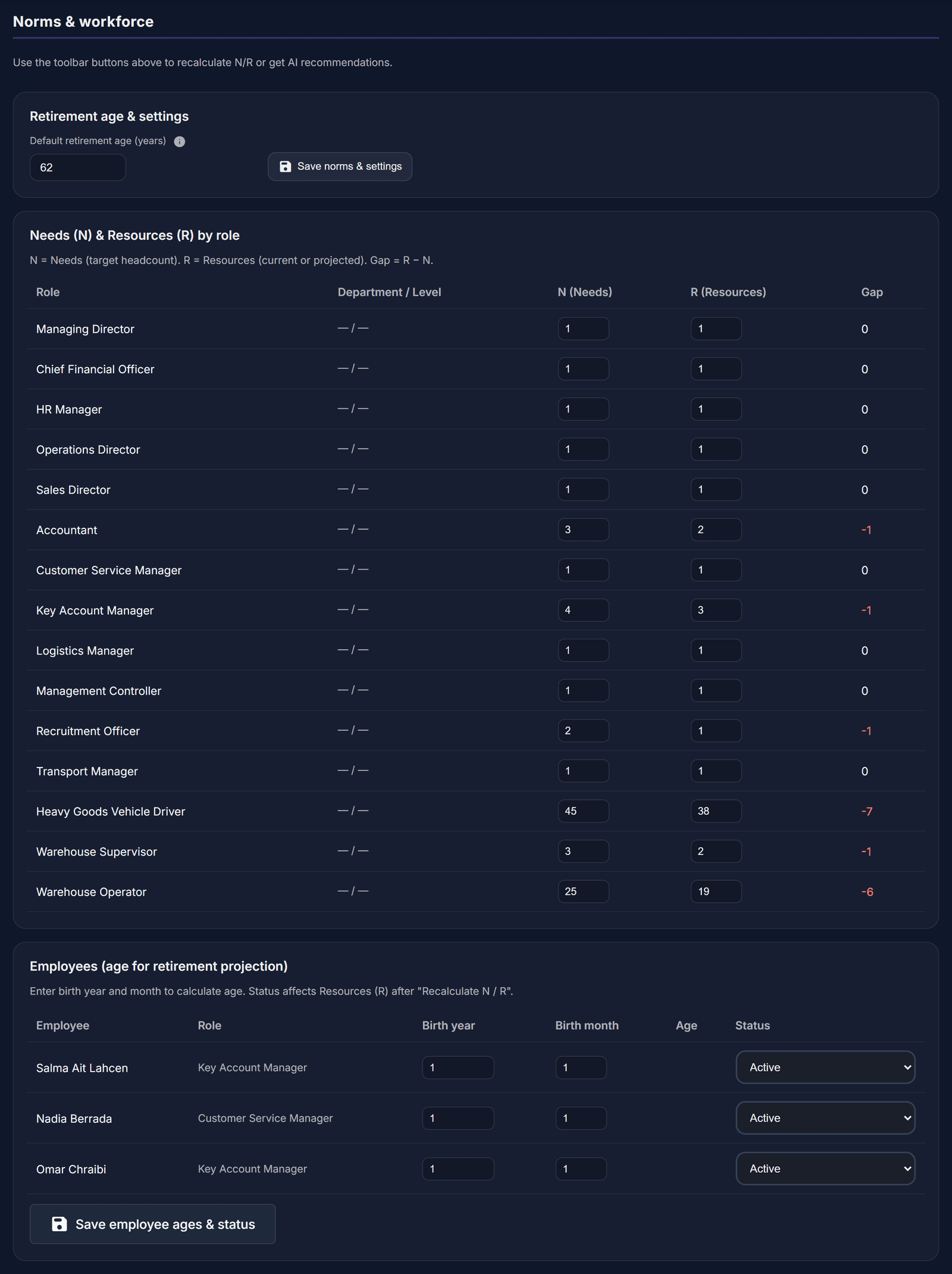
Read the gap table
The “N/R Adequacy Matrix” shows the gap for each role (a negative number means you need more people). Choose how far ahead to look: today, 1, 6 or 12 months.
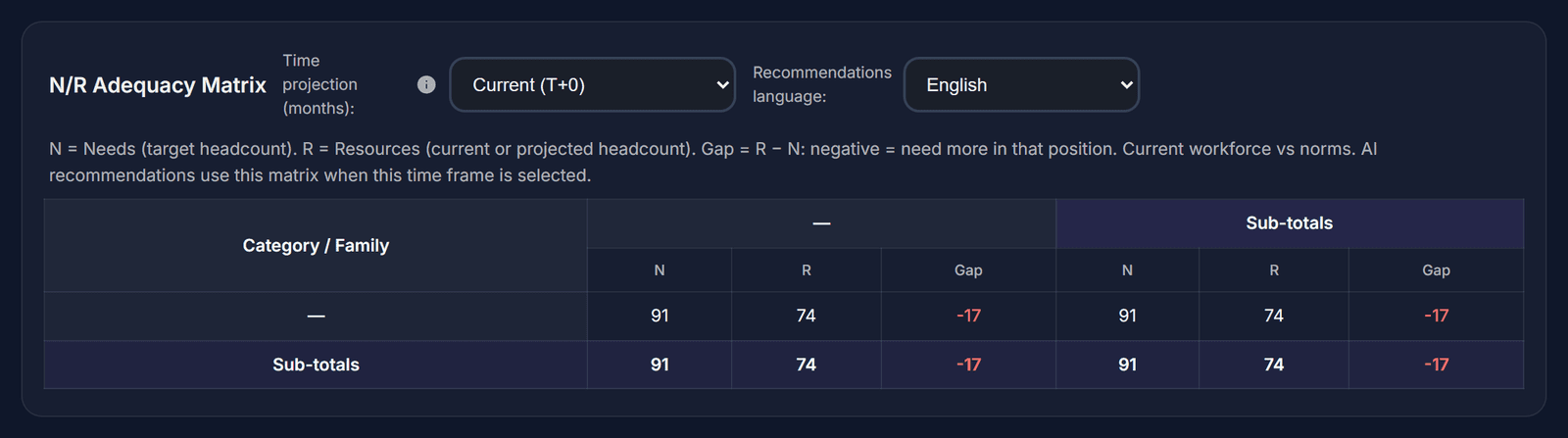
Ask the AI for advice
Click “Get AI recommendations”, then “Proceed”.
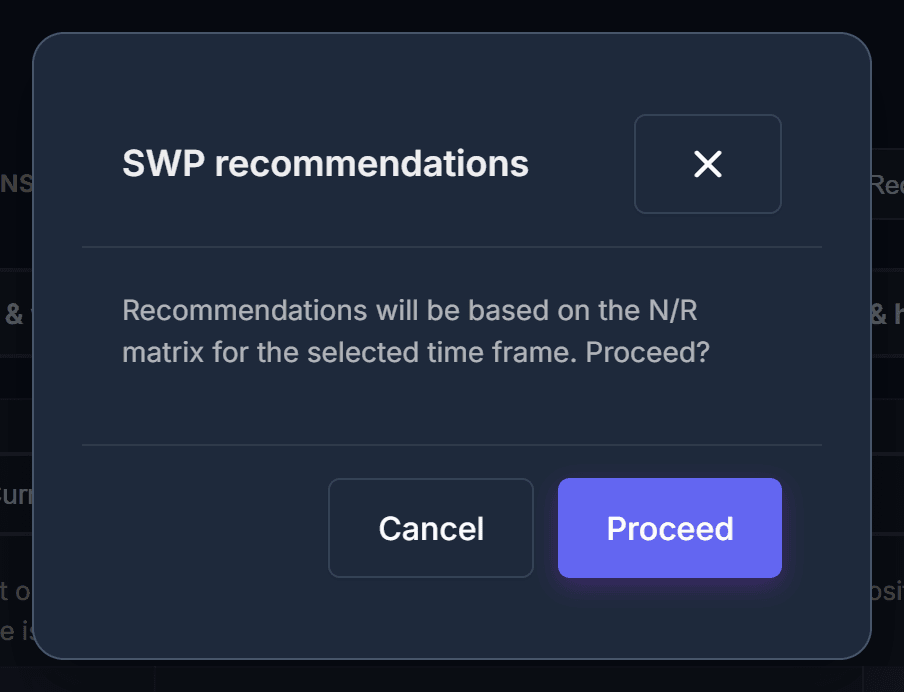
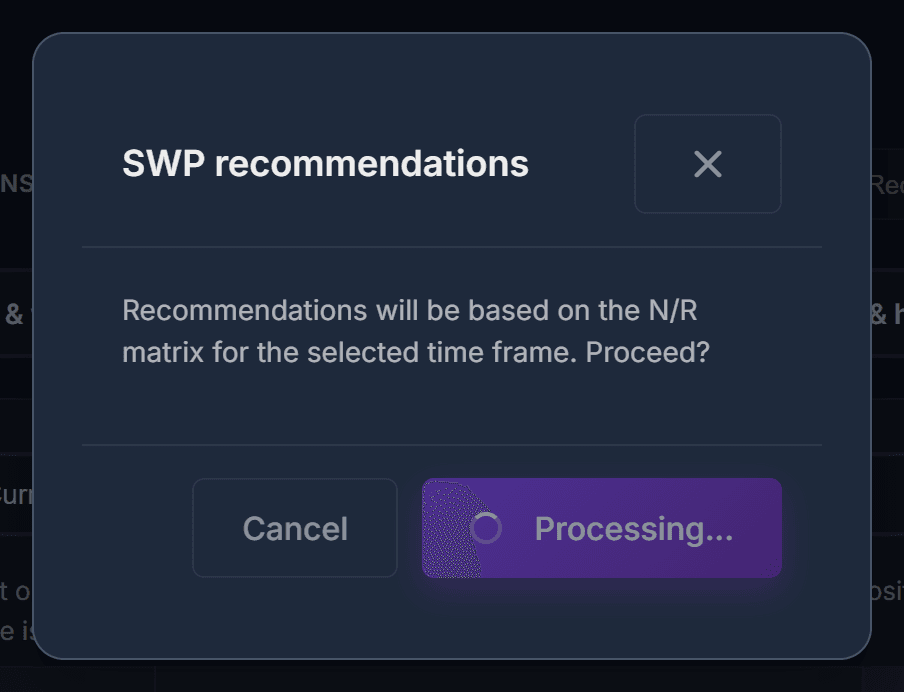
Wait a moment
The AI studies the table. It takes about 30 to 90 seconds.
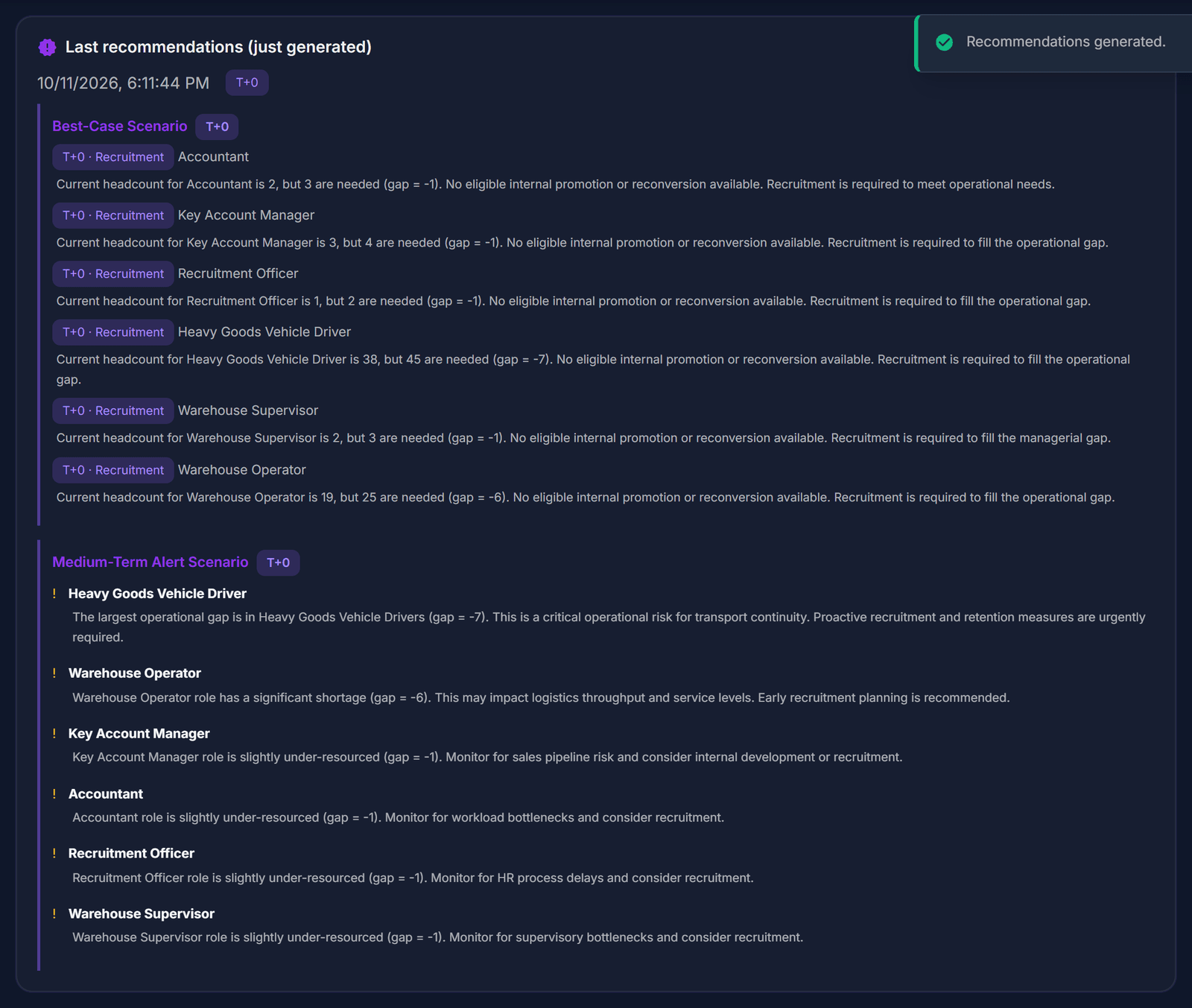
Read the advice
Under “Last recommendations (just generated)” you find what to do: hire, move people internally, train or plan replacements.
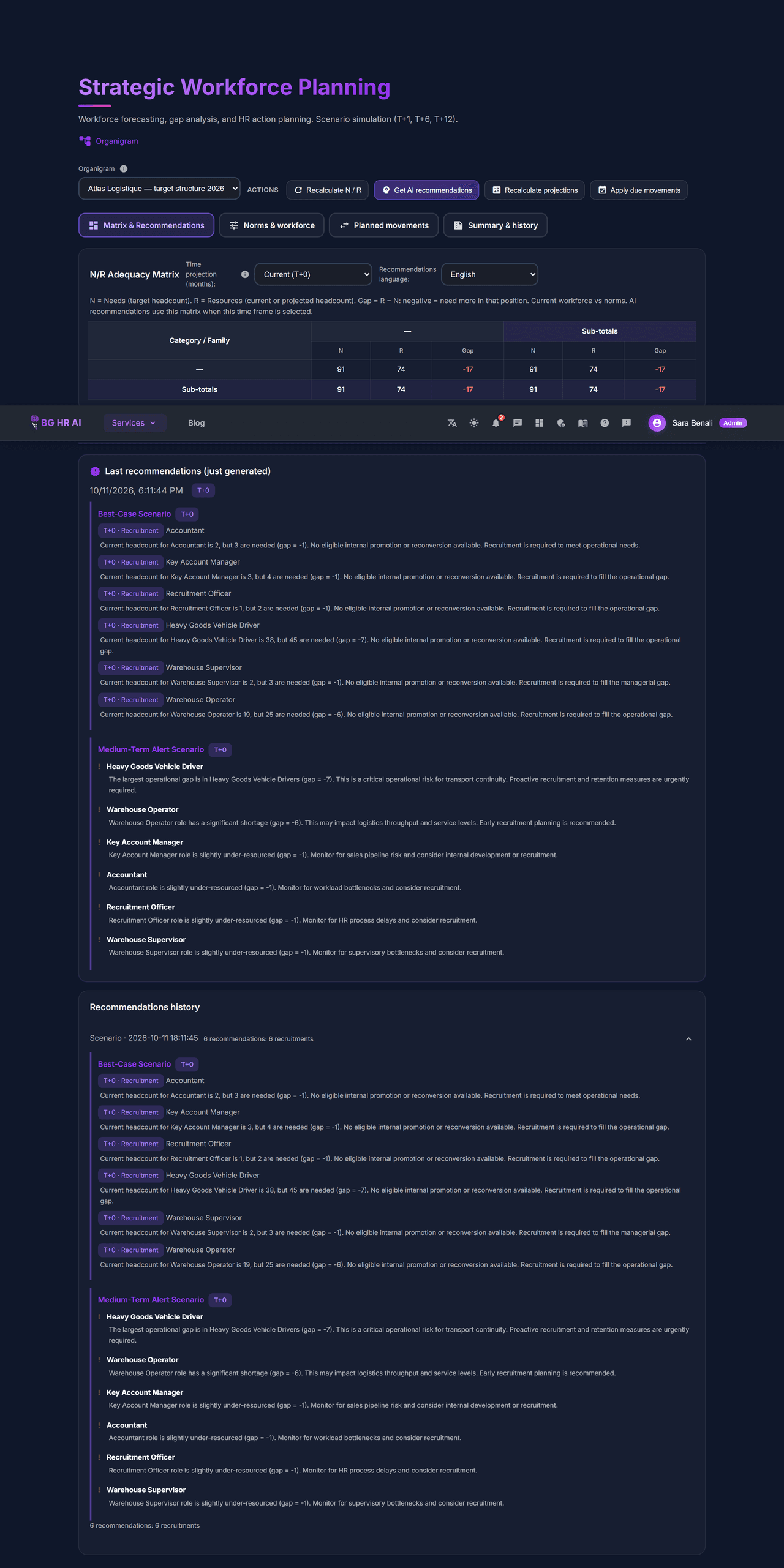
The whole page
Scroll to see the table and the advice together.
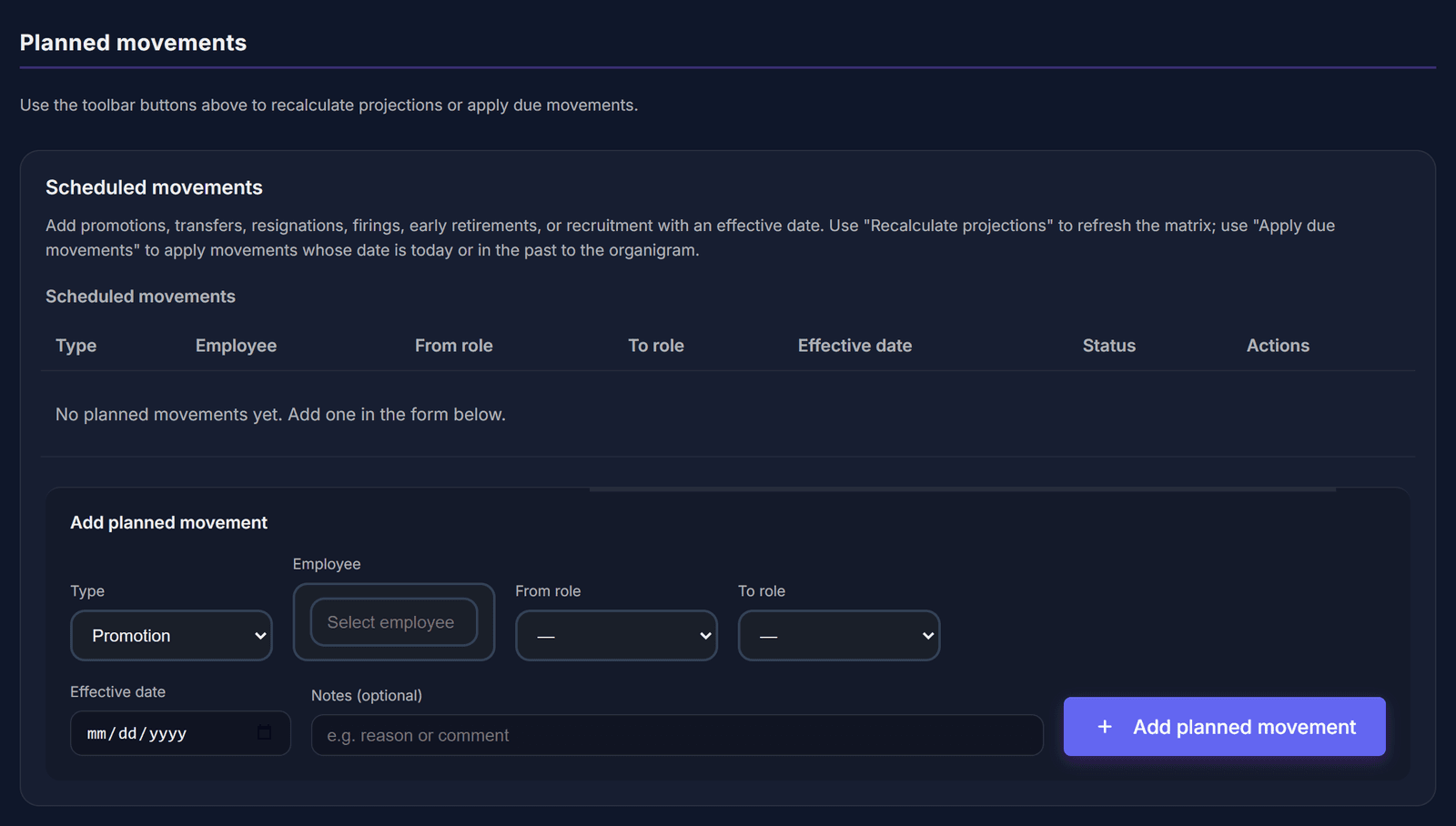
Plan movements
In “Planned movements”, add future changes (a departure, a promotion…) with “Add planned movement”.
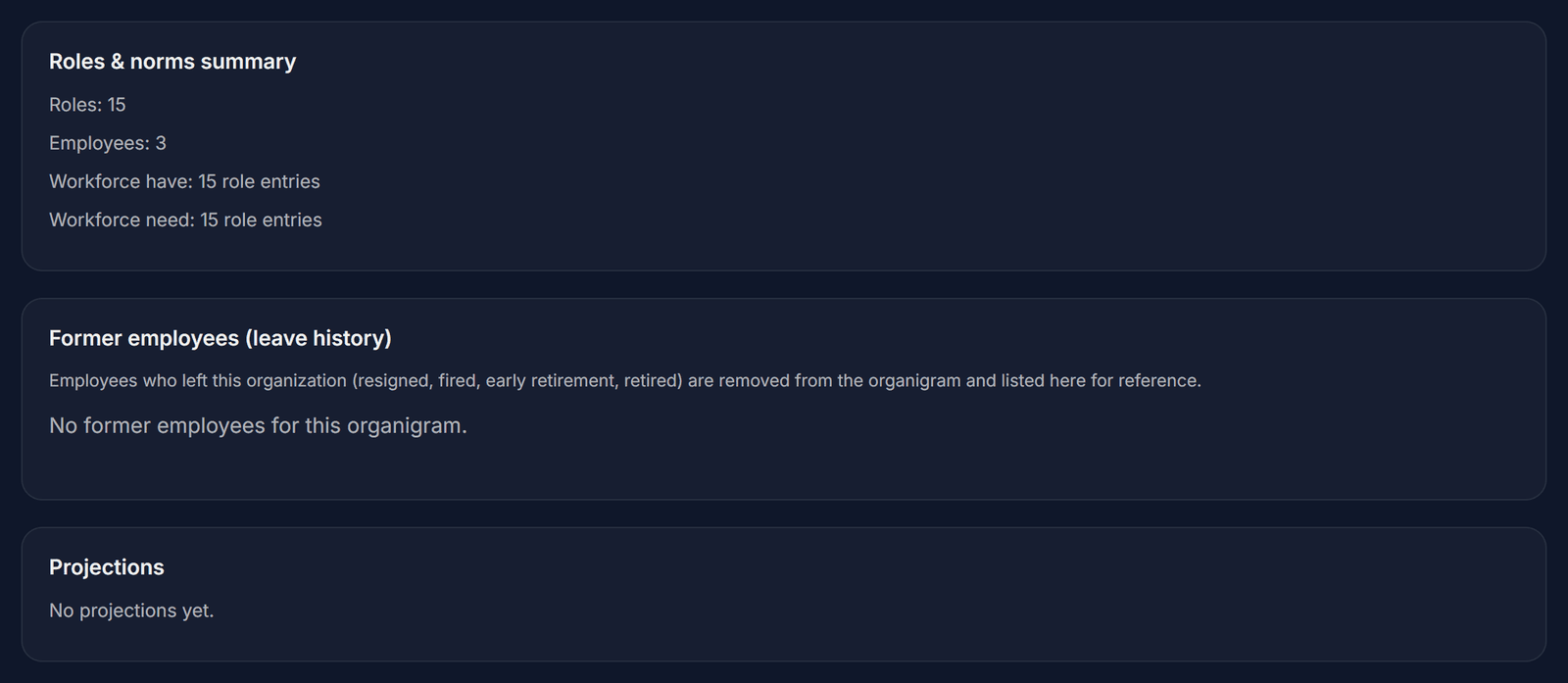
Summary and history
The “Summary & history” tab shows the roles and norms, former employees and projections.
Keep the headcounts (R) up to date, so the gaps and the advice stay right.
Career Management
Show an employee which roles they can grow into, and how to get there.
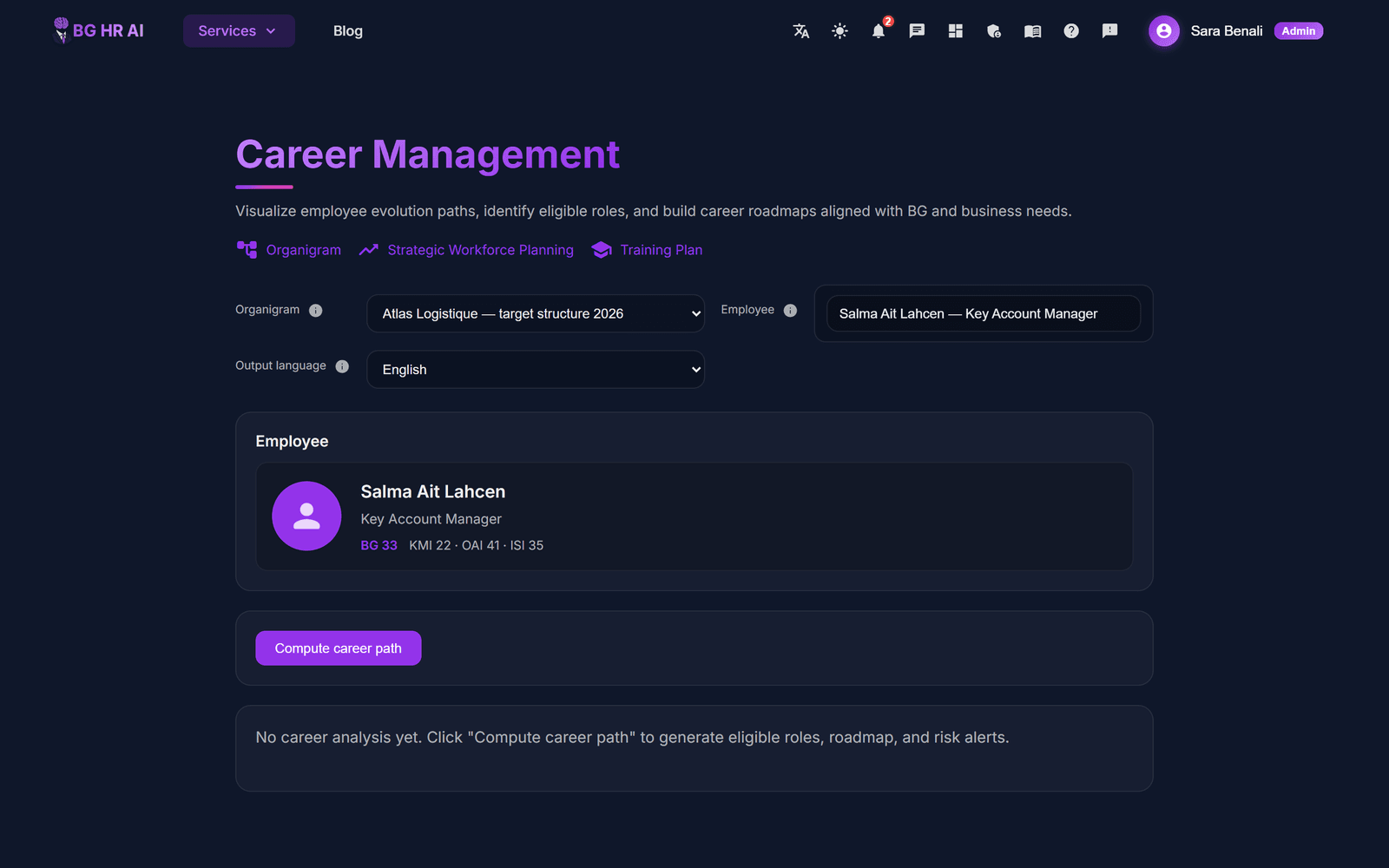
Open Career Management
Click “Services”, then “Career Management”. Choose the organigram, then the employee.
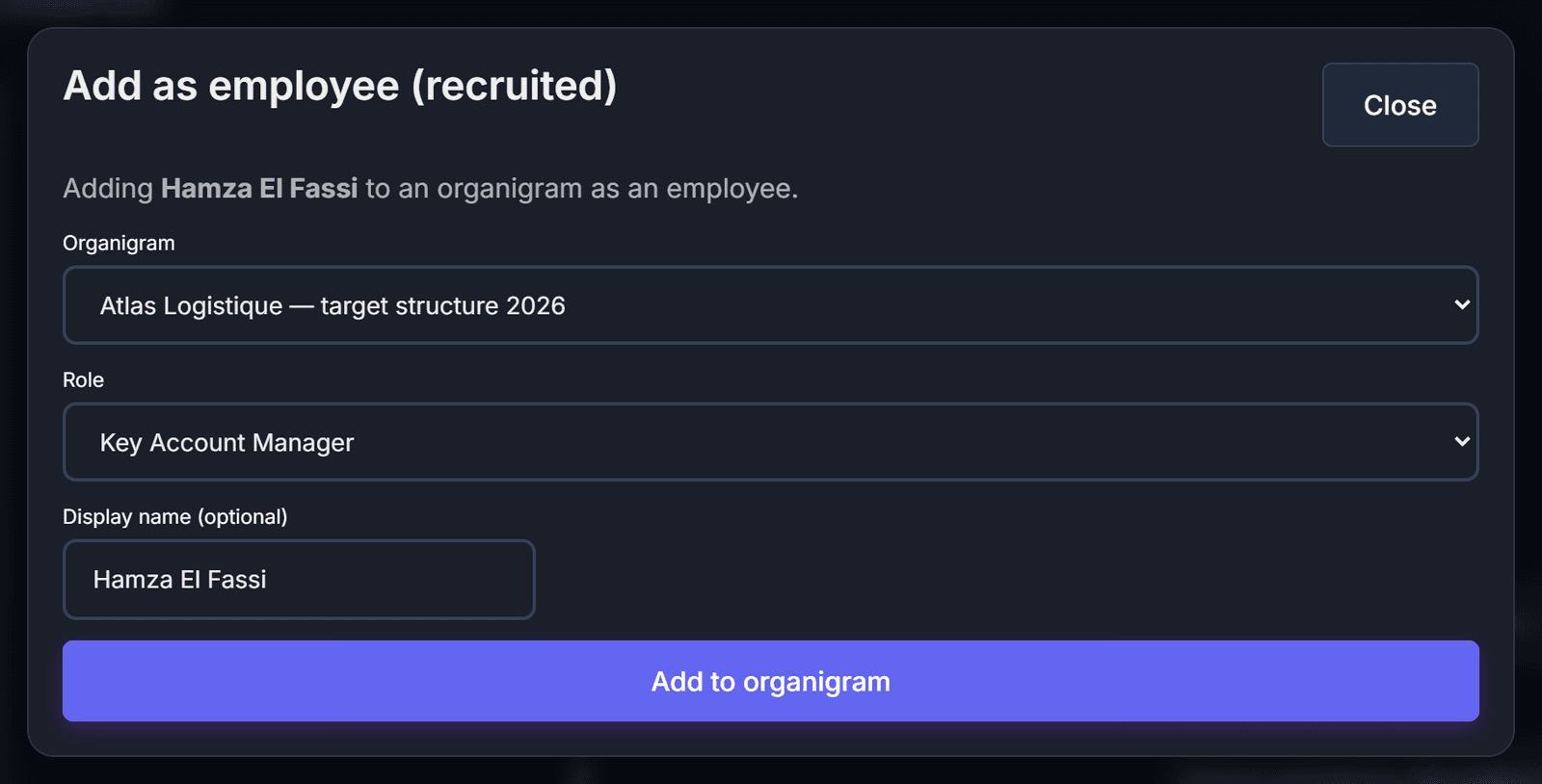
Where employees come from
Employees come from your candidates. On “Candidates”, open a candidate, click “Recruited”, choose the organigram and the role, then “Add to organigram”.
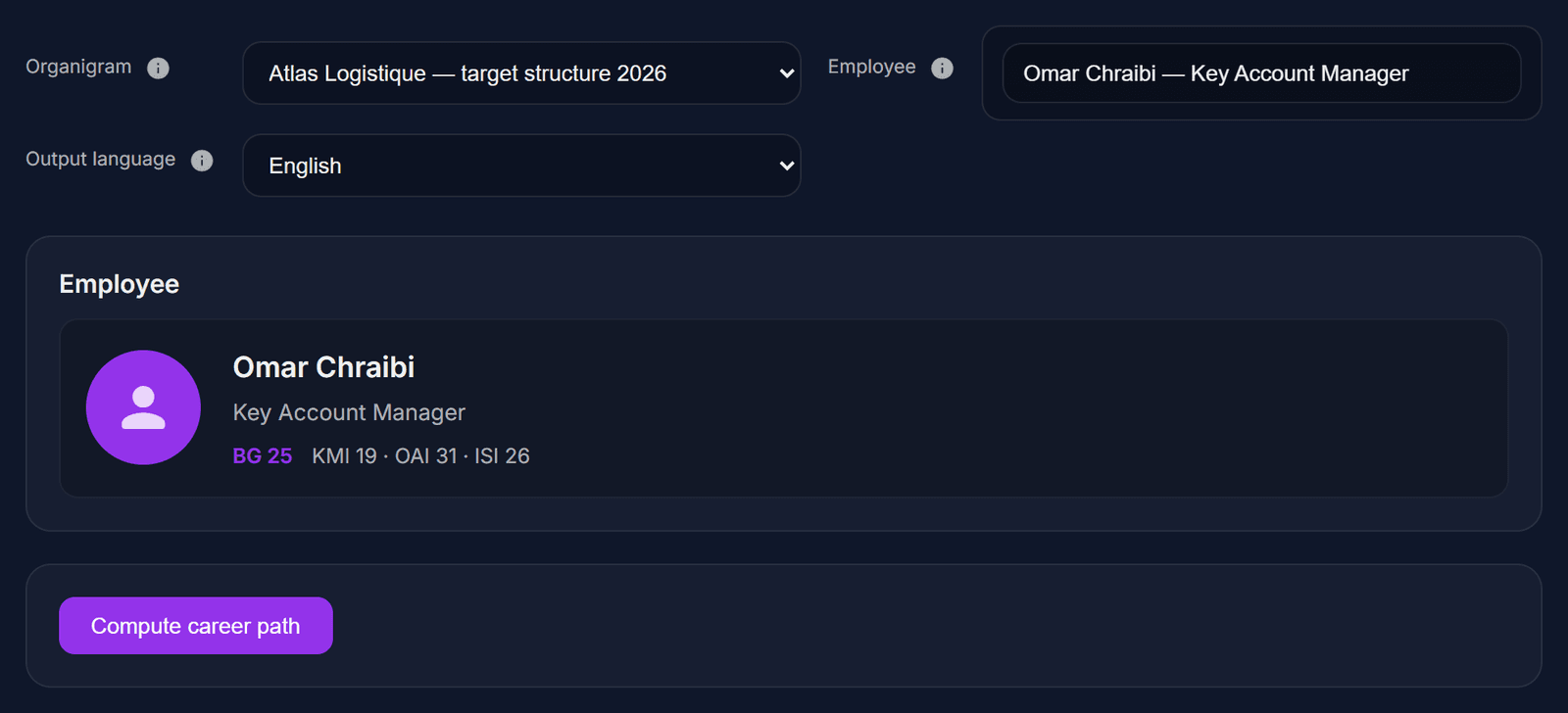
Click “Compute career path”
The employee card shows their role, department and BG score. Click “Compute career path”.
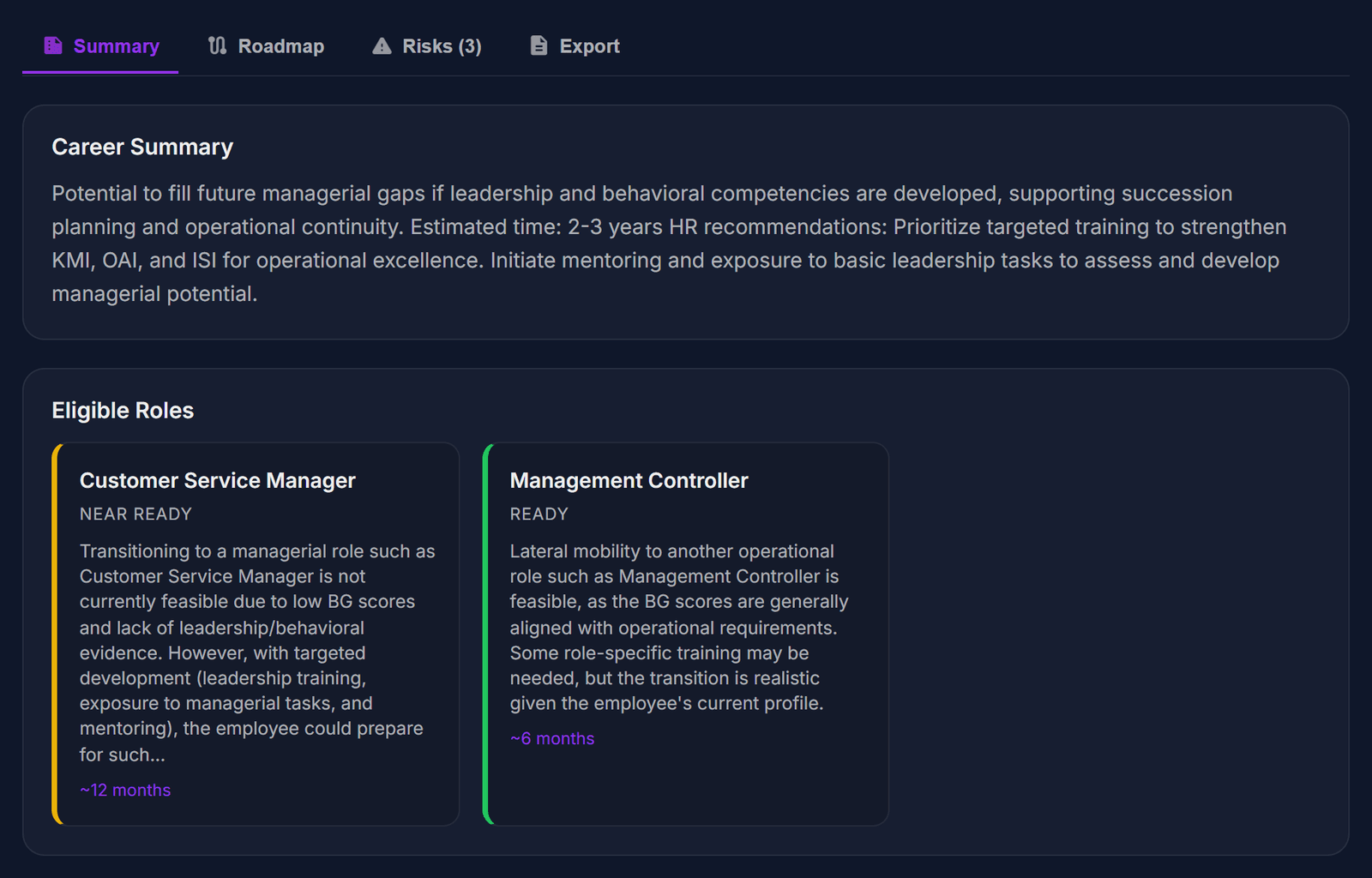
Read the summary
You see the career summary and the roles this person could move into.
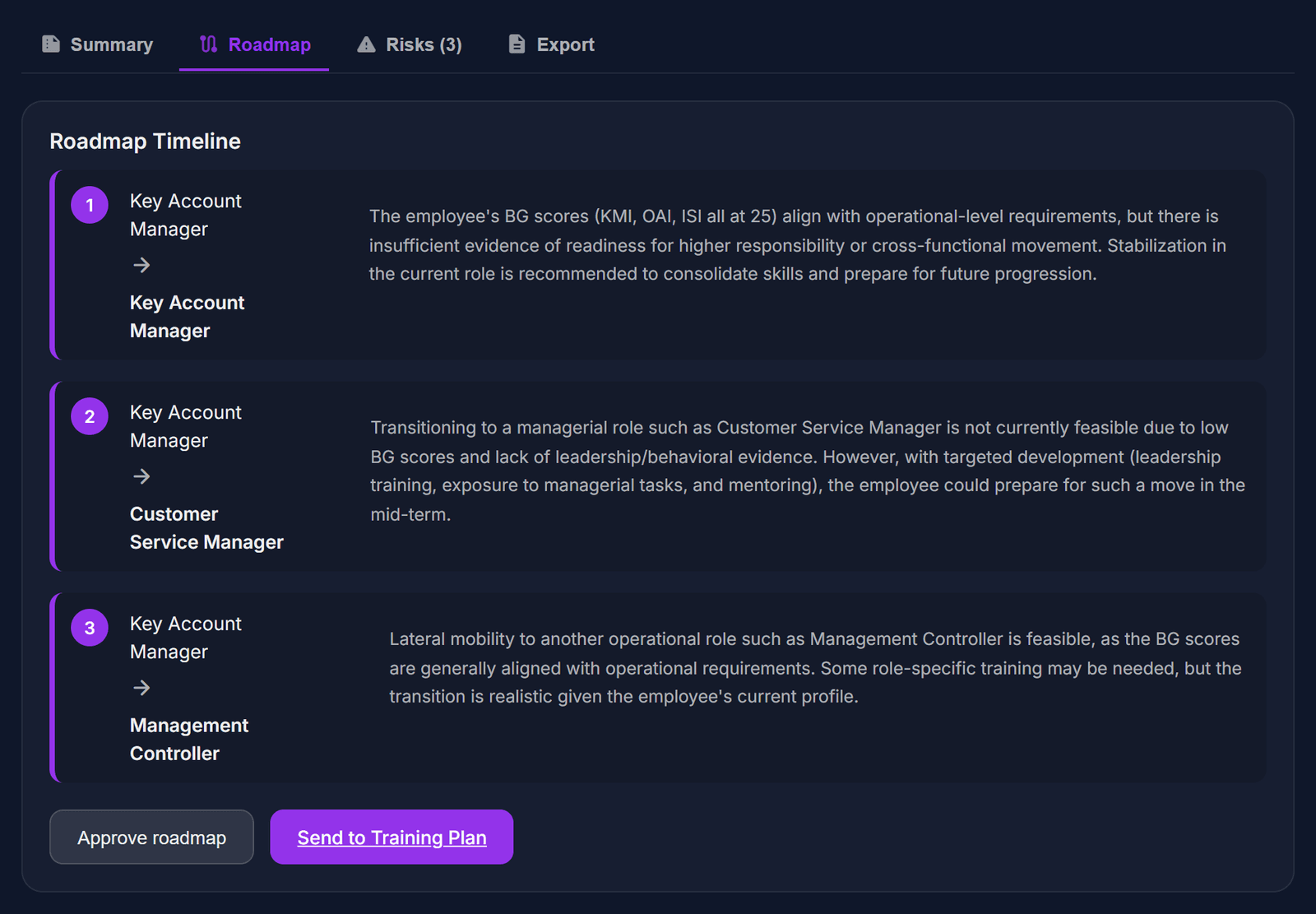
Roadmap
The “Roadmap” tab shows the steps over time. Click “Approve roadmap” when you agree.
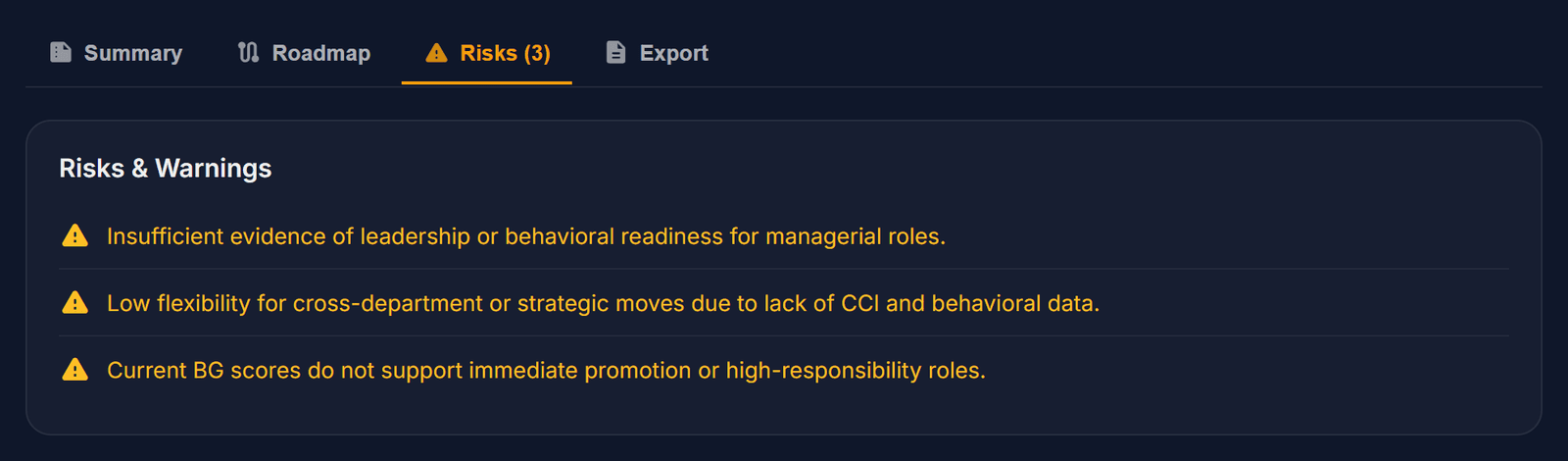
Risks
The “Risks” tab lists what could slow the career down.
Export
The “Export” tab lets you “Download .docx”.
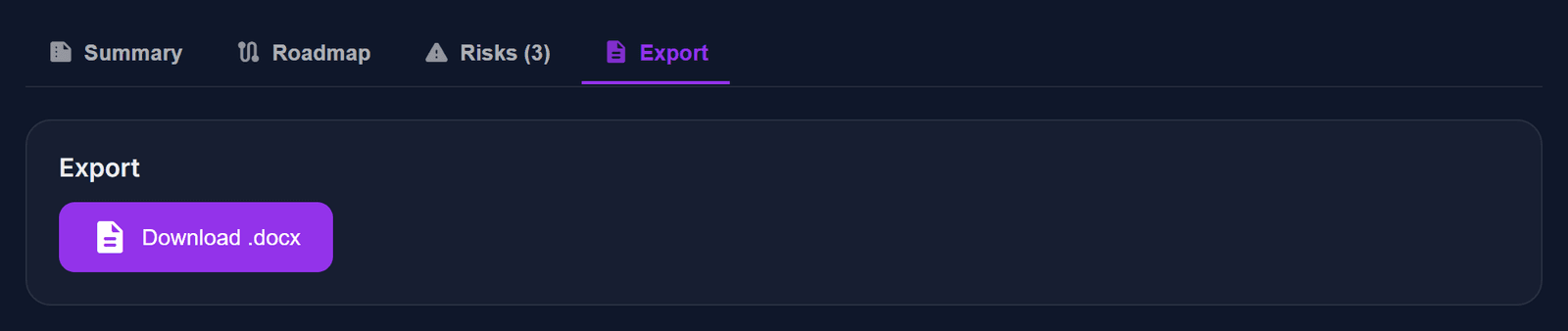
Pair a career path with a Training Plan (next section) to close the skills gap.
Training Plan
Get a training plan that prepares an employee for a target role.
Open Training Plan
Click “Services”, then “Training Plan”.
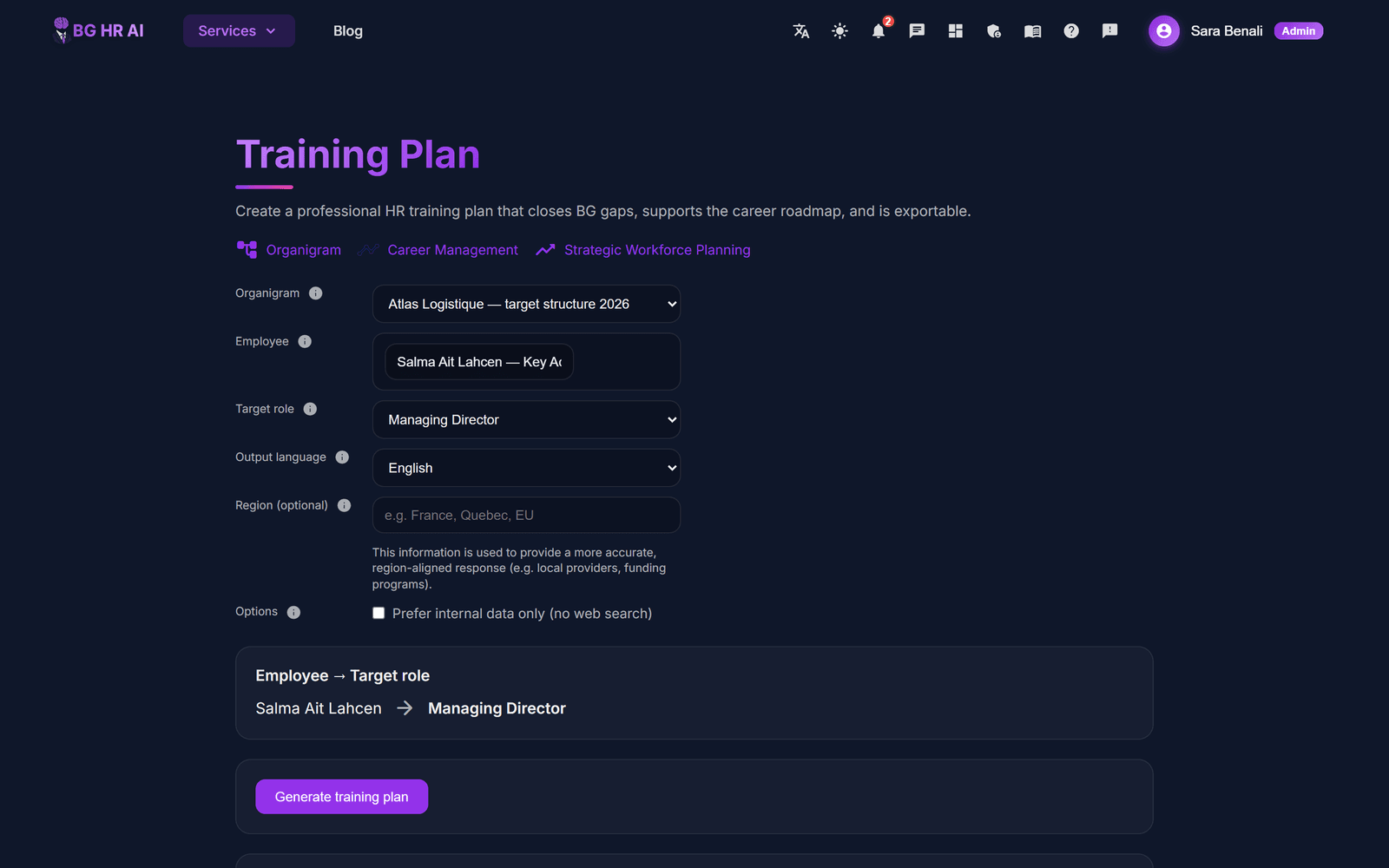
Choose who and for which role
Select the organigram, the employee, the target role and the language. You can add a region to get local training providers. Then generate the plan.
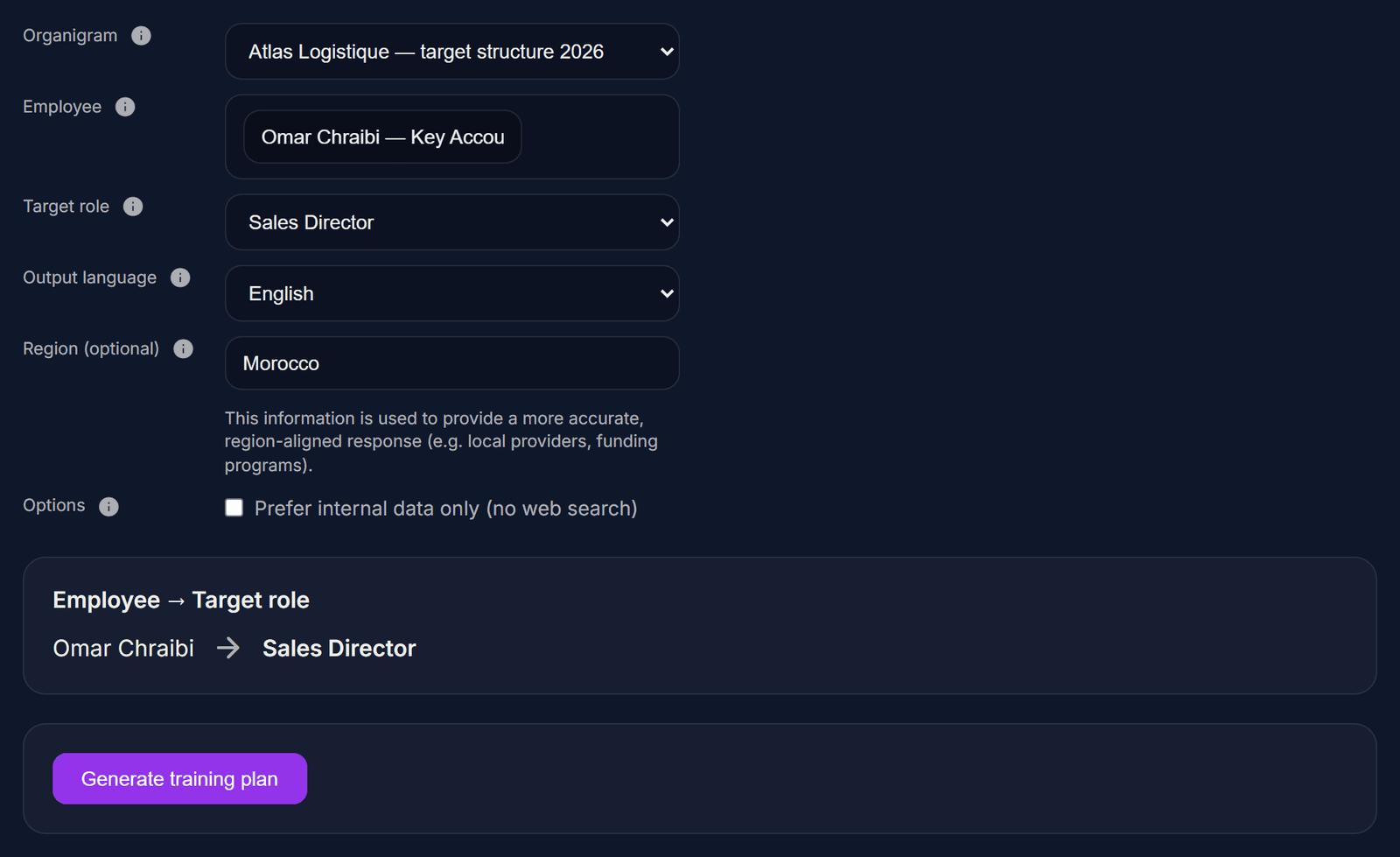
Wait a moment
The AI builds the plan. It takes about 30 to 90 seconds.

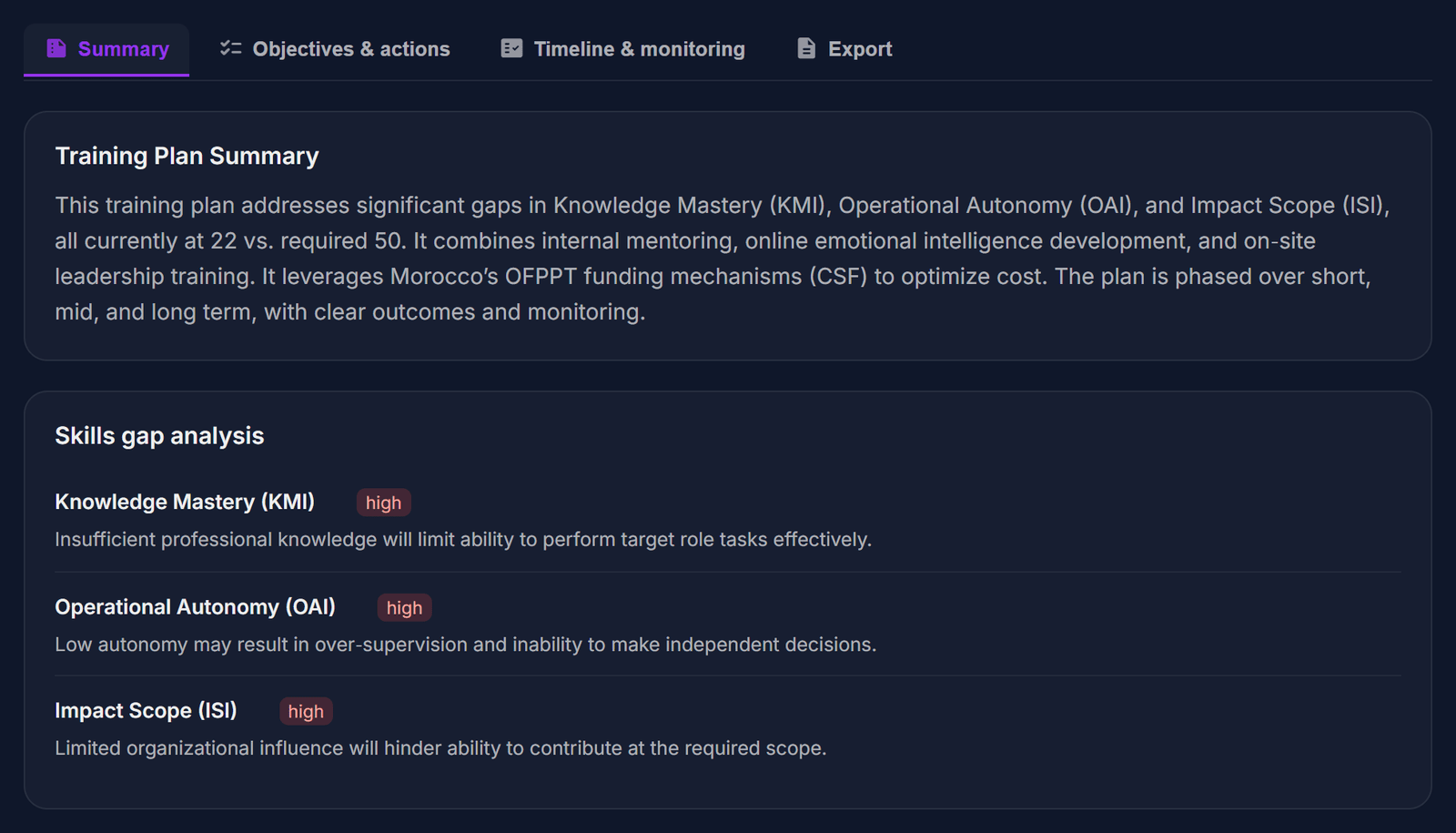
Read the summary
The “Summary” tab shows which skills are missing.
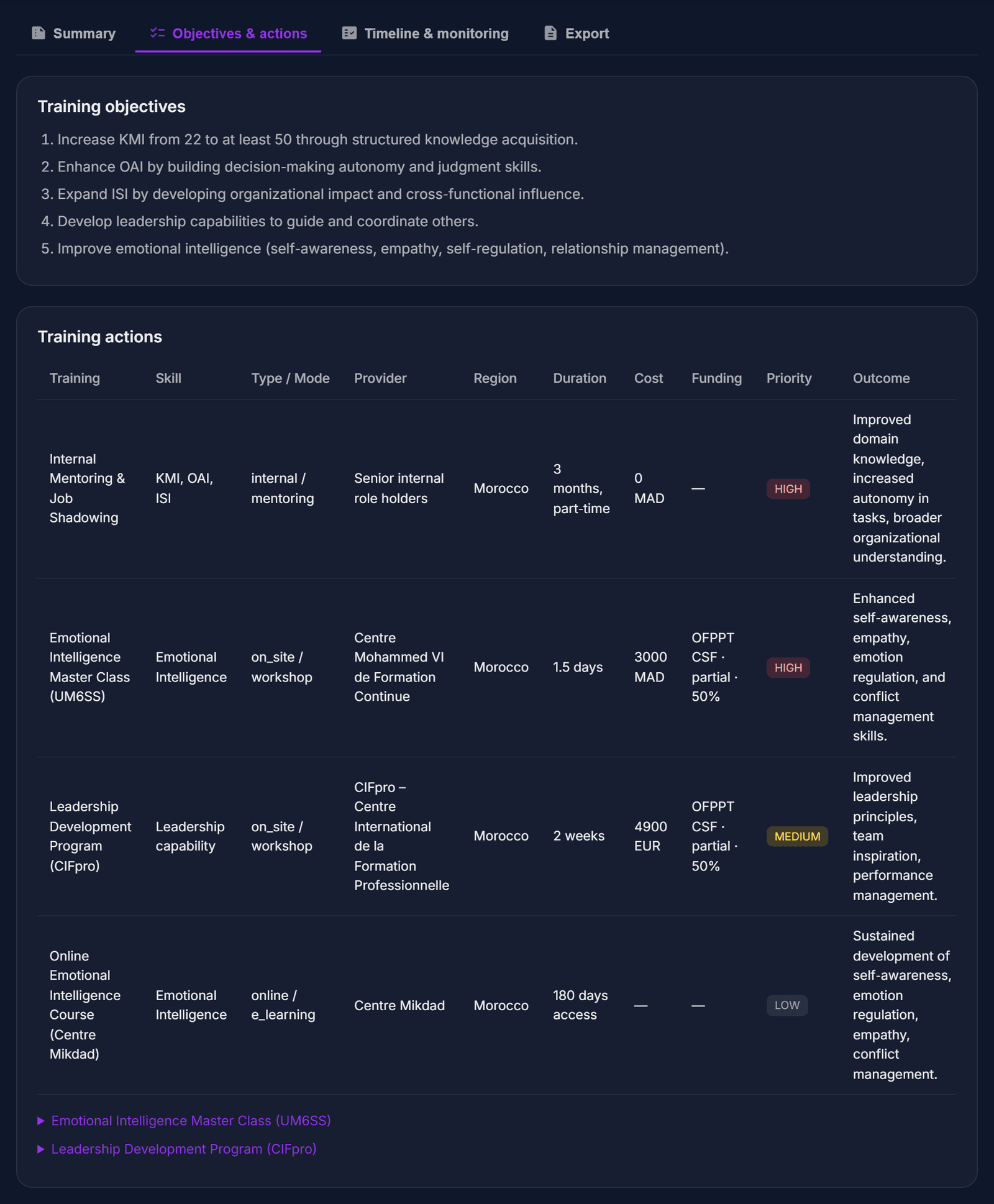
Objectives and actions
The “Objectives & actions” tab lists what to learn and how.
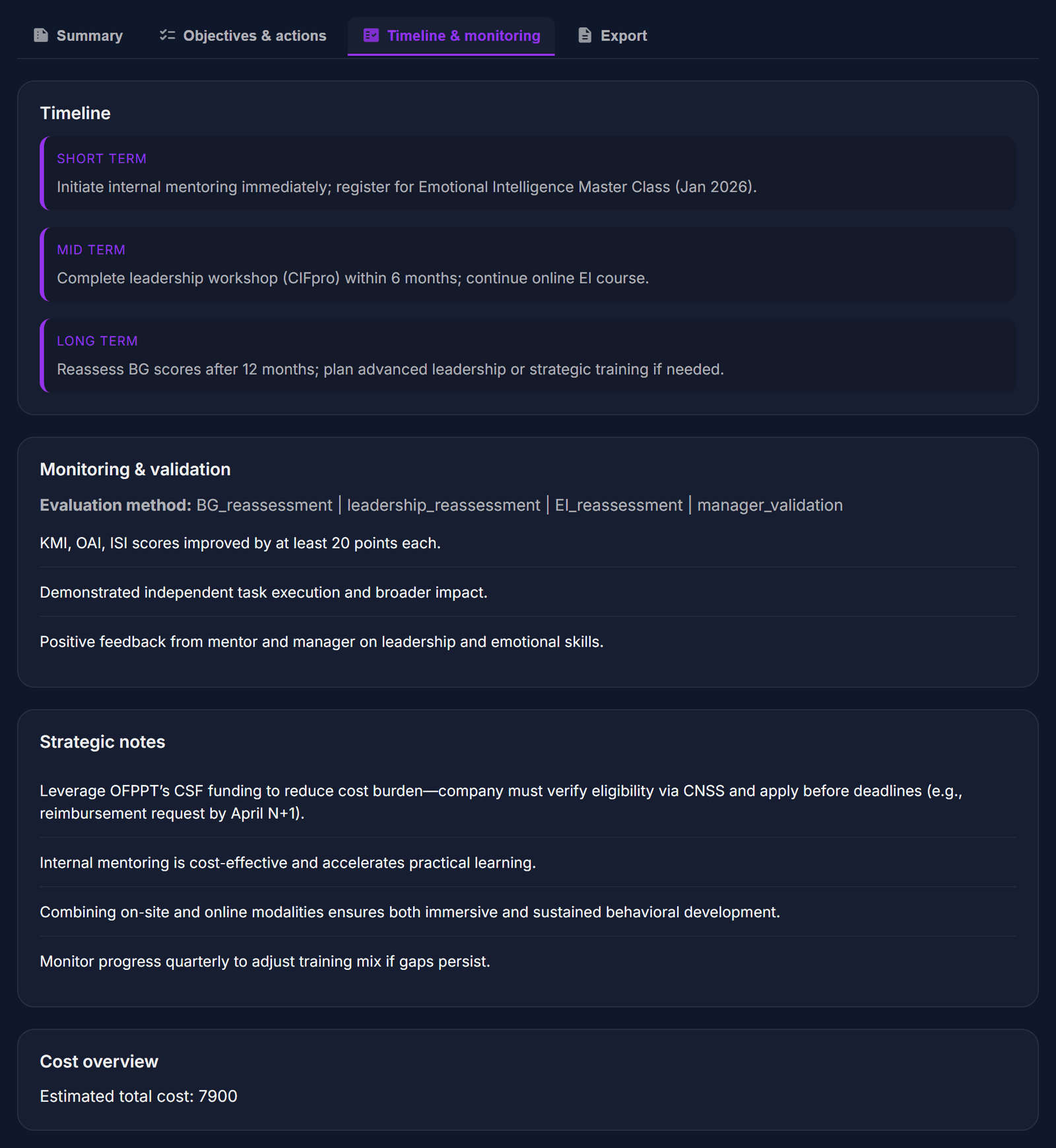
Timeline
The “Timeline & monitoring” tab shows when to do each action and how to follow progress.
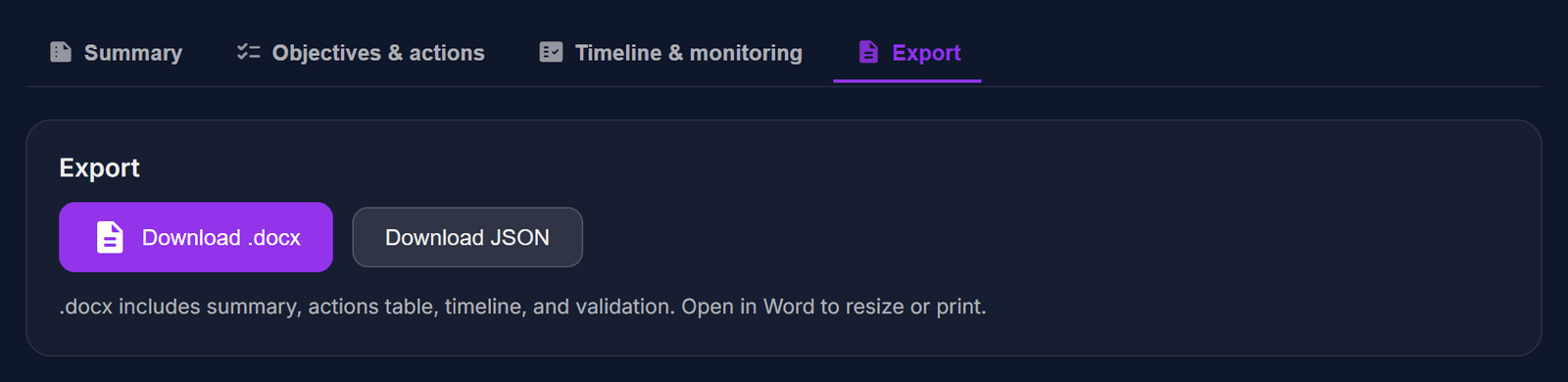
Export
The “Export” tab lets you “Download .docx”.
Choose a region to get training suggestions near the employee.
API Access
Connect your own software (HR system, job board, intranet) to BG HR AI.
Open API Clients
Open “API Clients & Developer Access”.
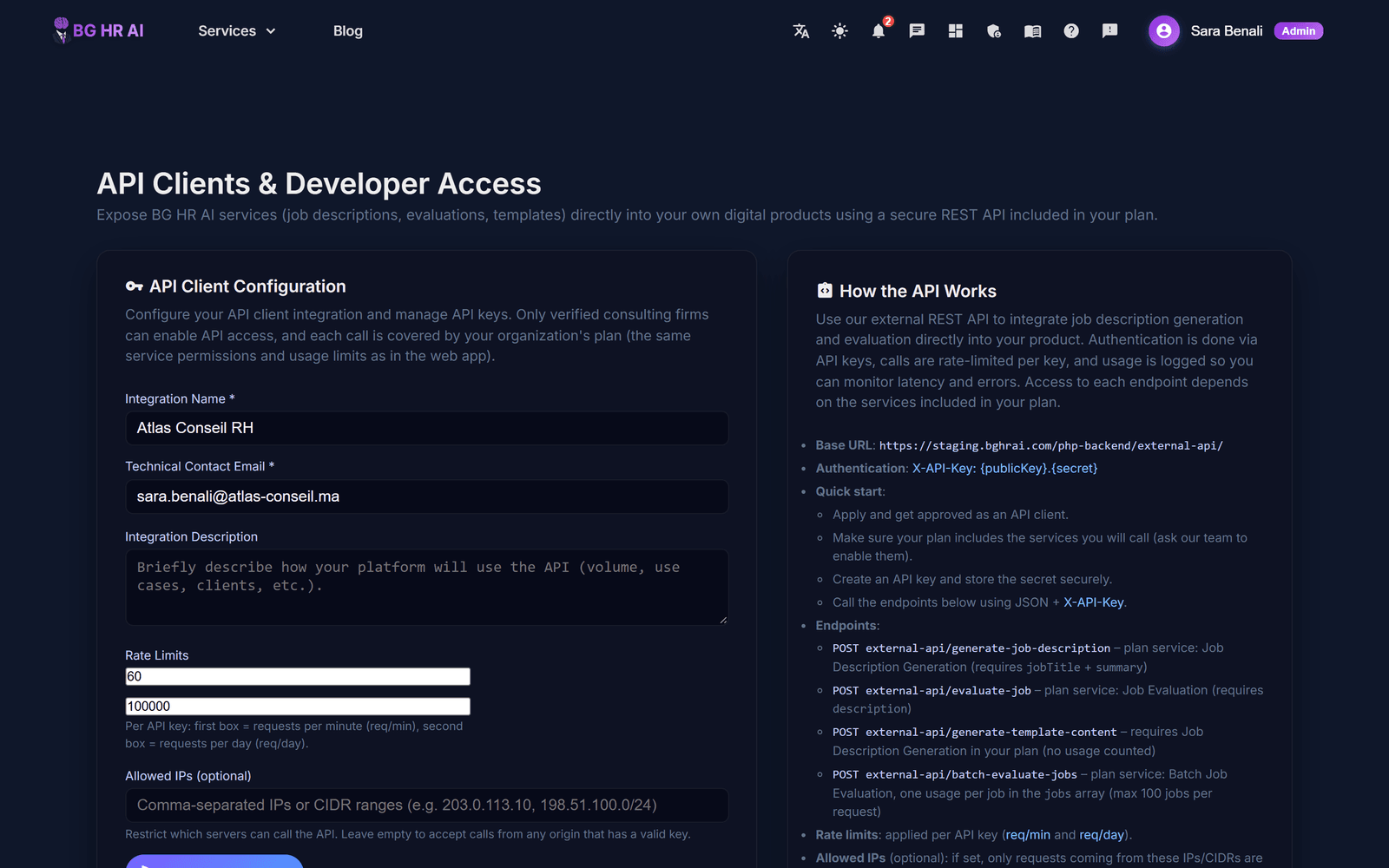
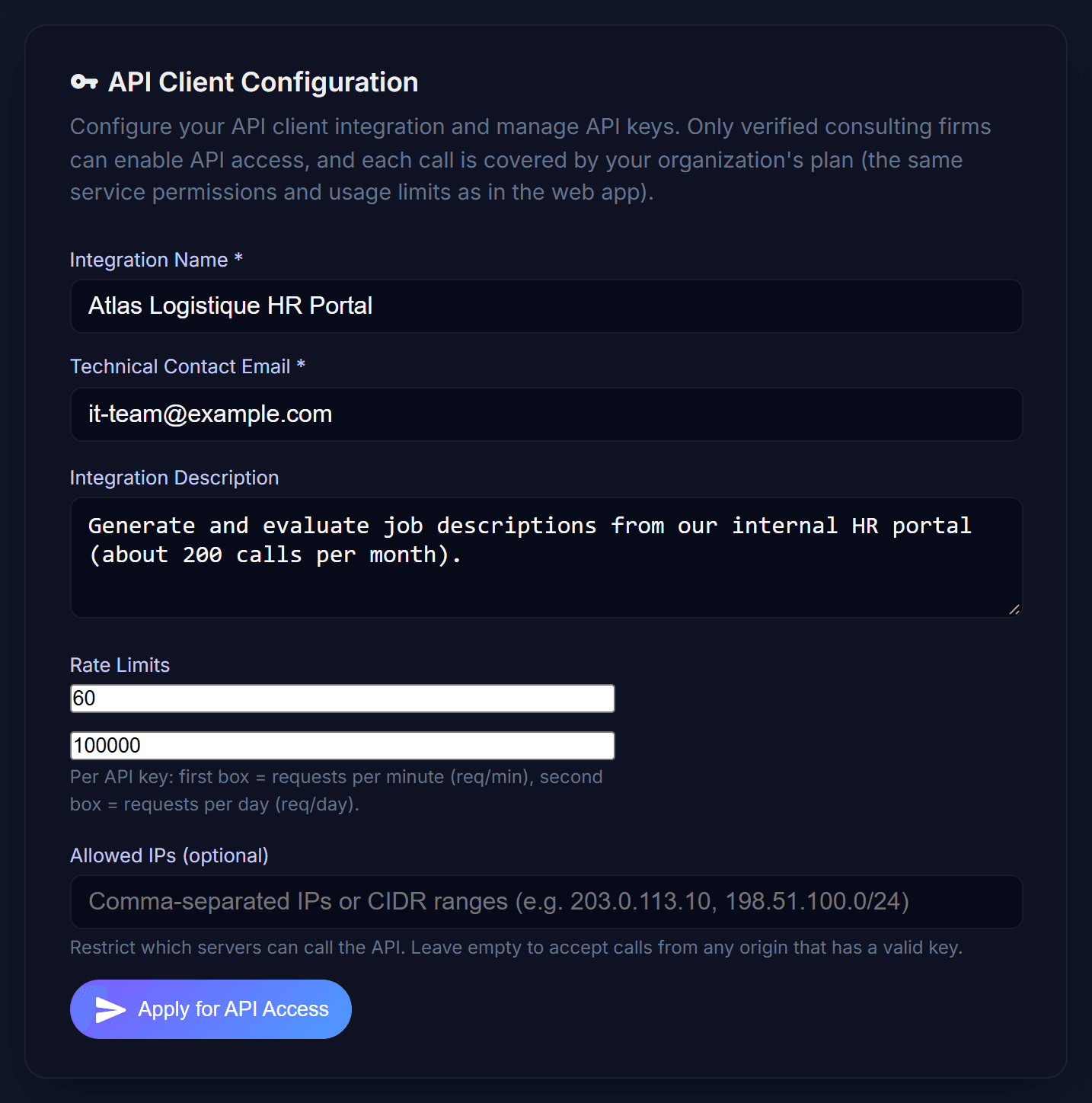
Ask for access
Fill in the integration name, a technical contact email and a short description. Choose the limits and, if you want, the IP addresses allowed. Click “Apply for API Access”. Once approved, you create your API keys here.
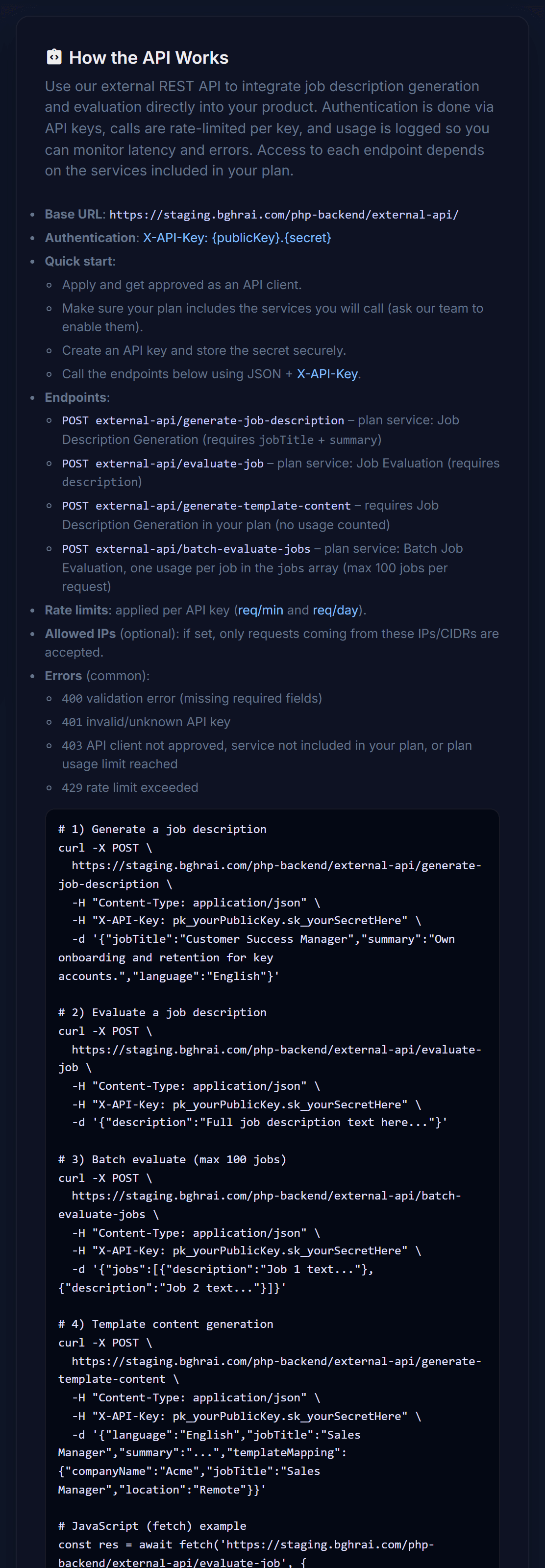
Read how it works
“How the API Works” explains the address to call, how to send your key (X-API-Key), the available actions and code examples.
Keep your API key secret, like a password. Create a new one if it ever leaks.
Keep Your Account Safe
Turn on two-step login and keep an eye on where your account is used.
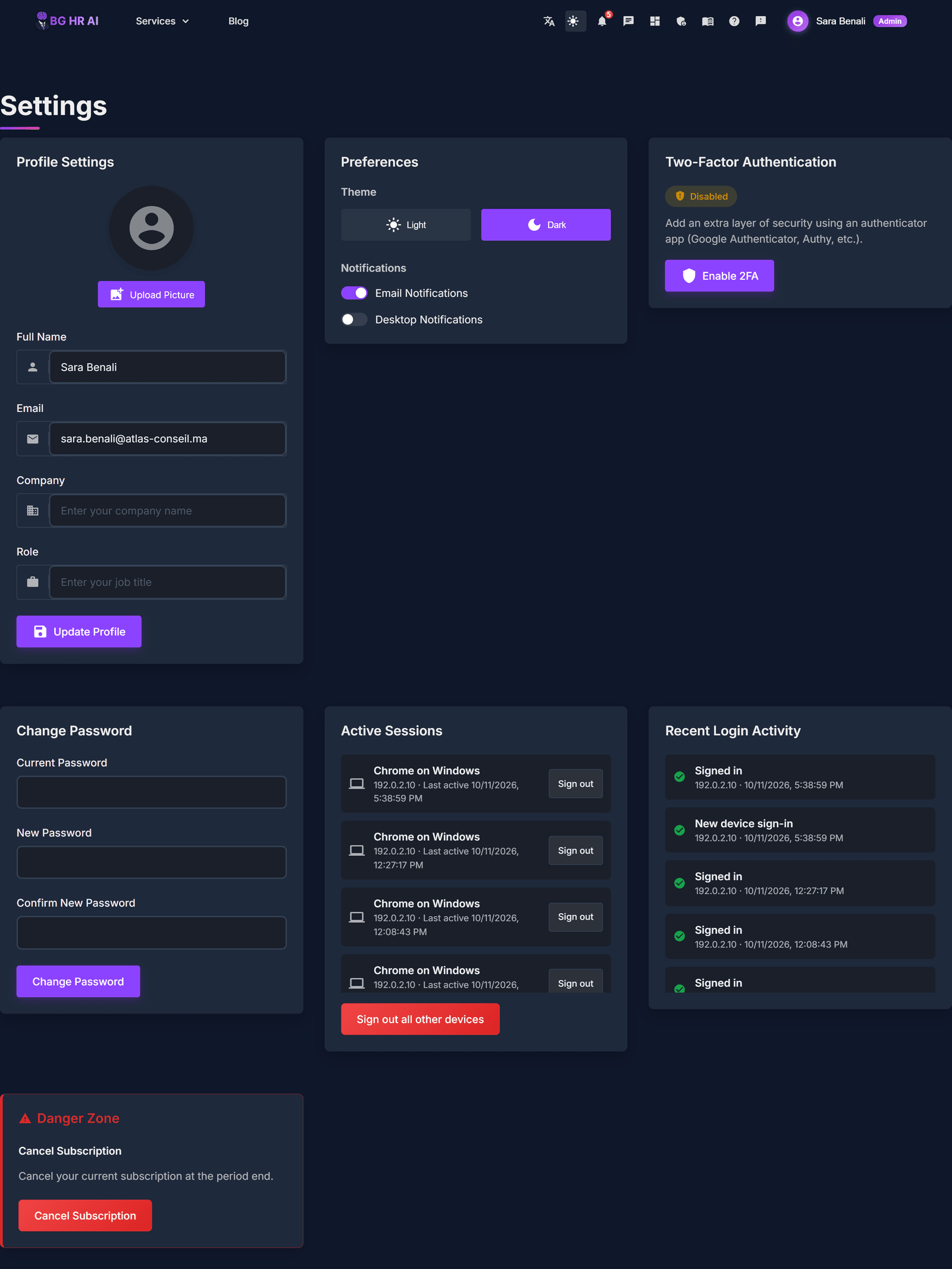
Open Settings
Click your name at the top right, then “Settings”.
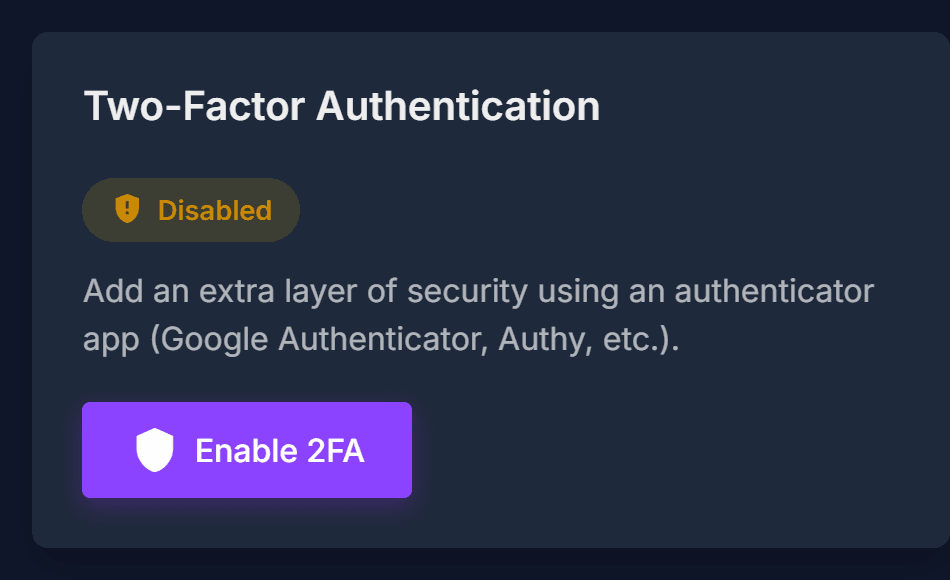
Turn on two-step login (2FA)
In “Two-Factor Authentication”, click “Enable 2FA”. Scan the QR code with an app like Google Authenticator or Authy, type the 6-digit code, and keep your backup codes somewhere safe.
See where you are logged in
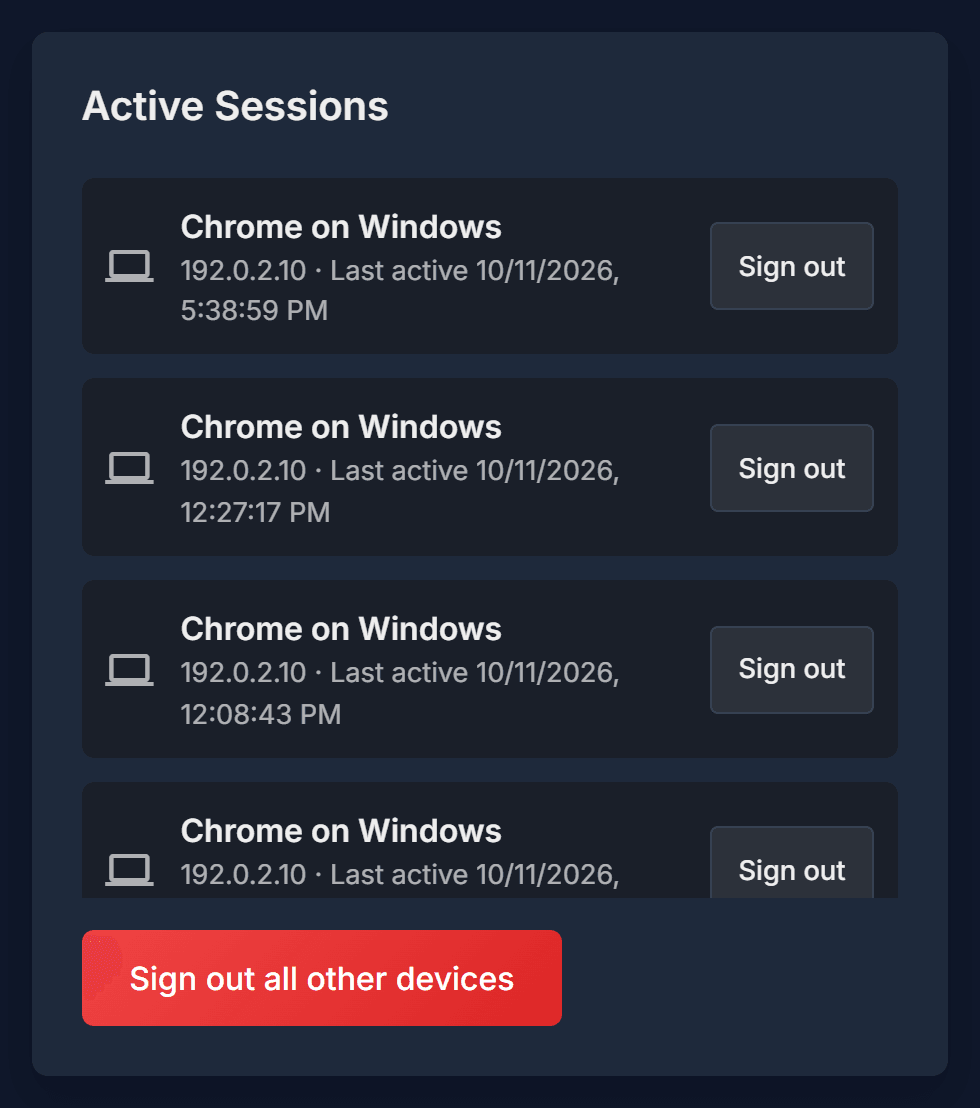
“Active Sessions” lists every device logged in to your account. You can sign out one device, or all the others at once.
Check recent activity
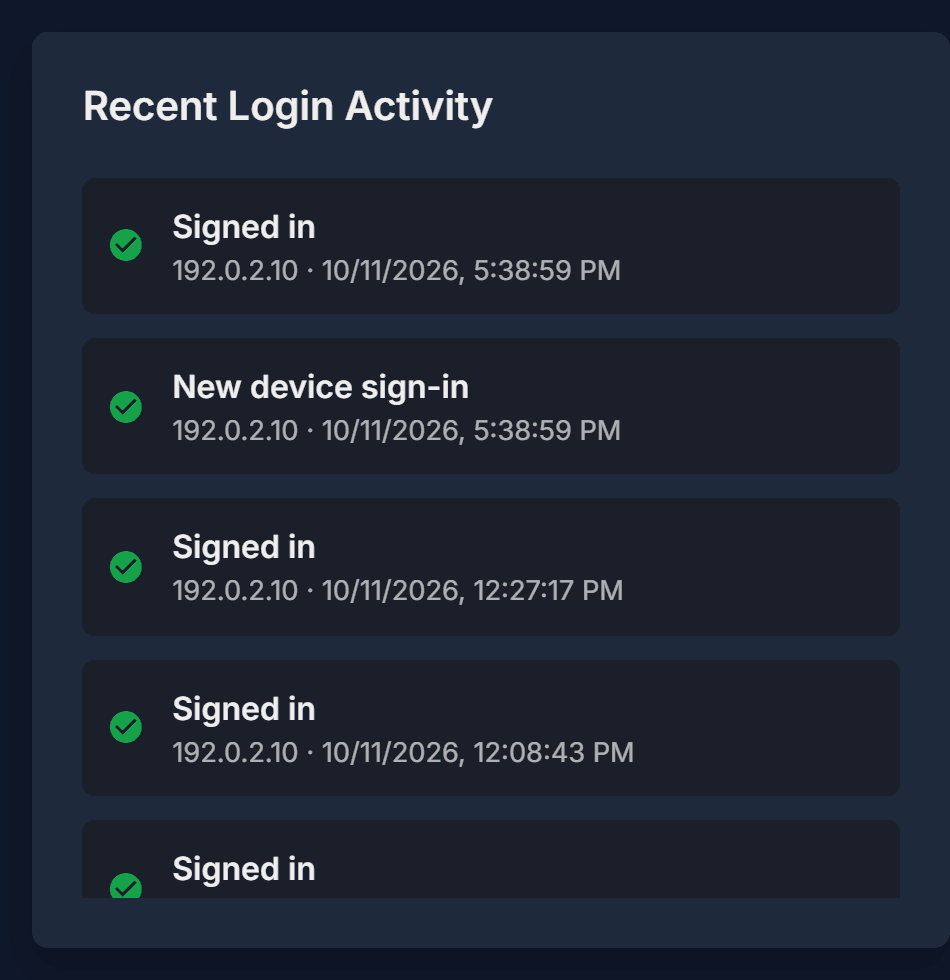
“Recent Login Activity” shows logins, failed attempts, password changes and new devices.
If you see a device or a login you don’t recognise, sign out all other devices and change your password.